


1. Introduction
The CV Visitor Management system is a centralized platform designed to streamline and manage visitor registration and tracking within an organization. It provides a structured and efficient approach to handling visitor activities, from registration and check-in to check-out and maintaining visitor records.
The system enables:
- Users to register visitors, enter their visit details, manage visitor information, and track visitor check-in and check-out activities.
- Administrators to manage visitor records, configure application settings, maintain system controls, and oversee visitor management activities.
Overall, the system enhances workplace security, improves visitor tracking, simplifies the registration process, and provides better visibility and control over visitor activities across the organization.
2. Dashboard
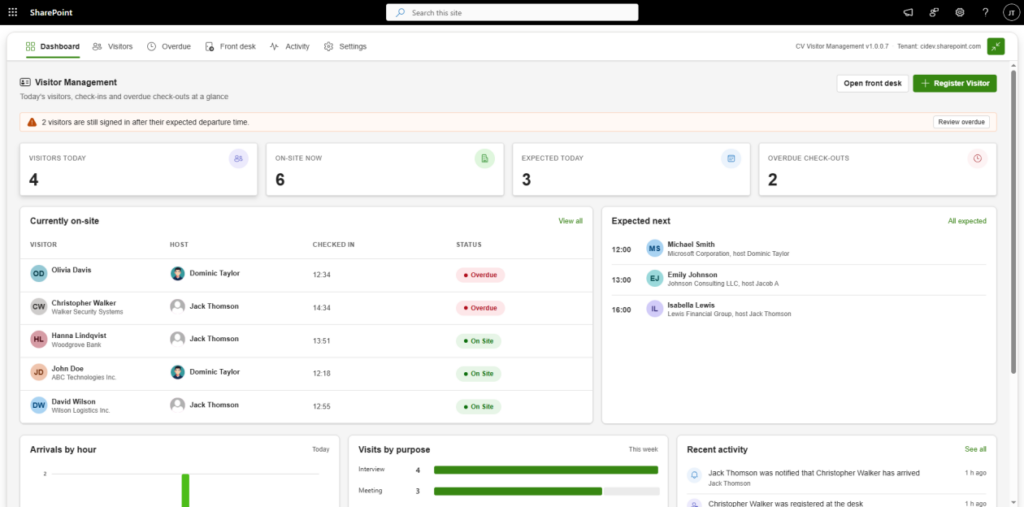
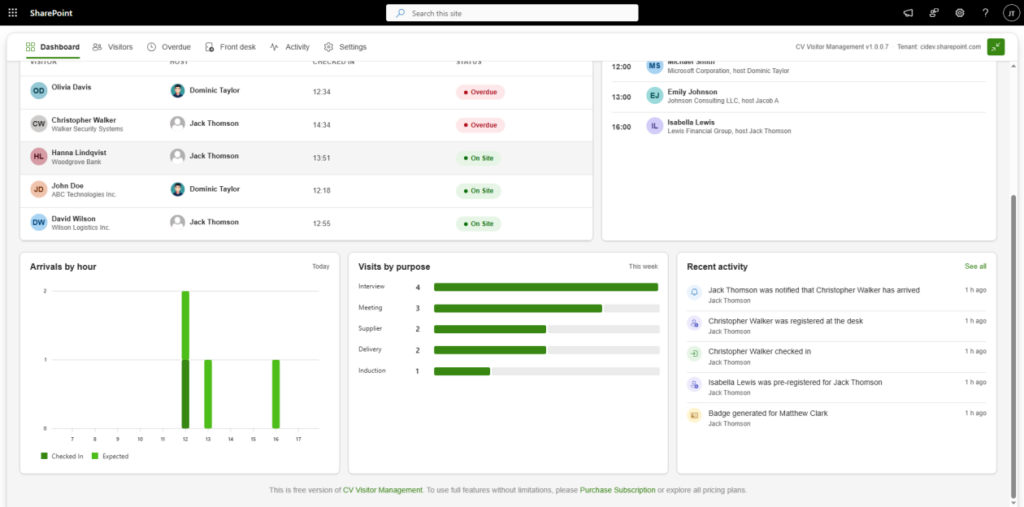
The Dashboard in CV Visitor Management provides a centralized overview of visitor activities, enabling users and administrators to monitor daily visits, track on-site visitors, and manage expected arrivals.
The dashboard includes the following sections: –
- Register Visitor – Allows users to register new visitors by entering their personal and visit details.
- KPI Summary – Displays key visitor statistics:
- Visitors Today – Displays visitors scheduled to visit today.
- On-Site Now – Displays all visitors who have checked in but not yet checked out, regardless of visit date.
- Expected Today – Displays pre-registered visitors scheduled for today who are still in Expected status and have not checked in.
- Overdue Check-outs – Displays all visitors who have checked in, whose expected departure time has passed, and who have not yet checked out, regardless of visit date.
- Currently On-site – Displays visitors who are currently checked in and present on the premises.
- Expected Next Visitors – Shows upcoming visitors along with their scheduled arrival and host details.
- Arrivals by Hour – Provides a graphical representation of visitor arrivals throughout the day.
- Visits by Purpose – Displays visitor statistics based on visit purposes, such as Delivery, Induction, Interview, Meeting, and Supplier.
- Recent Activity – Displays the latest visitor activities, including registrations, check-ins, check-outs, and notifications.
The Dashboard helps organizations maintain visibility of visitor movements, monitor daily activities, and manage visitor arrivals and departures efficiently.
3. Visitors
The Visitors section in CV Visitor Management provides a centralized view of all visitor records, including pre-registered, walk-in, and returning visitors. Users and administrators can search, filter, export, and view visitor information, along with their visit details and activity history.
3.1 Visitor List
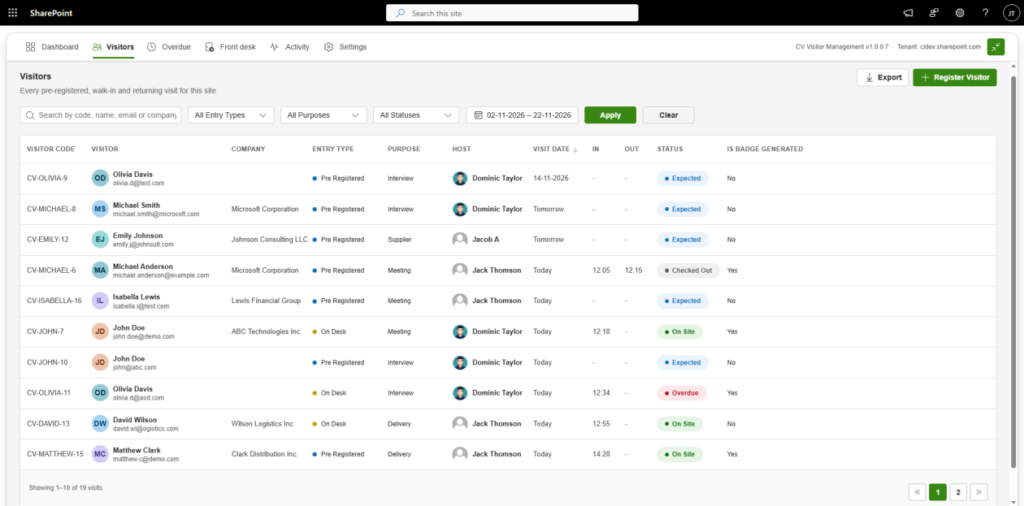
The Visitor List displays all registered visitors along with their contact information, visit details, host, check-in and check-out times, and current status.
Users and administrators can:
- Search Visitors – Search visitor records using visitor code, name, email, or company.
- Filter Visitors – Filter records by entry type, visit purpose, status, and date range.
- Export – Export visitor records for reporting and record-keeping.
- Register Visitor – Register a new visitor directly from the Visitors section.
- Visitor Details – Click a visitor record to open the details page and view complete visitor information.
3.2 Visitor Details
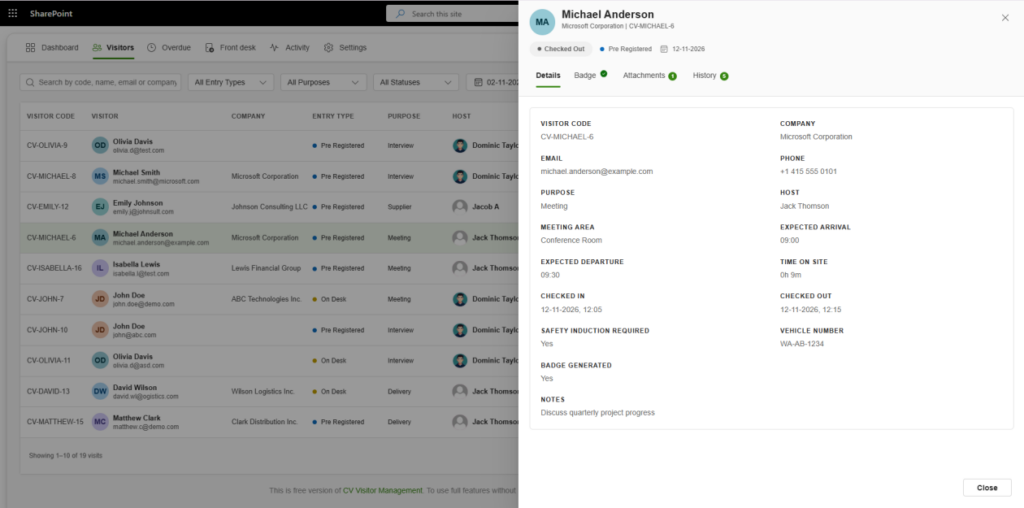
Clicking a visitor record opens the Visitor Details page, which provides complete information about the visitor and their visit.
The details page includes the following tabs:
- Details – Displays visitor information, including visitor code, company, email, phone, purpose, host, meeting area, expected arrival and departure, actual check-in and check-out times, safety induction, vehicle number, badge status, and notes.
- Badge – Displays the generated visitor badge, including its QR code and visitor information. Users can view the badge details for visitor identification.
- Attachments – Displays documents and files uploaded during visitor registration, allowing users and administrators to review the associated attachments.
- History – Displays the visitor’s activity history, including registration, check-in, check-out, and other recorded visitor-related activities.
The Visitor Details drawer provides a complete view of visitor information, supporting efficient visitor tracking, identification, and record management.
3.3 Register Visitor
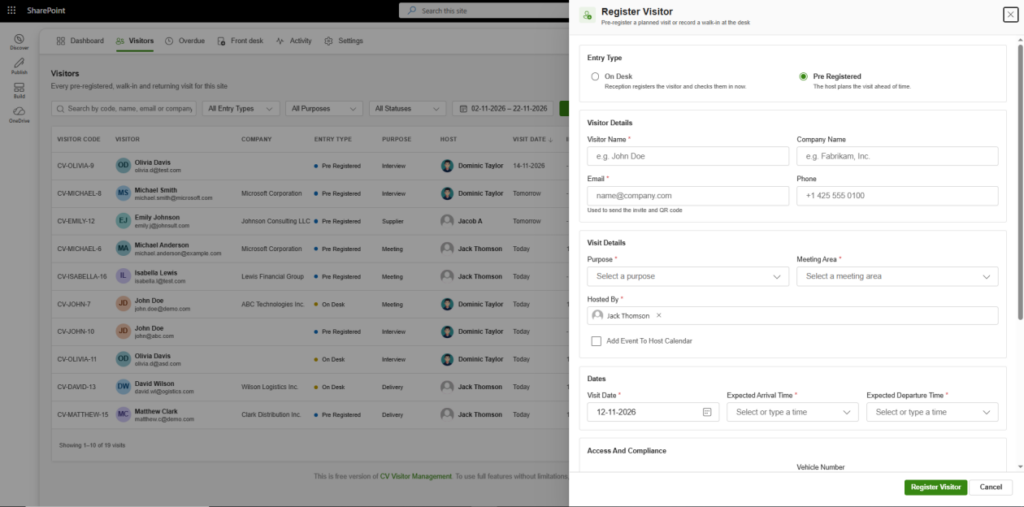
The Register Visitor form allows users and administrators to register a new visitor by entering their personal information, visit details, expected arrival and departure times, and other relevant information.
The form includes the following sections:
- Entry Type – Select the visitor entry type: On Desk or Pre-Registered.
- Visitor Details – Enter the visitor’s name, company name, email address, and phone number.
- Visit Details – Select the visit purpose and meeting area, assign the host, and optionally add the event to the host’s calendar.
- Dates – Specify the visit date, expected arrival time, and expected departure time.
- Access and Compliance – Indicate whether safety induction is required and enter the visitor’s vehicle number, if applicable.
- Notes and Attachments – Add additional notes and upload relevant documents or supporting files.
After entering the required information, click Register Visitor to save the visitor record.
4. Overdue Check-outs
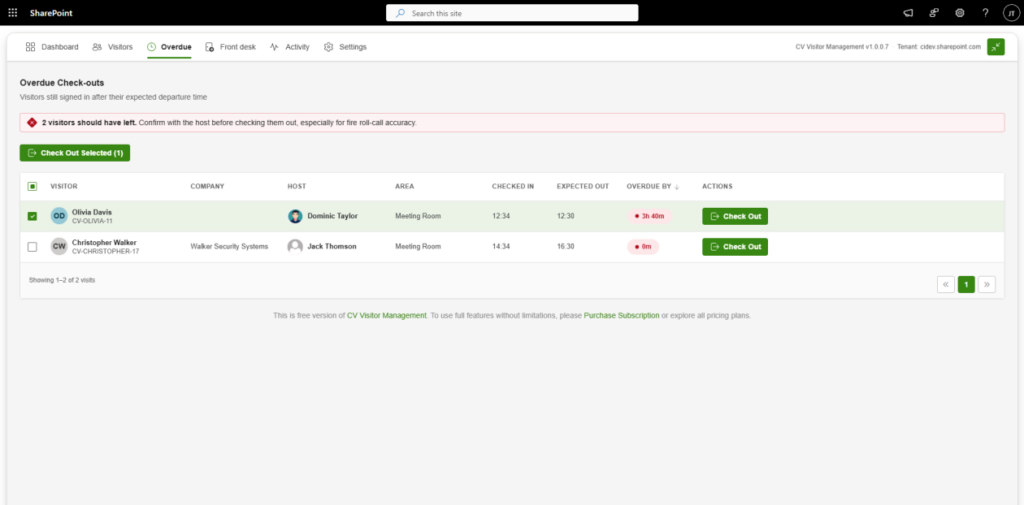
The Overdue Check-outs section displays visitors who are still on-site after their expected departure time. It helps users and administrators identify pending check-outs and ensure accurate visitor records.
Users and administrators can:
- Overdue Visitors – View visitors whose expected departure time has passed but who have not yet checked out.
- Visitor Information – View visitor name, company, host, meeting area, check-in time, expected departure time, and overdue duration.
- Individual Check-out – Check out a visitor directly using the Check Out action.
- Bulk Check-out – Select multiple visitors and use Check Out Selected to process their check-outs together.
- Visitor Details – Select a visitor record to open the details page and complete the check-out process.
5. Front Desk
The Front Desk section allows users and administrators to manage visitor check-in and check-out through a guided process. Visitors can be identified using their visitor code or name, ensuring accurate and efficient visitor entry and departure management.
5.1 Check-In Process
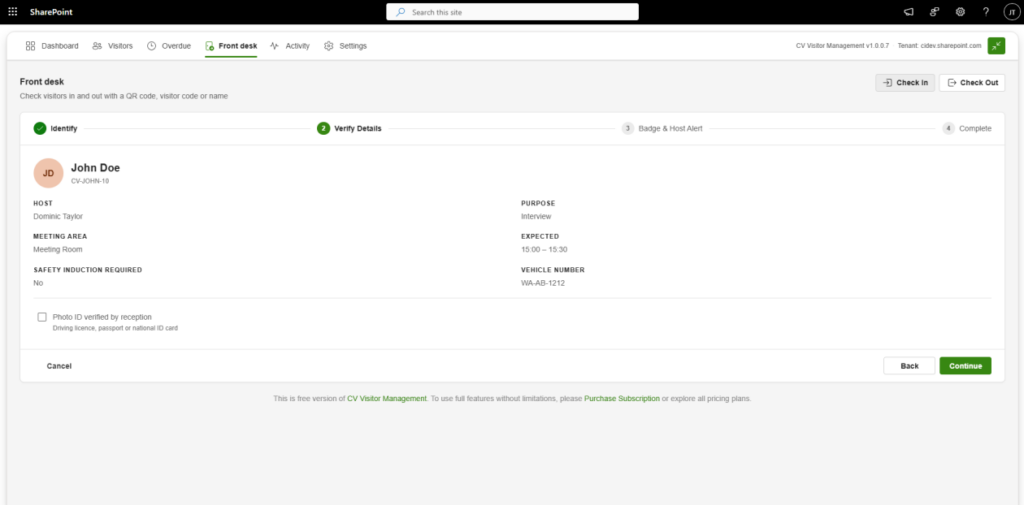
The check-in process includes the following steps:
- Identify Visitor – Enter the visitor’s name or visitor code to identify a pre-registered visitor. Walk-in visitors can be registered directly from the Front Desk.
- Verify Details – Review and confirm the visitor’s information and visit details.
- Badge & Host Alert – Preview the visitor badge, choose whether to notify the host, and print the visitor badge.
- Complete – Confirm the check-in to update the visitor’s status to On Site.
5.2 Check-Out Process
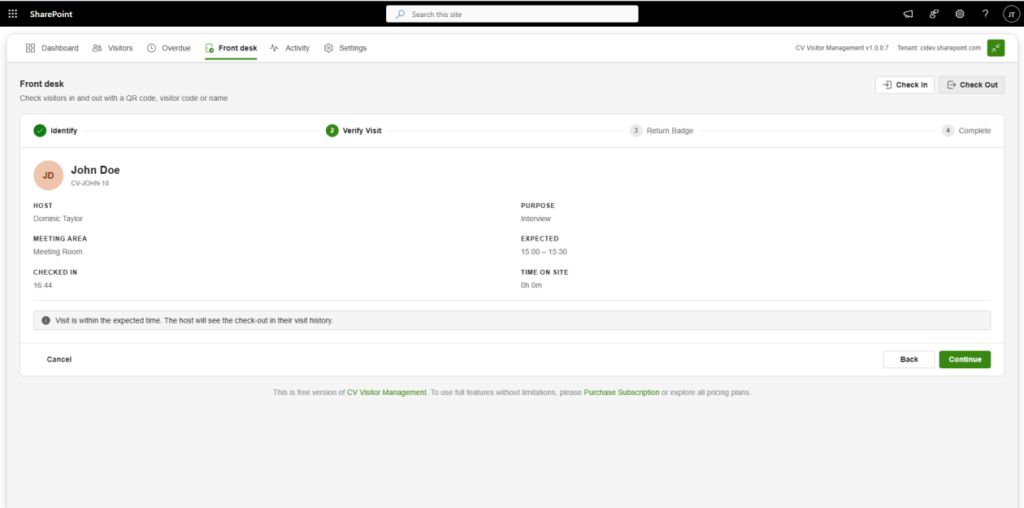
The check-out process follows a similar guided workflow:
- Identify Visitor – Identify the visitor using their name or visitor code.
- Verify Details – Review and confirm the visitor’s details and check-in information.
- Return Badge & Feedback – Record the returned visitor badge, provide a visit rating, and optionally add comments about the visit.
- Complete – Confirm the check-out to update the visitor’s status to Checked Out.
The Front Desk simplifies visitor arrival and departure management while supporting badge handling, host notifications, and visitor feedback.
6. Activity
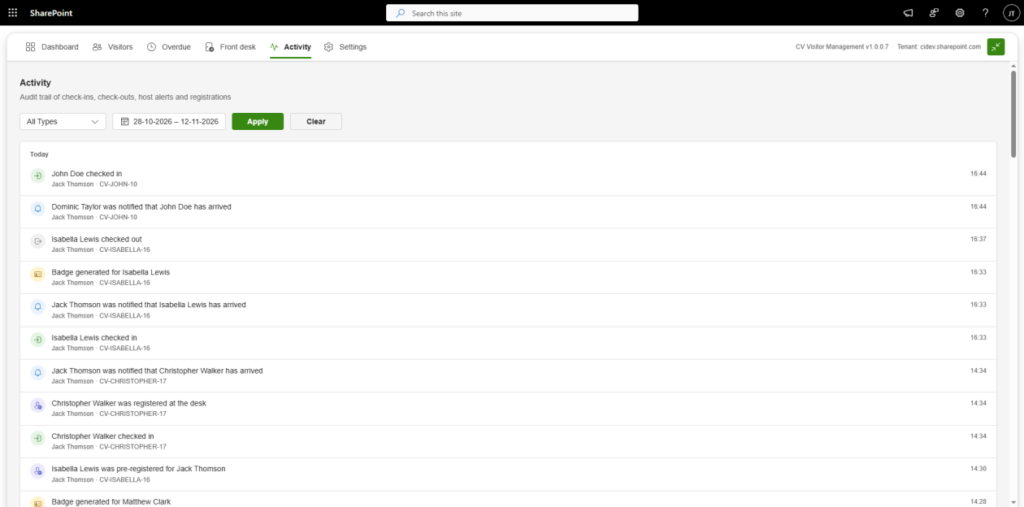
The Activity section provides an audit trail of visitor-related activities, including registrations, check-ins, check-outs, badge generation, and host notifications.
The Activity section displays the latest 15 days of records by default. Users and administrators can:
- Activity Type Filter – Filter activity records based on the selected activity type.
- Date Range Filter – Select a custom date range to view activities within a specific period.
Each activity record displays the activity description, associated user, visitor information, and activity time.
This section helps users and administrators monitor visitor-related operations and maintain a clear audit trail of system activities.
7. Settings (Admin Only)
The Settings section allows Admins to configure system behavior, manage visitor-related settings, and customize visitor management workflows across the organization.
7.1 General Settings
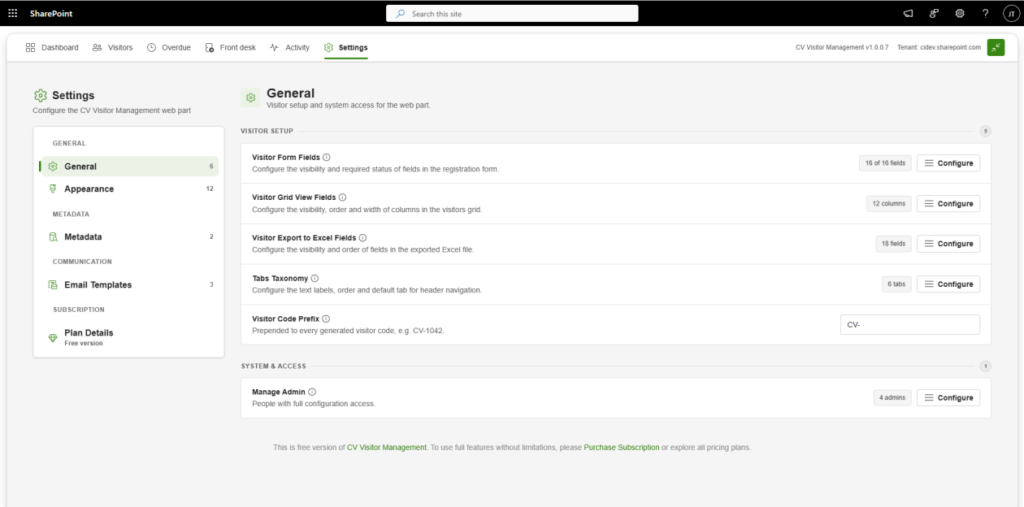
The General Settings section enables Admins to define and manage visitor-related configurations.
The General Settings section includes the following configurations:
- Visitor Form Fields – Configure field visibility and mandatory requirements in the visitor registration form.
- Visitor Grid View Fields – Configure the columns, display order, and width of fields shown in the Visitors grid.
- Visitor Export to Excel Fields – Configure the fields and their display order in exported Excel files.
- Tabs Taxonomy – Customize navigation tab names and the default tab displayed when users open the application.
- Visitor Code Prefix – Configure the prefix used when generating unique visitor codes.
System Access: –
The System Access section allows administrators to manage application administrator permissions.
Administrators can:
- Add Admin – Add a user as an application administrator.
- Remove Admin – Remove administrator access from a user.
7.2 Appearance
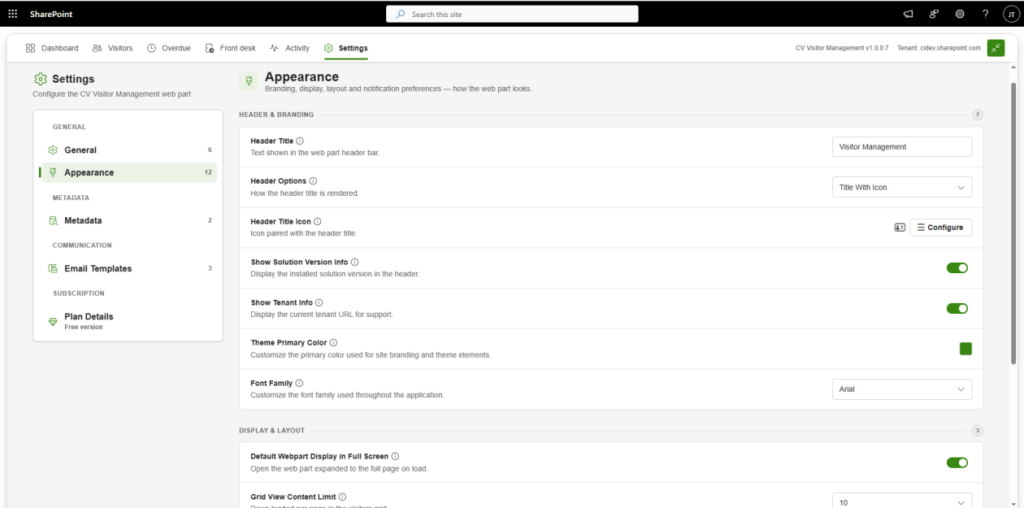
The Appearance section allows administrators to customize the application’s visual presentation, date display, and notification behaviour according to their preferences.
- Header Title – Set the title displayed in the application header.
- Header Icon – Select the icon displayed alongside the application title.
- Primary Colour – Choose the primary colour used throughout the application.
- Font Family – Configure the font family used across the application.
- Date Format – Select the date format used for displaying visitor records and dates.
- Default Web Part Full Screen – Configure whether the application opens in full-screen mode by default.
- Show Toast Message – Enable or disable in-app toast notifications displayed after user actions.
- Toast Position – Choose where toast notifications appear on the screen.
- Grid View Content Limit – Set the maximum number of visitor records displayed per page in the grid view.
7.3 Meta Data
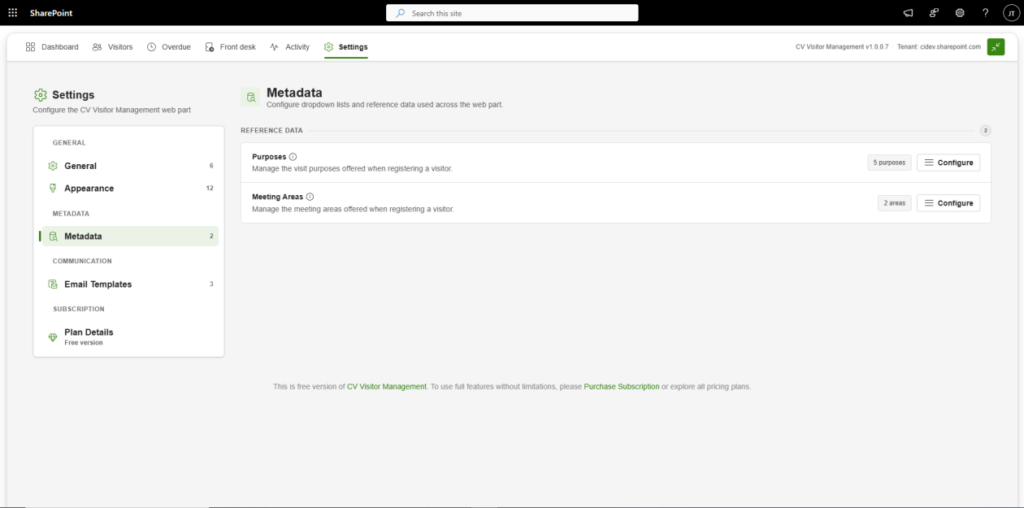
The Metadata section in CV Visitor Management allows administrators to configure common values used throughout the application. These settings help maintain consistent visitor information and provide flexibility to customize options according to organizational requirements.
- Purposes – Add, edit, or manage visitor purposes, such as Delivery, Induction, Interview, Meeting, and Supplier.
- Meeting Areas – Add, edit, or manage meeting areas, such as Conference Room and Meeting Room, to define the locations where visitors will meet their hosts.
7.4 Email Templates
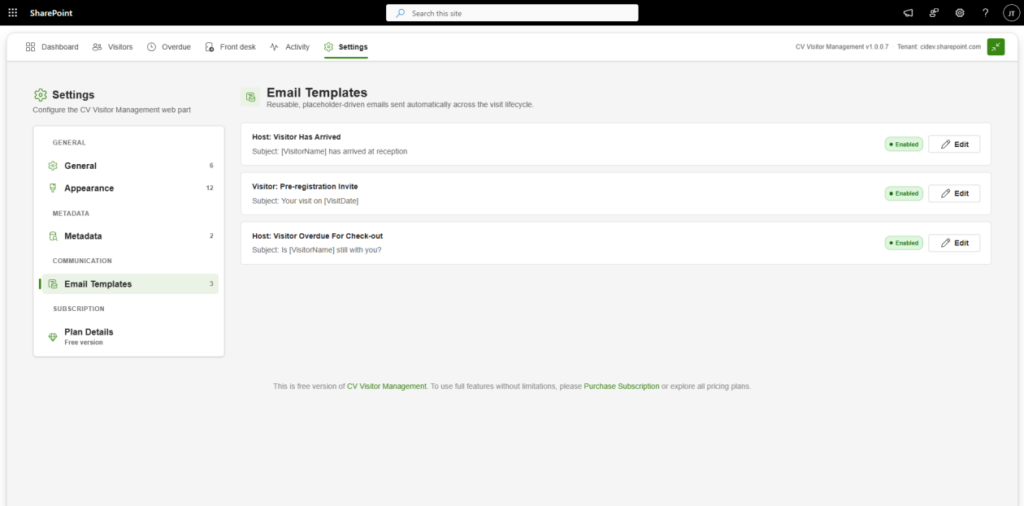
The Email Templates section allows administrators to customize the email communications sent automatically throughout the visitor management process.
Administrators can configure the following email templates:
- Host: Visitor Has Arrived – Customize the email notification sent to the host when a visitor arrives and completes the check-in process.
- Visitor: Pre-registration Invite – Configure the invitation email sent to visitors with their visit details before their scheduled arrival.
- Host: Visitor Overdue for Check-out – Customize email notifications sent to the host when a visitor remains on-site beyond their expected departure time.
Administrators can edit email subjects and content, manage template availability, and use placeholders to include dynamic visitor information.
These settings help ensure timely communication between visitors and hosts throughout the visitor registration, arrival, and departure processes.
7.5 Subscription and Plan Details
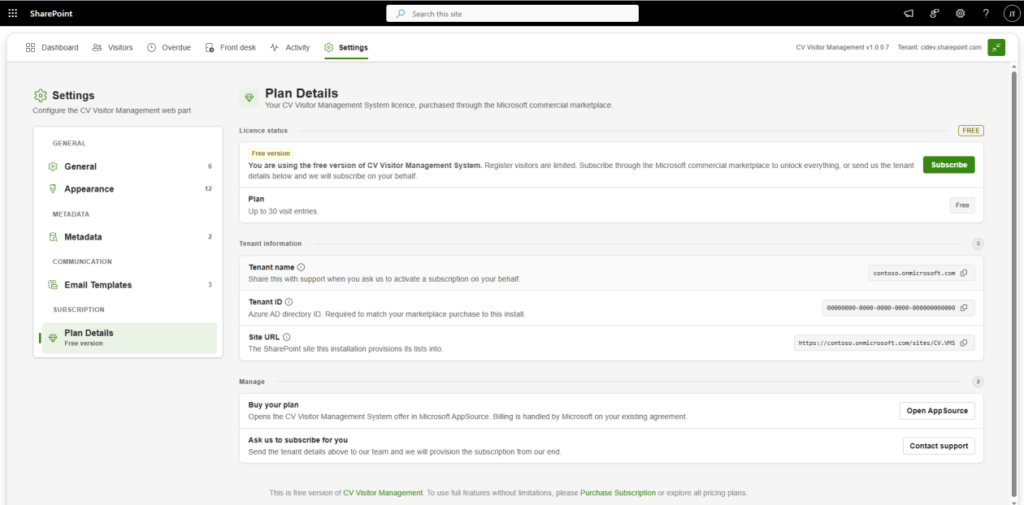
The Plan Details section provides administrators with information about the CV Visitor Management subscription, licensing status, and SharePoint tenant.
Administrators can view and access the following information:
- License Status – View the current subscription and license status.
- Plan Information – View the subscribed plan and its associated features.
- Next Renewal – Check the upcoming subscription renewal date.
- Tenant Name – View the SharePoint tenant name associated with the installation.
- Tenant ID – View the Microsoft Entra ID tenant identifier required for subscription support and verification.
- Site URL – View the SharePoint site URL where the application is installed.
- Buy Your Plan – Access CV Visitor Management subscription purchasing options through Microsoft AppSource.
- Contact Support – Request assistance with subscription activation, licensing, or provisioning.
These details help administrators monitor subscription information, manage licensing, and access purchasing and support resources.
8. System Limitations – Free Version
The Free Version of CV Visitor Management includes limited functionality. The following restriction applies:
- Maximum of 30 visitor entries.
If a user attempts to exceed this limit, the system will display a Premium Upgrade popup.