


1. Introduction
CV Helpdesk is a SharePoint-based ticket management system designed to help organizations efficiently create, track, assign, and resolve support requests.
The system provides a centralized platform for managing tickets, departments, priorities, statuses, assigned agents, and requester information.
CV Helpdesk also provides a dashboard for monitoring ticket activity and performance, while the Settings section allows administrators to configure ticket fields, statuses, departments, email templates, shared mailboxes, and automation rules.
2. Dashboard
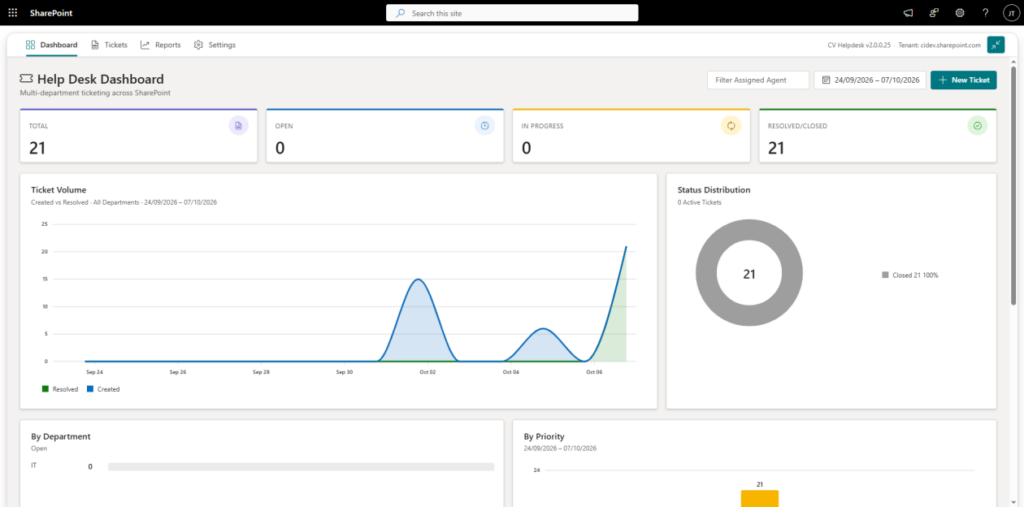
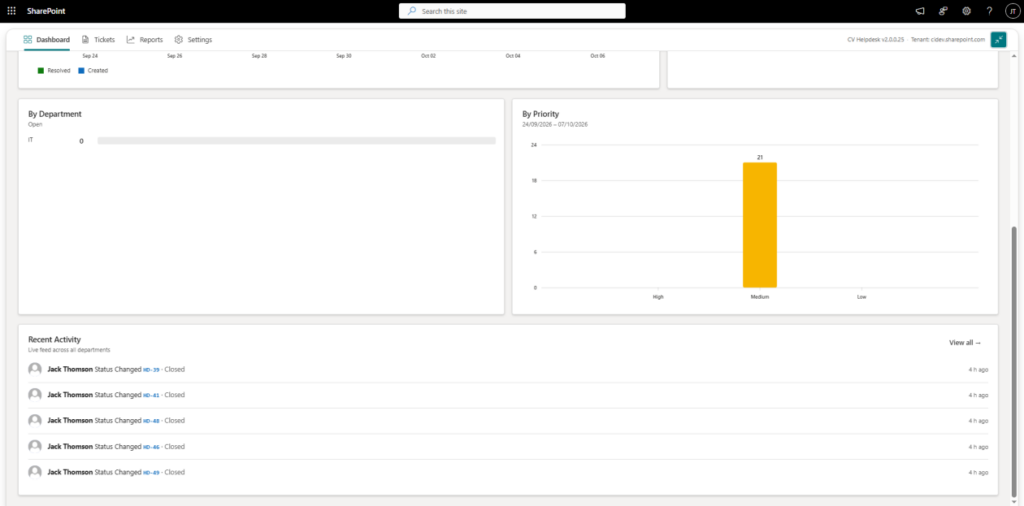
The Dashboard in CV Helpdesk provides a centralized view of activities, enabling users to quickly monitor ticket volume, status, priority, and department-wise workload.
The dashboard provides key information such as:
- Total Tickets – Displays the total number of tickets.
- Open Tickets – Shows tickets that are currently open.
- In Progress – Displays tickets currently being worked on.
- Resolved/Closed – Shows completed support requests.
Below the summary section, the Ticket Volume chart provides a visual representation of tickets created and resolved over the selected period.
The dashboard also includes detailed sections:
- Status Distribution – Shows the distribution of tickets based on their current status.
- By Department – Displays ticket counts for departments such as IT and HR.
- By Priority – Provides an overview of tickets based on Low, Medium, High, and Critical priority.
- Recent Activity – Displays the latest ticket creation and status updates for quick monitoring.
2.1 Add Ticket
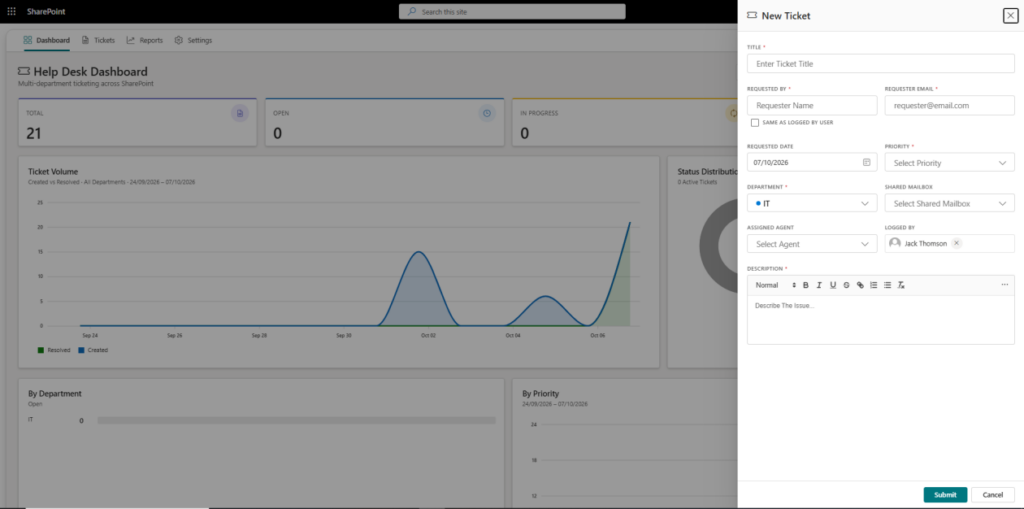
The Add Ticket feature allows users to create and store new tickets in the system, ensuring that all support requests are maintained in a centralized and structured manner.
Users can access this feature by clicking the “+ New Ticket” button available on the Dashboard or Tickets page.
Users can raise tickets either by manually logging them through the system or by sending an email to the corresponding shared mailbox configured in the system. Tickets received through email are automatically logged based on the rules defined by the administrator.
3. Tickets
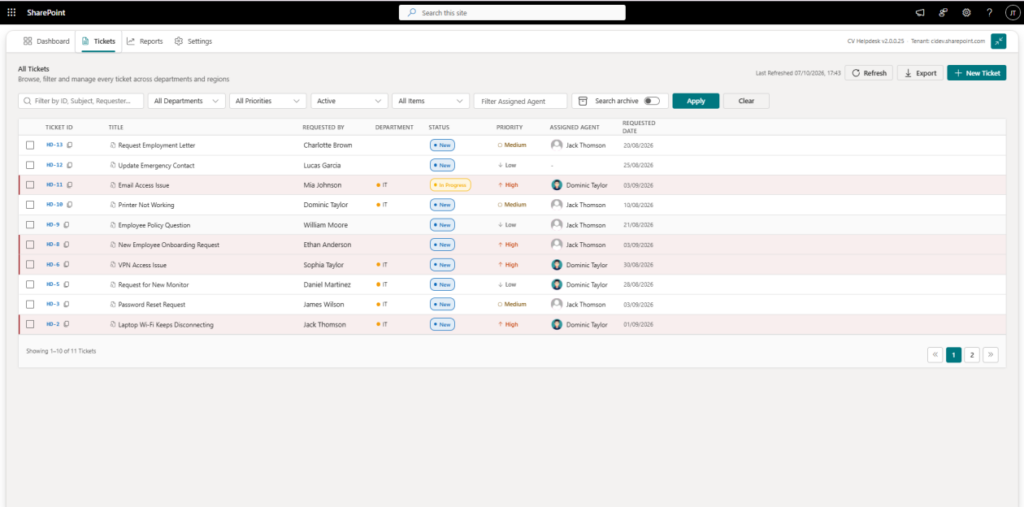
The Tickets section provides a comprehensive list of all tickets available in the system. It enables users to view, search, filter, and manage support requests efficiently.
Users can utilize the search and filtering functionality to quickly find specific tickets based on Ticket ID, Title, Requester, Department, Priority, Status, and Assigned Agent.
Users can also refresh and export ticket records for reporting and further analysis.
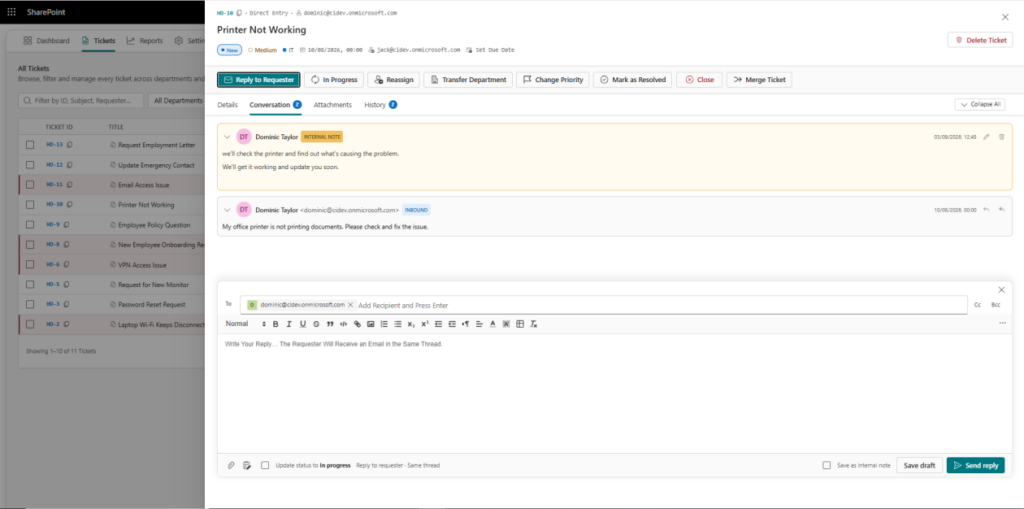
Users can click on a Ticket Title to open the detailed ticket view, where they can manage and track the complete ticket lifecycle.
The ticket details page provides various actions, including:
- Reply to Requester – Communicate directly with the requester and provide updates.
Note :- Agents must have “Send As” or “Send on Behalf Of” permission for the configured shared mailbox to reply to requesters.
- Change Status – Update the ticket status as required.
- Assign – Assign the ticket to a specific support agent.
- Transfer Department – Move the ticket to another department.
- Change Priority – Update the ticket priority based on its urgency.
- Mark as Resolved – Mark the ticket as resolved once the issue is addressed.
- Close – Close the ticket after completion.
- Merge Ticket – Merge related or duplicate tickets into a single ticket.
Below the ticket information, users can access different sections:
- Details – View complete ticket information.
- Conversation – View and reply to communications with the requester.
- Attachments – View and manage files associated with the ticket.
- History – View the ticket’s previous changes and actions.
The ticket page also provides an Activity/History view, allowing users to track all actions and updates performed on the ticket for better visibility and accountability.
4. Reports
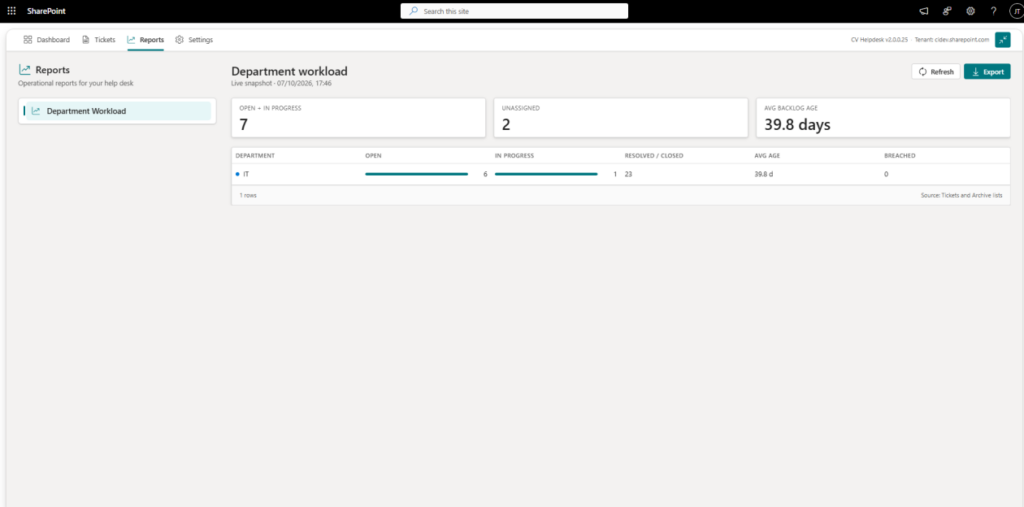
The Reports section provides operational insights into helpdesk support workload and ticket performance, helping administrators and support teams monitor the current workload across departments.
The Department Workload report provides a live snapshot of ticket activity, including:
- Open + In Progress – Displays the total number of active tickets currently being handled.
- Unassigned – Shows tickets that have not yet been assigned to a support agent.
- Average Backlog Age – Displays the average age of outstanding tickets.
- Department Workload – Provides a department-wise breakdown of Open, In Progress, Resolved/Closed, Average Age, and Breached tickets.
Users can also Refresh the report to view the latest ticket information and Export the report for further analysis or reporting purposes.
5. Settings
The Settings section in CV Helpdesk allows administrators to configure system behavior, manage email templates, and control Appearance, Email, Shared Mailboxes, Rule Engine, Departments and general application settings. This section ensures flexibility and customization based on organizational needs.
5.1 General
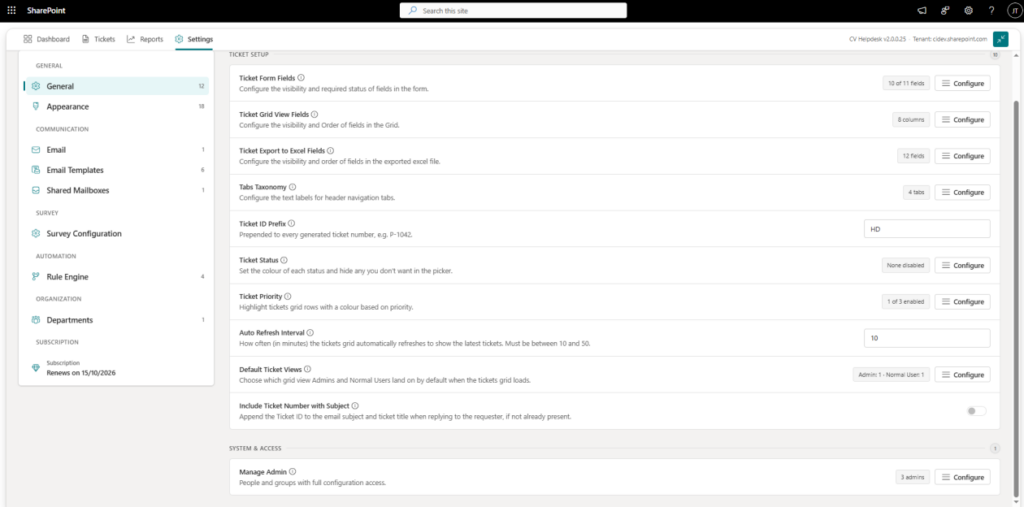
The General section allows administrators to configure the core ticketing and system settings of CV Helpdesk. It provides options to customize ticket fields, grid views, exports, navigation, ticket numbering, statuses, priorities, refresh behavior, default views, administrator access, and automation settings.
Administrators can configure:
- Ticket Form Fields – Configure the visibility and required status of fields used in the ticket form.
- Ticket Grid View Fields – Configure the visibility and order of fields displayed in the Tickets grid.
- Ticket Export to Excel Fields – Configure the visibility and order of fields included in exported Excel files.
- Tabs Taxonomy – Customize the text labels displayed in the main navigation tabs.
- Ticket ID Prefix – Configure the prefix added to every generated ticket number.
- Ticket Status – Configure available ticket statuses, their colors, and whether they are available in the status picker.
- Ticket Priority – Configure priority-based row highlighting in the Tickets grid.
- Auto Refresh Interval – Set how frequently the Tickets grid automatically refreshes to display the latest ticket information. The interval can be configured between 10 and 50 minutes.
- Default Ticket Views – Configure the default grid view that Administrators and Normal Users see when the Tickets page loads.
- Include Ticket Number with Subject – Automatically append the Ticket ID to the ticket title and email subject when replying to a requester, if it is not already included.
- Manage Admin – Manage the people and groups that have full configuration and administrative access to CV SharePoint Helpdesk.
5.2 Appearance
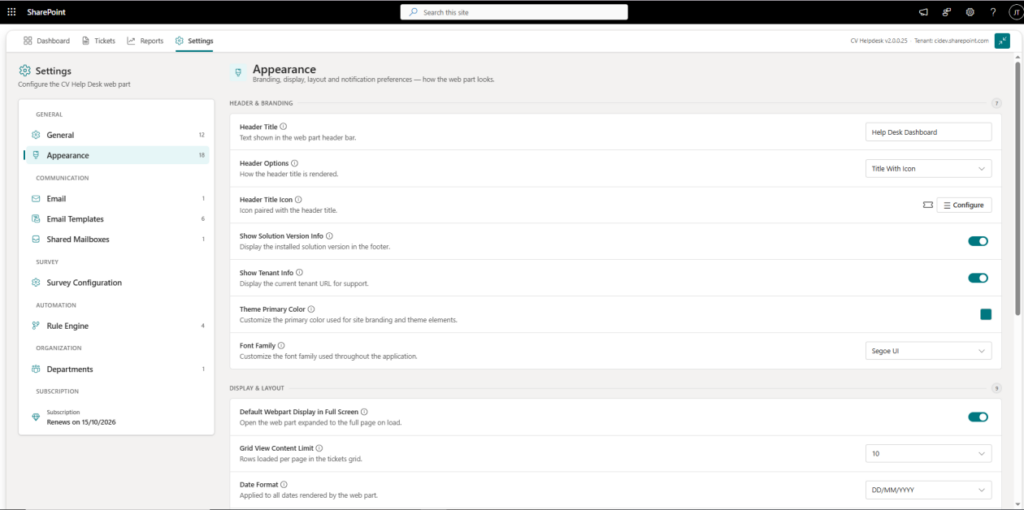
The Appearance section allows administrators to customize the visual appearance and display behavior of the CV Helpdesk application according to organizational requirements.
Administrators can configure:
- Header Title – Set the title displayed in the application header.
- Header Options – Configure the available header display options.
- Header Icon – Set the icon displayed with the application title.
- Solution Version – Configure the solution or application version information.
- Tenant Information – Display or configure tenant-related information.
- Primary Theme Color – Customize the primary color used throughout the application.
- Font Family – Select the font family used across the application.
- Grid View Content Limit – Configure the number of records displayed in grid views.
- Date Format – Set the date format used throughout the application.
- Show Note Section – Control whether the note section is displayed where applicable.
- User Display Name – Configure how the logged-in user’s name is displayed.
- Toast Message – Enable or disable notification messages displayed after actions.
- Toast Position – Configure the position where toast notifications appear on the screen.
5.3 Email Templates
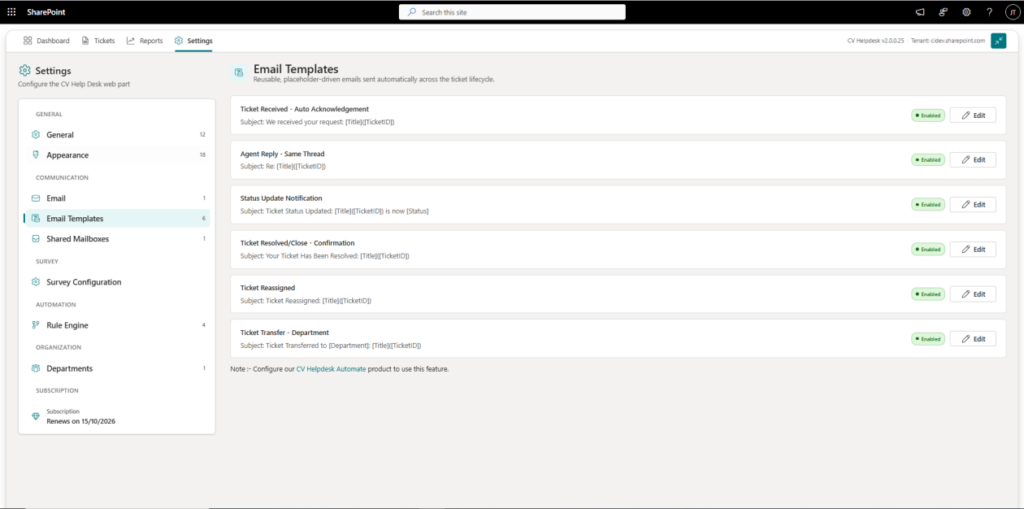
Administrators can:
- Edit Email Templates – Customize the subject and message content of predefined email templates.
- Configure Email Content – Modify the information included in emails sent for different ticket-related activities.
- Use Placeholders – Insert dynamic ticket or requester information into email templates where supported.
- Set Email Signature – Configure a standard email signature that can be automatically included in outgoing emails.
5.4 Shared Mailboxes
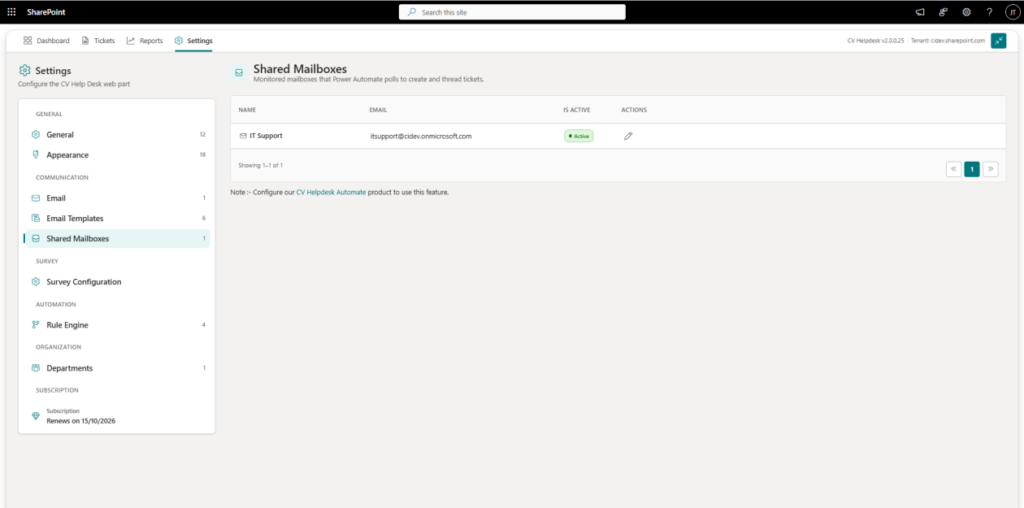
The Shared Mailboxes section allows administrators to manage the shared email mailboxes used by CV Helpdesk for receiving and processing support requests.
Administrators can:
- Add Shared Mailbox – Add a new shared mailbox with its name and email address.
- Activate/Deactivate Mailbox – Control whether a shared mailbox is currently active.
- Configure Flow – Configure the Power Automate flow associated with the mailbox for ticket creation and email processing.
Configure CV Helpdesk Automate before setting up the Shared Mailbox. Open the CV Help Desk – IT New Email Arrives flow in Power Automate, copy the value after flows/ from the URL, and paste it into the Shared Mail Flow ID field.
To get the Flow ID:
– Open the CV Helpdesk Automate solution in Power Automate.
– Find and open the CV Help Desk – IT New Email Arrives flow.
– Copy the Flow ID from the browser URL. The Flow ID is the value that appears after flows/ in the URL.
– Paste the copied Flow ID into the Shared Mail Flow ID field.
Example URL:
https://make.powerautomate.com/…/flows/12345678-abcd-1234-abcd-1234567890ab/details
Flow ID:
12345678-abcd-1234-abcd-1234567890ab
- Manage Mailboxes – View and edit existing shared mailbox configurations.
This feature helps organizations manage support requests received through different departmental mailboxes and automate ticket creation and email threading.
5.5 Survey Configuration
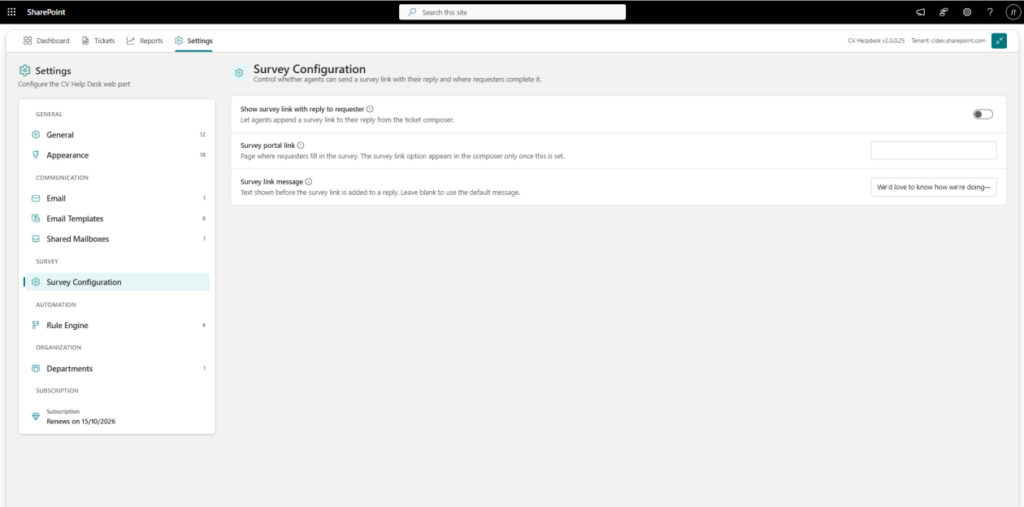
The Survey Configuration section allows administrators to configure customer satisfaction surveys for ticket replies. It enables agents to include a survey link when responding to requesters and allows administrators to define where requesters can complete the survey.
Administrators can configure:
- Show Survey Link with Reply to Requester – Enable or disable the option for agents to include a survey link when replying to requesters.
- Survey Portal Link – Configure the URL of the page where requesters can complete the survey.
- Survey Link Message – Customize the message displayed before the survey link is added to the ticket reply. If left blank, the system uses the default message.
This feature helps organizations collect requester feedback and measure the quality of support provided by the help desk.
5.6 Rule Engine
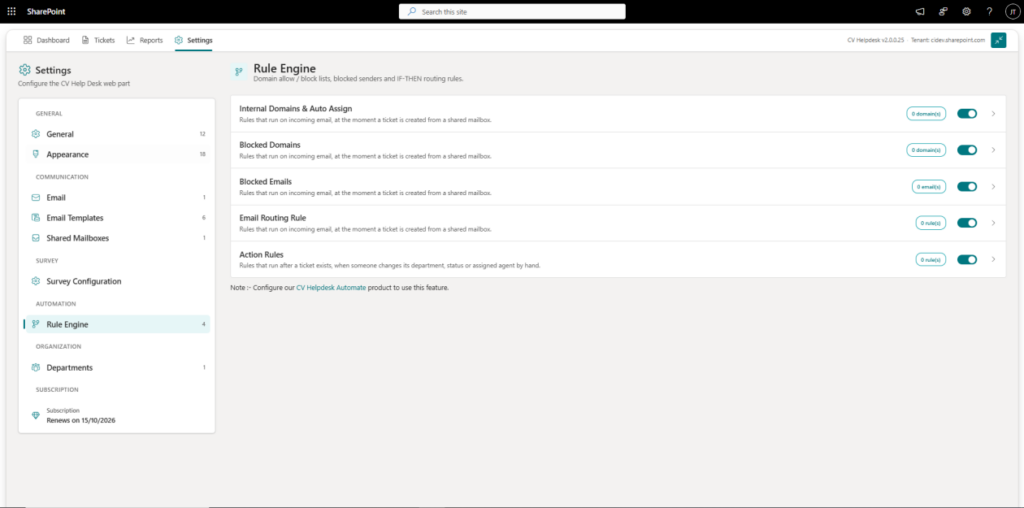
The Rule Engine section allows administrators to configure rules that control how incoming support emails and tickets are processed automatically.
Administrators can configure:
- Internal Domains & Auto Assign – Automatically assign tickets to the appropriate users based on configured internal email domains.
- Blocked Domains – Prevent ticket creation from configured email domains.
- Blocked Emails – Prevent ticket creation from specific email addresses.
- Email Routing Rules – Create IF/THEN rules to automatically assign, transfer, close, or change the priority of tickets when specific conditions are met.
This feature helps automate ticket routing and filtering, reducing manual effort and ensuring tickets are directed to the appropriate department or support agent.
5.7 Departments
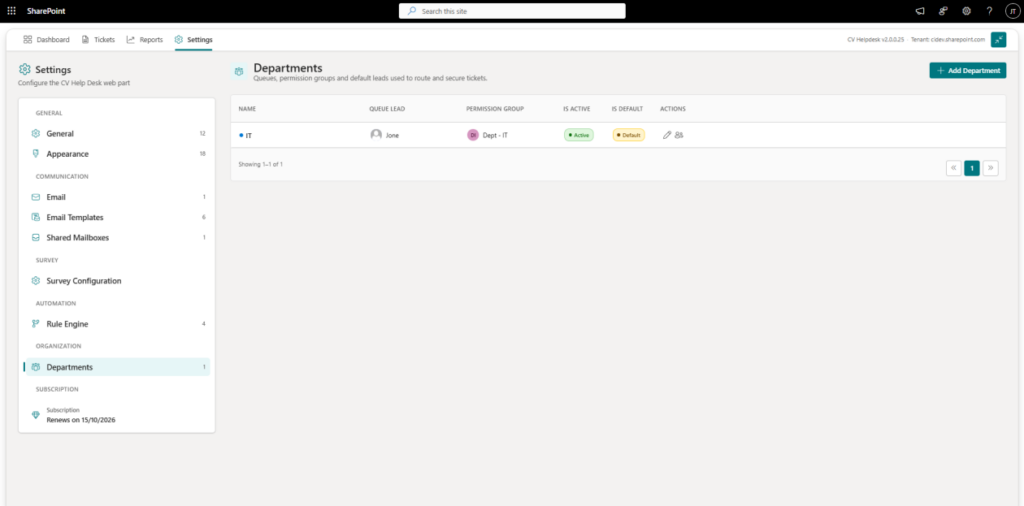
The Departments section allows administrators to view and manage the departments available in CV Helpdesk. Departments help organize support requests and ensure tickets are handled by the appropriate teams.
Administrators can:
- View Departments – View all departments configured in the system.
- Add Department – Create a new department by providing the department name and queue lead.
- Configure Permission Group – Assign an existing permission group or automatically create one for the department.
- Set Department Color – Configure a color to identify the department across the application.
- Activate/Deactivate Department – Control whether a department is available for use.
- Set Default Department – Configure a department as the default department for the system.
Once a department is added and activated, it is available throughout the system, such as in ticket creation, ticket filtering, assignment, routing, and reporting.
6. System Limitations – Free Version
- The Free Version of CV Helpdesk includes limited functionality and usage restrictions. Upgrade to a paid subscription to unlock the full features of the platform.
- The Free Version includes limitations on selected features and records.
- If a user attempts to access a feature or exceed the allowed limits, the system will display a Premium Upgrade popup.
- The free version provides limited functionality. To use the full capabilities of CV Helpdesk, users need to activate or purchase a subscription.
- Please Purchase Subscription to learn more about available plans and licensing options.