


1. Overview
- The CV Leave Request system is a centralized platform designed to streamline and manage employee leave requests within an organization. It provides a structured and efficient approach for handling leave processes across different roles.
- The system enables:
- Employees to apply for leave and track the status of their requests
- Managers to review, approve, or reject leave applications submitted by their team members and can Apply their own Leave
- Administrators to configure holidays, manage leave settings, and maintain system controls
- Overall, the system enhances transparency, simplifies leave tracking, and improves the efficiency of leave management processes across the organization.
2. User Roles and Access
- The system operates based on three user roles:
2.1 Normal User (Employee)
- A Normal user can:
- Apply for leave
- View leave status
- Withdraw pending leave requests
- View upcoming holidays
2.2 Manager
- A Manager has all Normal user permissions and can additionally:
- View their team leave requests
- Approve or reject leave requests
- Apply for their own leave requests and view there leave status
- View team members who are on leave
2.3 Admin
- Admin users have full access to the system, including:
- Managing holidays
- Configuring system settings
- Managing notifications and email templates
Note: Roles are assigned through SharePoint Groups.
3. Dashboard
- The dashboard provides a centralized view of leave-related information, allowing employees and managers to quickly understand leave balances, track requests, and plan accordingly.
3.1 Dashboard for Employees
- The dashboard includes the following components:

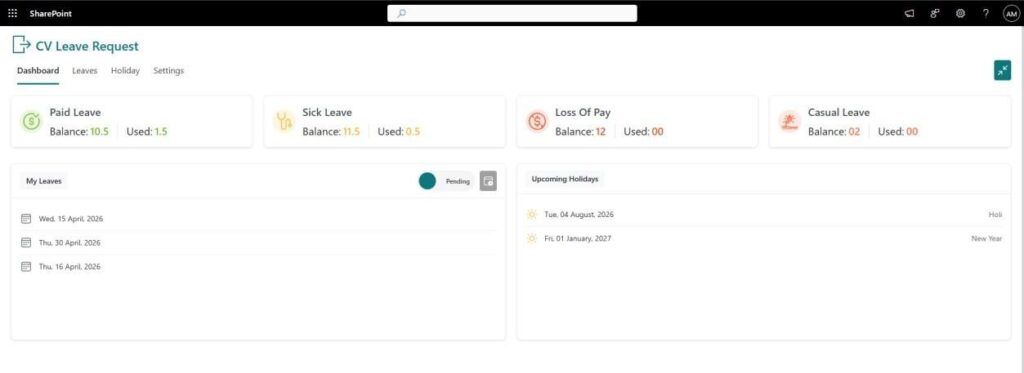
Leave Balance Summary
- At the top of the dashboard, employees can view their leave balances for each leave type, such as:
- Paid Leave
- Sick Leave
- Loss of Pay
- Any additional leave types configured by Admin
Each card displays:
- Total Balance – Available leave balance
- Used – Number of leaves already utilize
- This helps employees quickly understand their remaining leave availability.
My Leaves
- Displays a list/summary of the employee’s recent leave records
- Shows applied leave dates and their current status (e.g., Pending, Approved,
Rejected) - Helps employees track the progress of their leave requests in real time
Upcoming Holidays - Displays a list of upcoming holidays configured by Admin
- Includes both Festival Holidays and National Holidays
- Helps employees plan their leaves in advance
3.2 Dashboard for Managers
- Managers get an extended dashboard view with pending team leave requests and real-time visibility into who is on leave.

- In addition to the Employee dashboard view, Managers have access to the following additional sections:
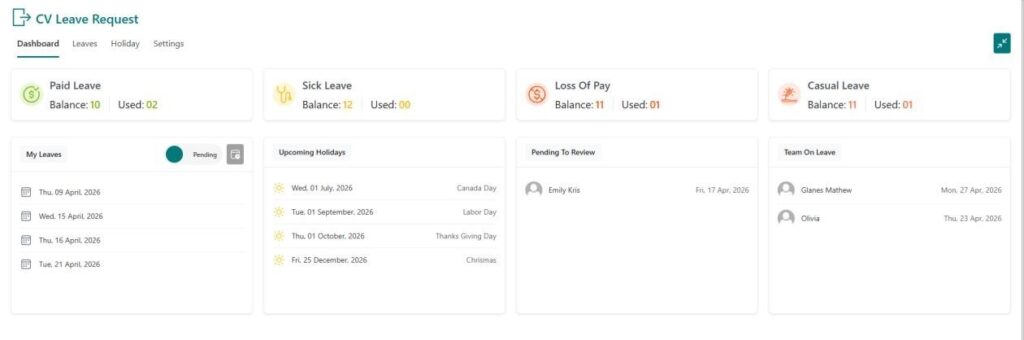
Pending to Review
- Displays leave requests submitted by team members that require approval
- Shows key details such as:
- Employee Name
- Leave Type
- Leave Date(s)
- Status
- If there are no pending requests, the system displays “No Results Found”
Managers can:
- Review the leave request detail
- Approve leave requests
- Reject leave requests
- Apply for their own leave and can also track their own leave status
- This section helps Managers take quick action on team leave requests.
Team on Leave
- Displays team members who are currently on approved leave
- Shows:
- Employee Name
- Leave Date(s)
Purpose:
- Helps Managers track team availability
- Assists in planning and workload distribution
4. Leave Types
- The system supports multiple leave types that can be configured based on organizational requirements.
- Paid Leave
- Sick Leave
- Additional Leave Types (configured by Admin)
- Admin can create and manage leave types as needed. All configured leave types are automatically available to employees and managers when applying for leave.
5. Apply for a Leave Request
- Users can apply for leave using the “Apply Leave” button.
- Steps to Apply:
- Navigate to the Leaves tab
- Click on “Apply Leave” Button
- Fill in the required fields:
- Leave Type – Select from available leave types
- Start Date – Select leave start date
- End Date – Select leave end date
- Session Type:
▪ First Half (half day i.e. Before Break)
▪ Second Half (half day i.e. After Break)
▪ Full Day
- Reason – Enter reason for leave
- Click on “Submit” Button
Important Notes
- Ensure dates are selected correctly before submitting
- Session selection determines whether the leave is half-day or full day
- Once submitted, the request moves to the approval workflow
6. Leave Management
6.1 Tabs for Normal Users/Employee
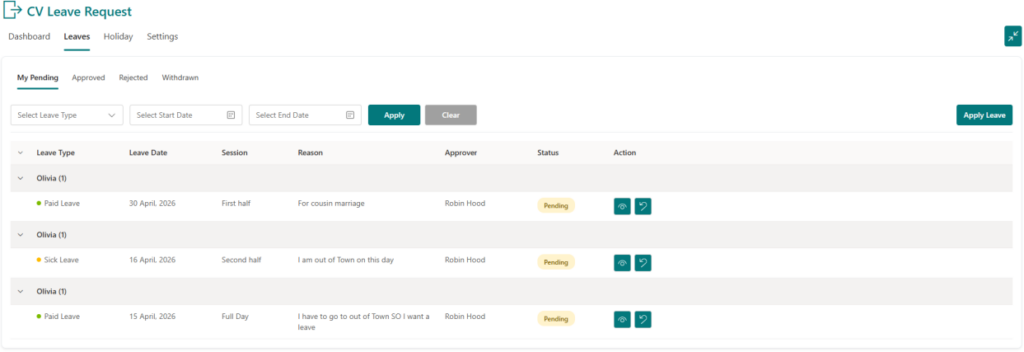
- Employees can view and manage their leave requests across four status tabs — pending, approved, rejected, and withdrawn.

- My Pending
- Displays all leave requests which are waiting for approval
- Users can withdraw requests from this tab
- Note: Only pending requests can be withdrawn
- Approved
- Displays all approved leave requests
- Rejected
- Displays all rejected leave requests
- Withdrawn
- Displays leave requests withdrawn by the user
6.2 Tabs for Managers
- Managers have access to all tabs available to Employees, along with an additional tab
as described below:

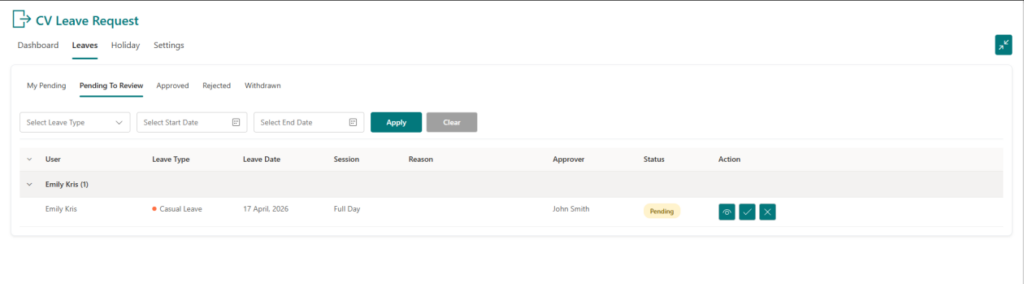
- Pending to Review
- Displays leave requests submitted by team members
- Managers can:
- Approve or Reject leave requests
7. Approving or Rejecting Leave (Manager)
- Steps:
- request
- Review the details
- Go to Leaves → Pending to Revie
- Select the leave
- Click on:
- Approve to confirm the leave request.
- Reject to decline the leave request.
8. Withdraw Leave Request (User or Manager)
- Both Users and Managers can withdraw only leave requests that are still in pending status.
- Steps:
- Navigate to My Pending
- Select the leave request
- Click on “Withdraw” button
- The request will move to the Withdrawn tab, and the reporting person will be notified.
9. Filters and Search
- The system provides filtering options to easily locate leave records.
- Available Filters
- Leave Type
- Date Range
- Status
- Usage:
- Apply filters to narrow down leave records
- Useful for tracking past or specific requests
10. Holidays Management (Admin Only)
- Admins can manage the full organizational holiday calendar — adding, updating, and removing holidays to keep records accurate system-wide.

- The Holidays tab is accessible only to Admin users and provides a centralized interface for managing organizational holidays.
- Through this section, Admins can view the complete list of holidays and perform actions such as adding new holidays, updating existing entries, and removing holidays as required.
- This ensures that all holiday information remains accurate and up to date across the
system.
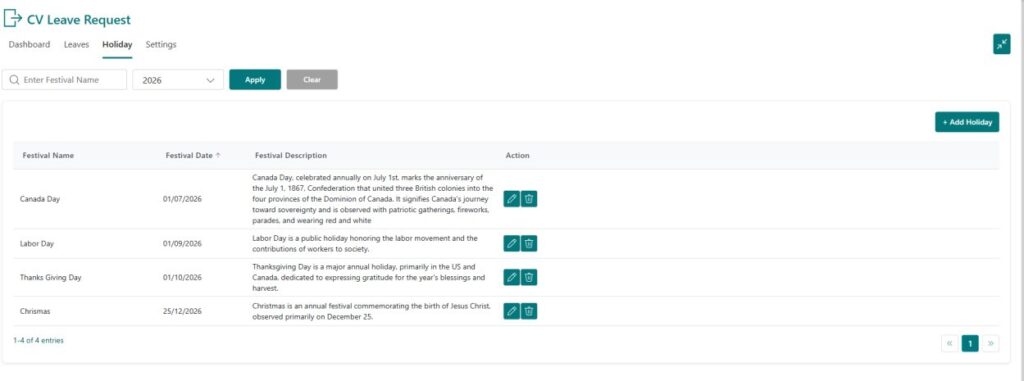
10.1 Adding Holidays
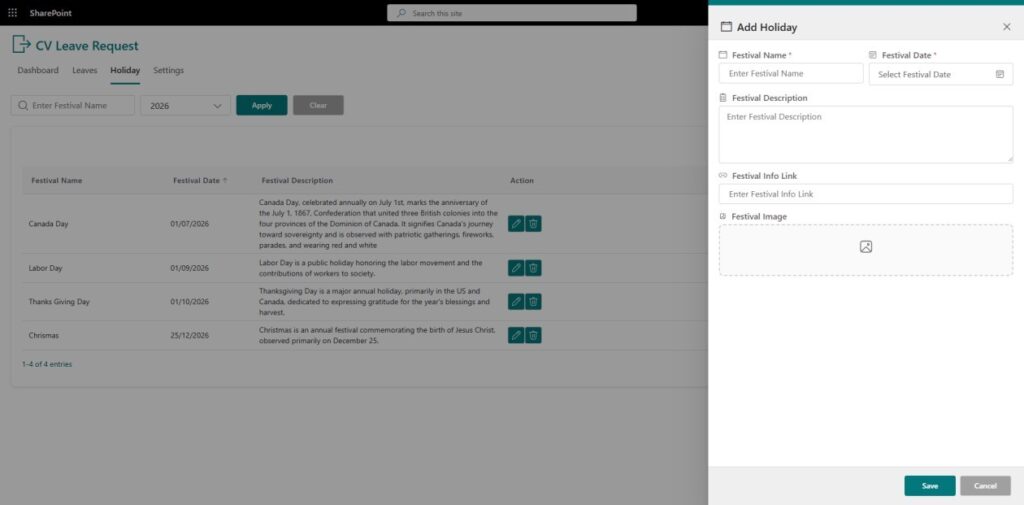
- Add a new holiday by entering the festival name, date, description, info link, and image to display it across the system.

- Steps:
- Navigate to Holidays
- Click Add Holiday
- Enter details:
- Holiday Name
- Date
- Description
- Link of festival
- Festival Image
10.2 Managing Holidays
- They can also:
- Edit existing holidays
- Delete holidays
10.3 Impact of Holidays
- Holidays are displayed in the Upcoming Holidays section
- Helps users plan leave accordingly
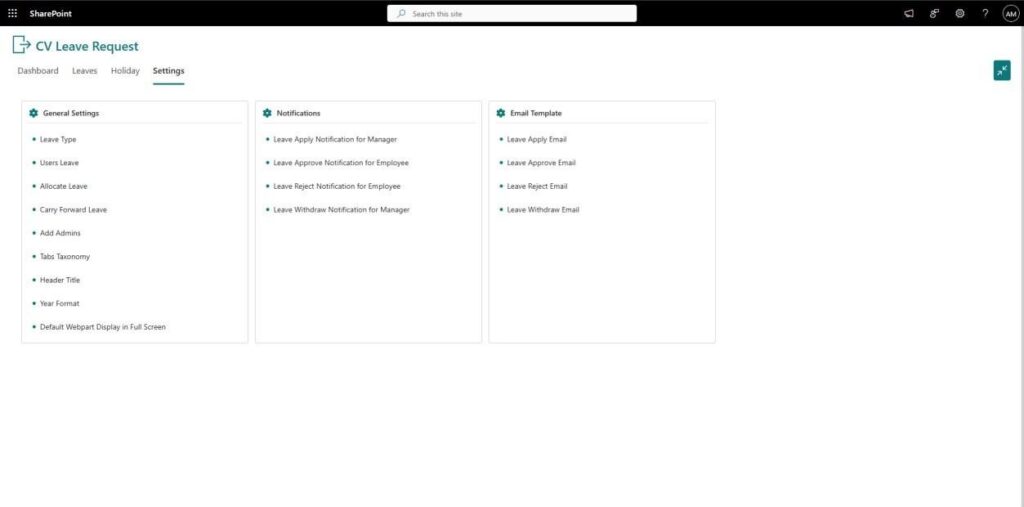
11. Settings (Admin Only)
- The Settings section allows Admins to configure system behaviour and manage leave policies across the organization.

- It includes:
- General Settings
- Notification Settings
- Email Templates
- Only Admin users have access to this section.
11.1 General Settings
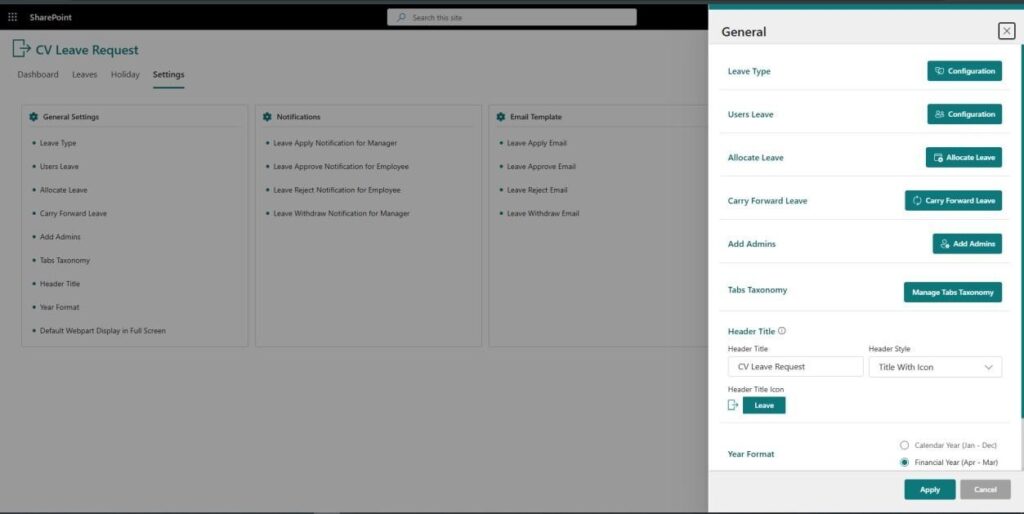
- The General Settings section enables Admins to define and manage leave-related configurations.

Add Leave Types
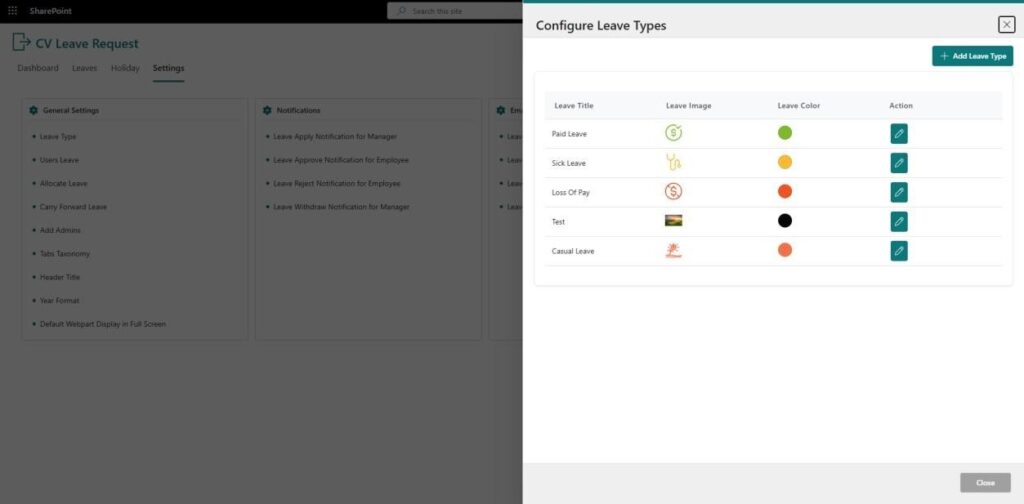
- Admin can configure Leave Type:

- To add a new leave type, navigate to General Settings, select “Configure Leave Types” and click on the “Add New Leave Type” button.
- Define name, colour code for leave, and image while adding new leave type
- Click on “Save” button
Leave Limit
- Admin can configure the number of leaves available for each leave type.
- Leave limits can be updated anytime based on company policy.
Configure Leave Limits
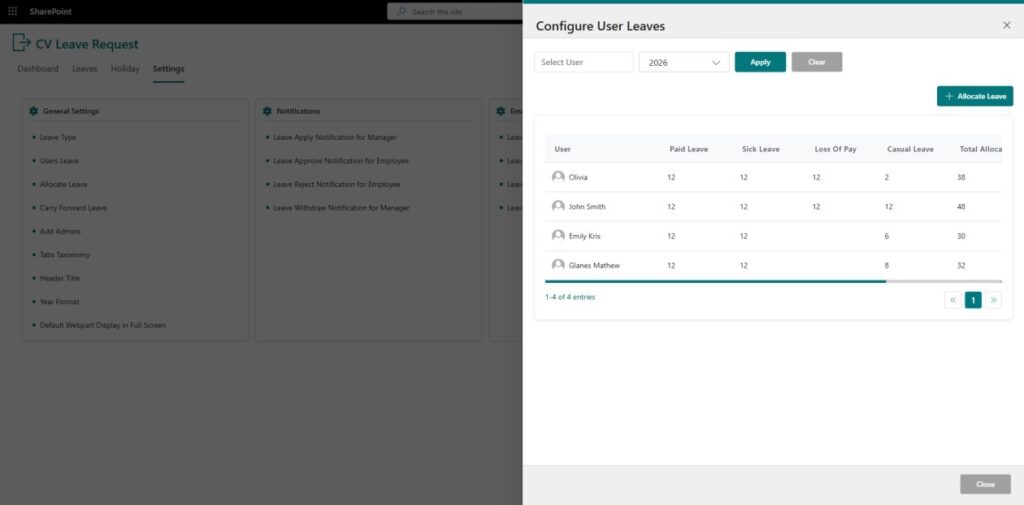
- Admins can view and configure individual leave limits per employee across all leave types from a single centralized interface.
- Admin can view all the leave record with for all employees in a structured list.
- Admin can configure and update leave limits for each leave type.
- Provides a centralized interface for managing leave policies efficiently
Assign Leave Balance to Employees
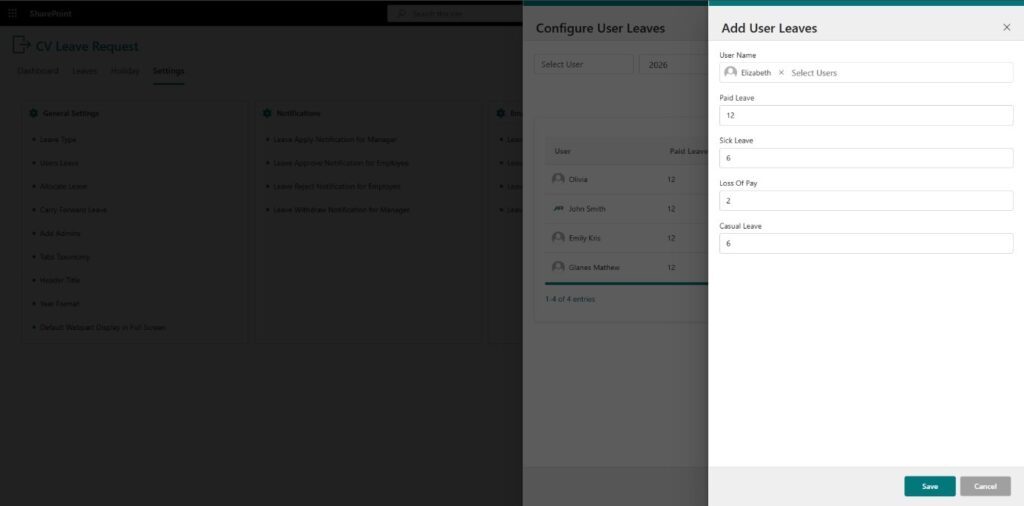
- Manually allocate leave balances per employee during onboarding, year-start, or whenever individual adjustments are needed.
Admin can manually assign leave balances to employees - Usage:
- During employee onboarding
- For balance adjustments
- For correcting leave records
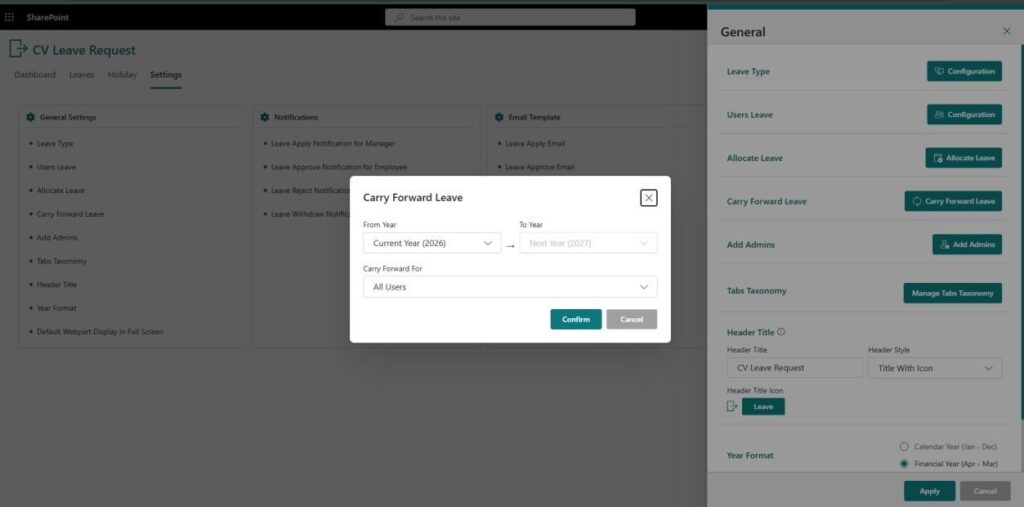
Carry Forward Leaves
- Roll over unused leave balances from the current year to the next for all users with a single confirmation action
- Allows unused leaves to be carried forward
- Helps retain unused leave balance
Add Admin
- From the Settings section, existing Admin users can grant Admin access to other users as required.
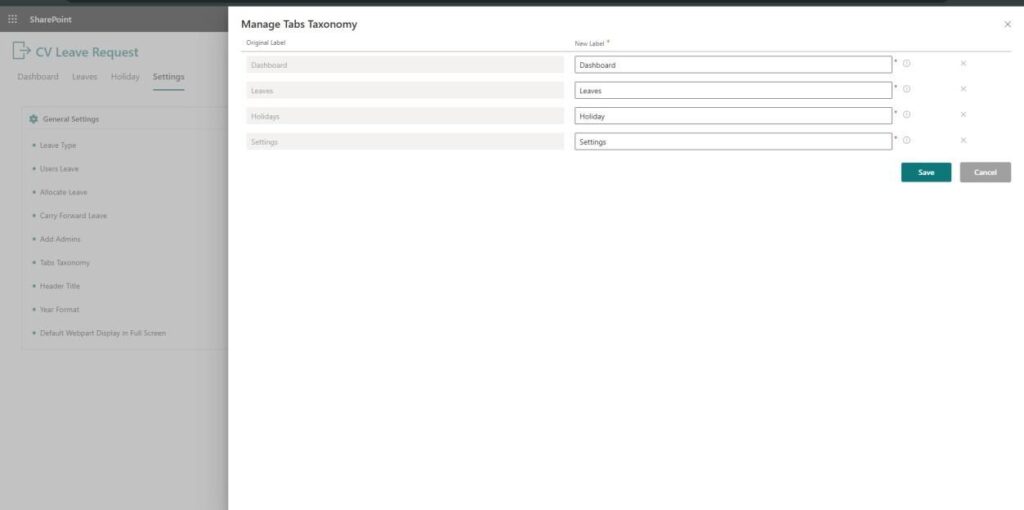
Manage Taxonomy
- Rename navigation tabs to match your organization’s internal terminology, with changes reflected instantly across the system.

- Admins can manage tab taxonomy to customize tab names within the system.
- Allows customization of tab names based on organizational requirements
- Enables updating tab names to align with internal terminology
- Improves clarity and overall user experience
- Any changes made are reflected across the application for all users
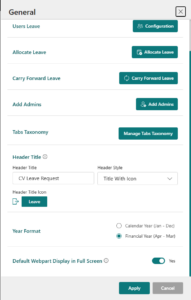
Year Format
- It also has the option to set the leave year format as Calendar Year or Financial Year

11.2 Notification Settings
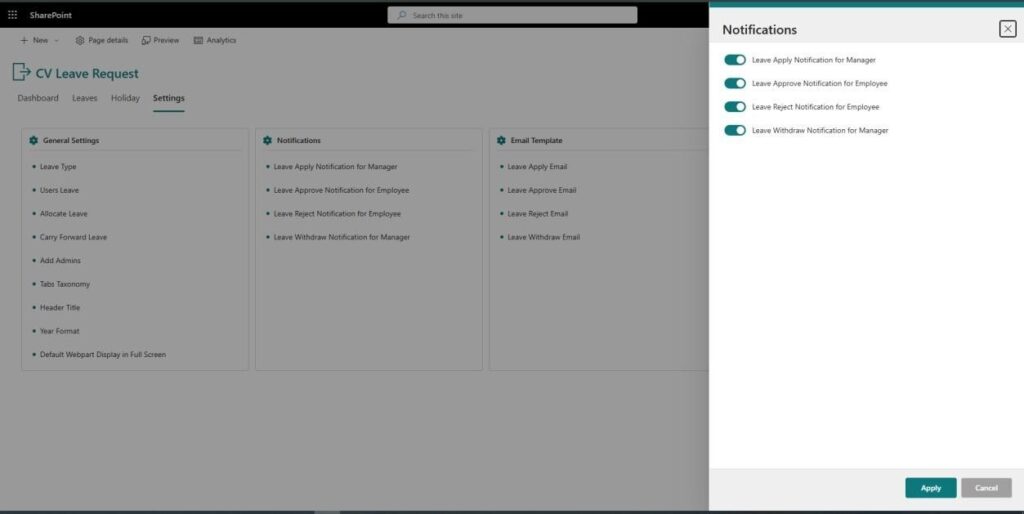
- Admin can manage system notifications by turning them “on” or “off”
- Leave Apply Notification for Manager
- Leave Approve Notification for Employee
- Leave Reject Notification for Employee
- Leave Withdraw Notification for Manager
11.3 Email Templates
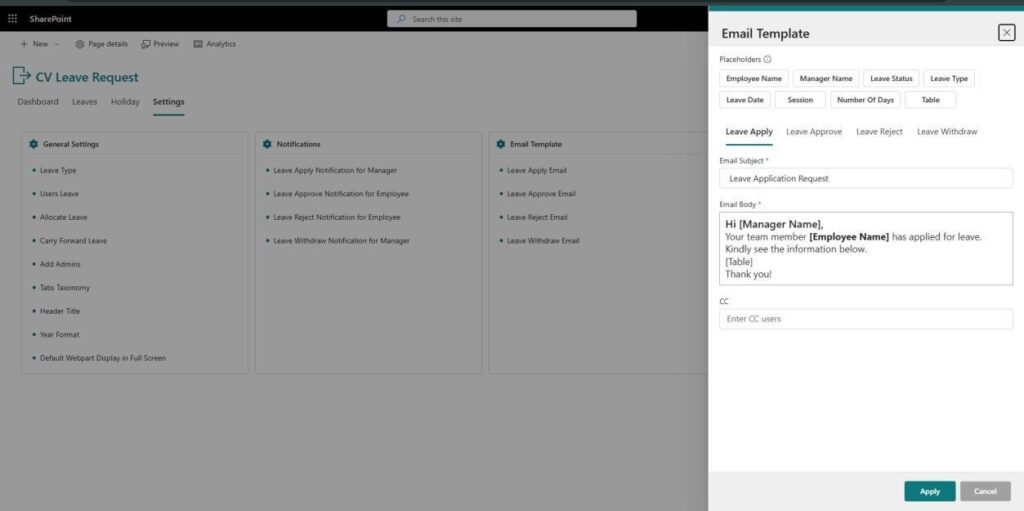
- Customize email content for leave application, approval, rejection, and withdrawal notifications sent to employees and managers.

- Admin can configure email templates used in the system
- Email templates are used for:
- Leave application notifications
- Approval notifications
- Rejection notifications
- Withdraw notifications
12. Email Notifications
- The system automatically sends email notifications for:
- Leave application submission
- Leave approval
- Leave rejection
- Leave Withdraw
- This ensures all users are informed of leave status updates.
13. Access Control
| Feature | Staff/Employee | Manager | Admin |
| Apply Leave | ✔ | ✔ | ✔ |
| View Own Leaves | ✔ | ✔ | ✔ |
| Withdraw Own Leave | ✔ | ✔ | ✔ |
| Approve/Reject Leave | ✖ | ✔ | ✖ |
| View Team Leaves | ✖ | ✔ | ✖ |
| Manage Holidays | ✖ | ✖ | ✔ |
| Access Settings | ✖ | ✖ | ✔ |
14. System Limitations – Free Version
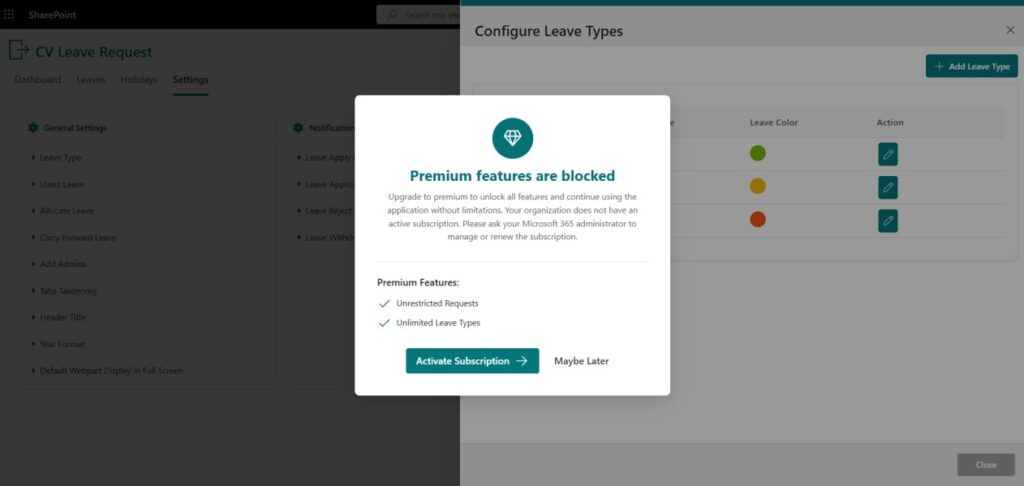
- The free version supports up to 50 leave requests and 1 leave type — upgrade to unlock unrestricted requests and unlimited leave types.

- The Free Version of CV Leave Request includes limited functionality.
- The following restrictions apply:
- Maximum 50 Leave Requests
- Maximum 1 Leave Type
- If a user attempts to exceed these limits, the system will display a Premium Upgrade popup.
- The free version provides limited functionality. To use the full feature of this solution, you need to activate or purchase subscription.
15. Key Guidelines
- Employee/Staff can only manage their own leave requests.
- Managers can only act on team members’ requests and can apply for their own leave also.
- Withdraw is allowed only for pending requests.
- Admin features are restricted to Admin users only.
16. Support
- For technical assistance, feature requests, or questions about pricing and licensing, contact Codevision Technologies Private Limited through one of the following channels:
- Email: support@thecodevision.com
- Web: https://thecodevision.com/
- Marketplace listing: search for “CV Leave Request” on Microsoft Marketplace and use the Contact Publisher link.