1. Introduction
CV Renew 365 is a subscription and license renewal management application designed to help organizations manage customers, products, subscriptions, payments, renewals, reminders, and related activities from a centralized platform.
The application provides an easy-to-use interface for managing the complete subscription lifecycle — from creating customers and products to tracking subscription renewals, recording payments, sending reminders, and maintaining renewal history.
CV Renew 365 also provides bulk operations, Excel import/export functionality, configurable application settings, and activity tracking to reduce manual work and improve the accuracy of subscription management.
2. Dashboard
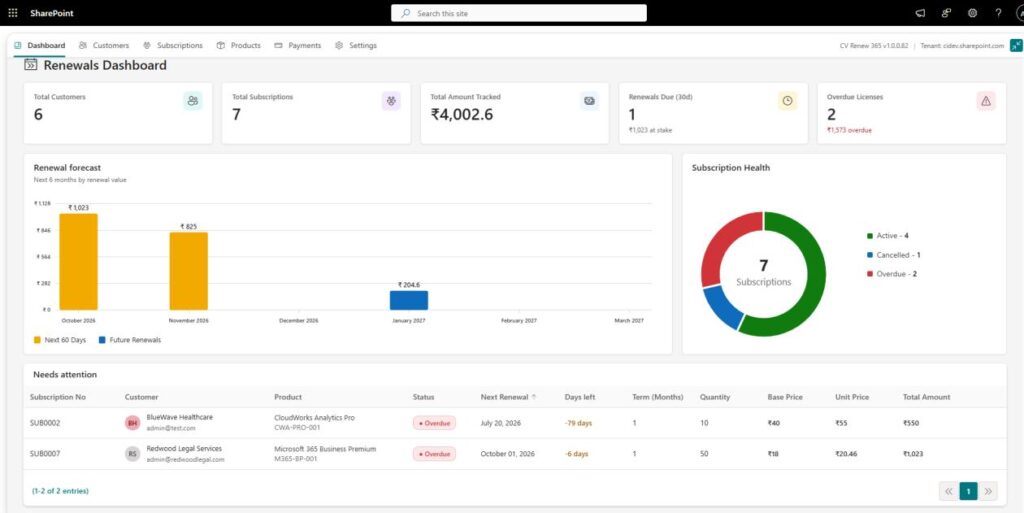
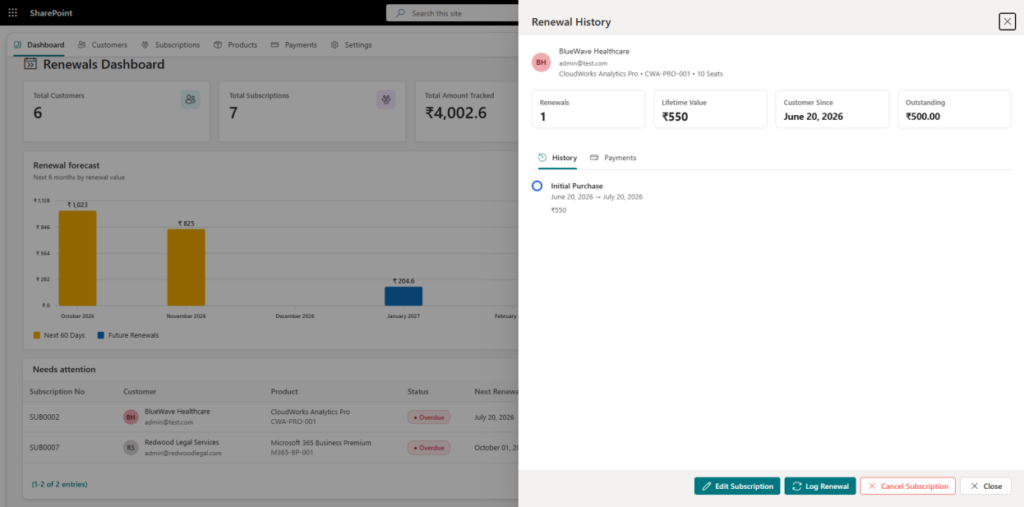
The Dashboard in CV Renew 365 provides a centralized view of customer subscriptions and renewal activities, allowing users to quickly monitor subscription status, renewal amounts, upcoming renewals, and overdue subscriptions.
The top navigation menu allows easy access to:
- Dashboard – View overall subscription and renewal information.
- Customers – Manage customer and contact person details.
- Subscriptions – Create and manage customer subscriptions and renewals.
- Products – Manage products, pricing, partners, and terms.
- Payments – Record and view subscription payments.
- Settings – Configure application settings, email templates, reminders, pricing, and system behavior.
The summary cards provide a quick overview of Total Customers, Total Subscriptions, Total Amount Tracked, Renewals Due within 30 Days, and Overdue Licenses.
The Renewal Forecast vertical chart displays the expected renewal value for the next six months, helping users understand upcoming renewal activity.
The Subscription Health donut chart shows the overall status of all subscriptions, such as Active, Cancelled, and Overdue.
The Needs Attention section displays subscriptions that require attention, including overdue subscriptions, along with their customer, product, renewal date, quantity, and renewal amount details.
3. Customer
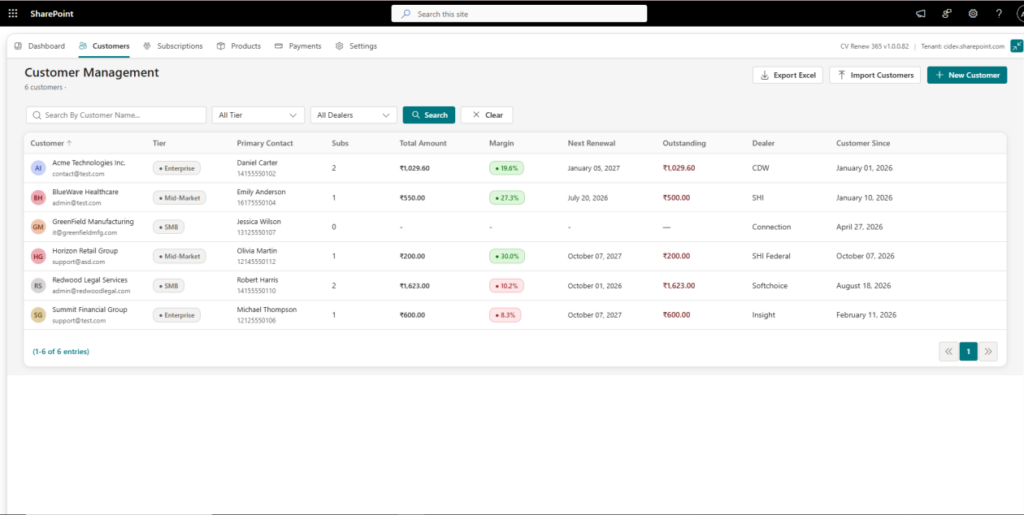
The Customers section in CV Renew 365 allows users to manage customer information and view their subscription, payment, and renewal details.
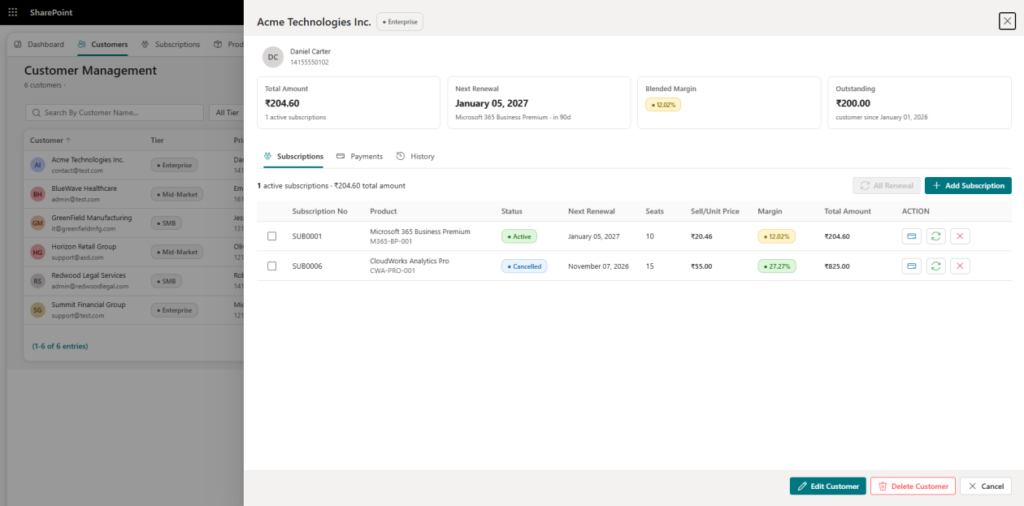
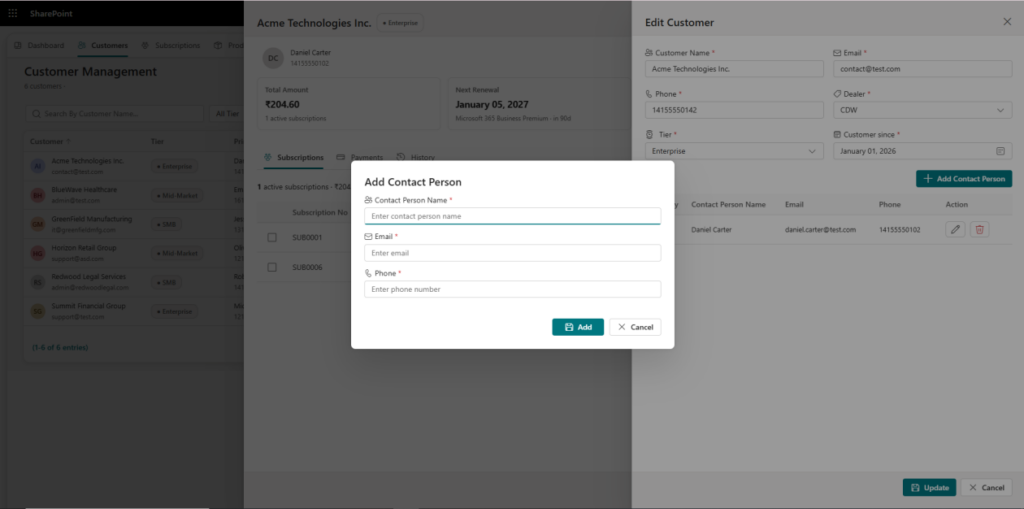
Clicking a customer opens the Customer Details drawer, which provides a summary of the customer’s subscription information, including Total Amount, Next Renewal, Blended Margin, and Outstanding Amount.
The customer details are divided into:
- Subscriptions – View and manage the customer’s subscriptions and perform actions such as payment, renewal, or cancellation.
- Payments – View and manage payments associated with the customer.
- History – View the customer’s subscription, payment, and renewal activity history.
- Contact Person – View and manage the customer’s primary contact person details, including name, email, and phone number.
Users can also add or update the customer’s Contact Person information when required.
This provides users with a complete view of the customer’s subscription and payment status in one place.
4. Subscription
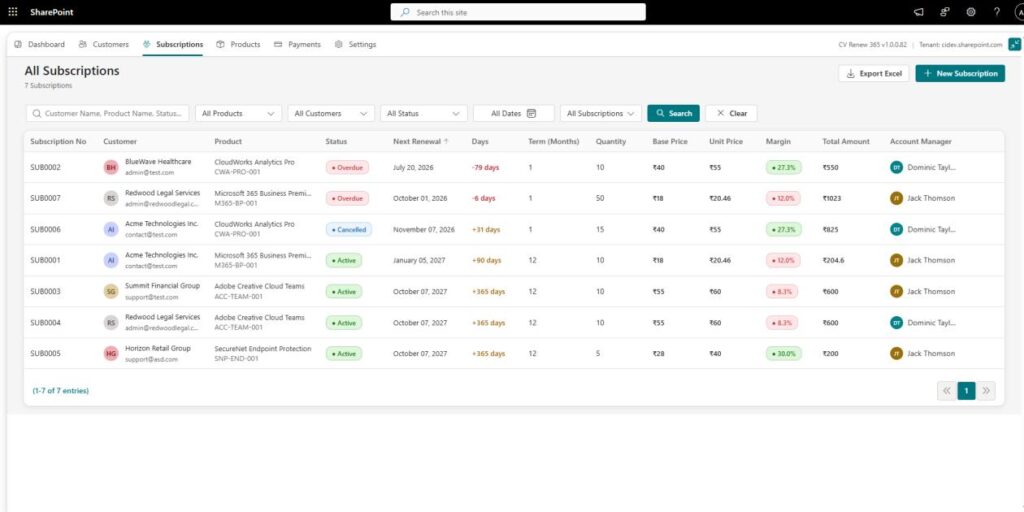
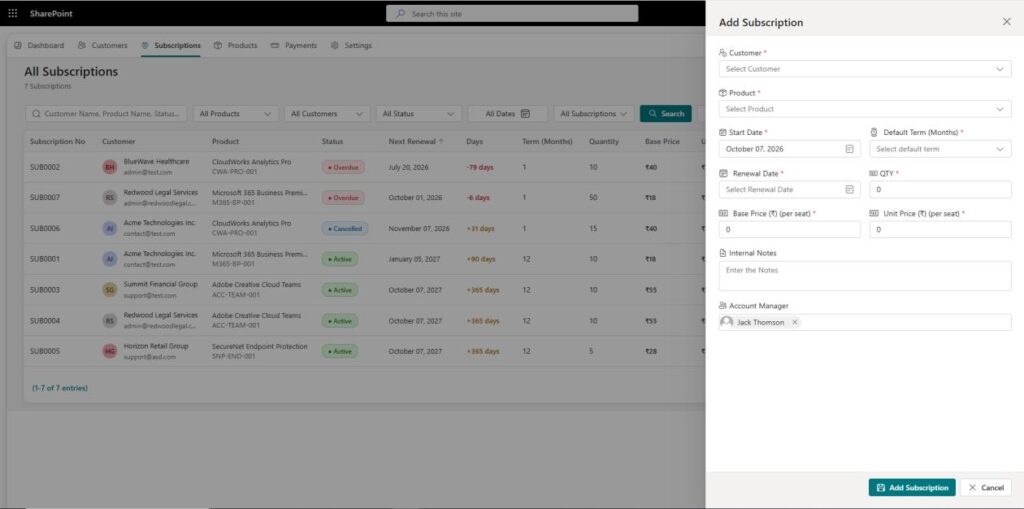
The Subscriptions section in CV Renew 365 allows users to create, manage, and monitor customer subscriptions and their renewal activities.
- Add Subscription – Create a new subscription by selecting the customer, product, quantity, term, pricing, start date, and renewal details.
- Export to Excel – Export subscription data to Excel based on the required data or applied filters.
- View Subscription – Click a subscription to open its details and view complete subscription information.
- Edit Subscription – Update the subscription details when required.
- Log Renewal – Record the renewal of an existing subscription and update the next renewal information.
- Cancel Subscription – Cancel an active subscription when required.
When a user opens a subscription, the Subscription Details drawer provides the subscription information along with related payment details.
From the drawer, users can:
- View subscription timeline.
- Log Payment – Record a payment against the subscription.
- View Payments – View the payment records associated with the subscription.
5. Product
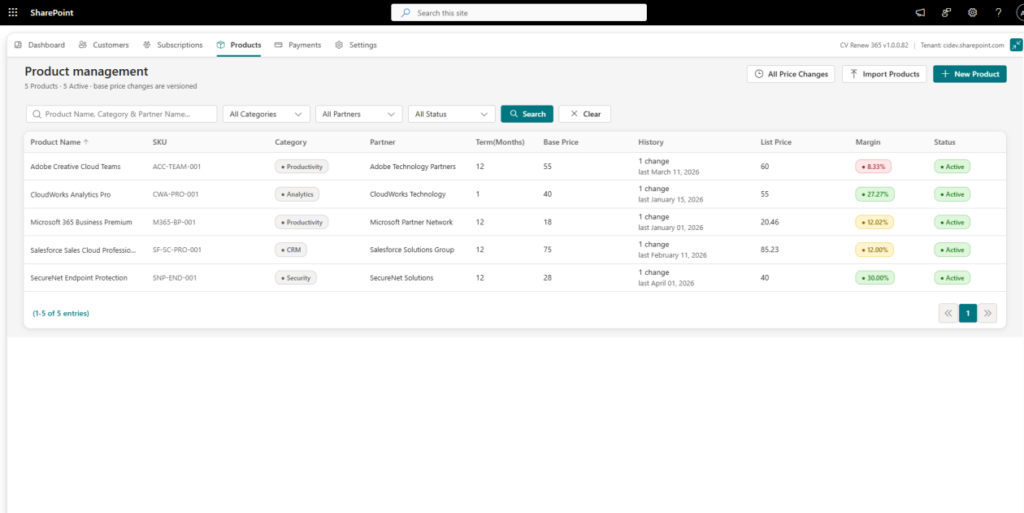
The Products section in CV Renew 365 allows users to manage products, pricing, and product price history.
- Add Product – ClickAdd Productto open the product form and enterthe product details, pricing, term, partner, and other required information.
- Edit Product – Click a product to open its details and update the product information.
- Import Products – Import multiple products using an Excel file.
- View Price History – View the product’s previous base price and list price changes.
- View All Price Changes – View the complete price change history of products, including old price, new price, effective date, reason, and changed by information.
The Price History helps users track how product prices have changed over time and ensures that the correct price can be used when processing subscription renewals.
5.1 Import Products
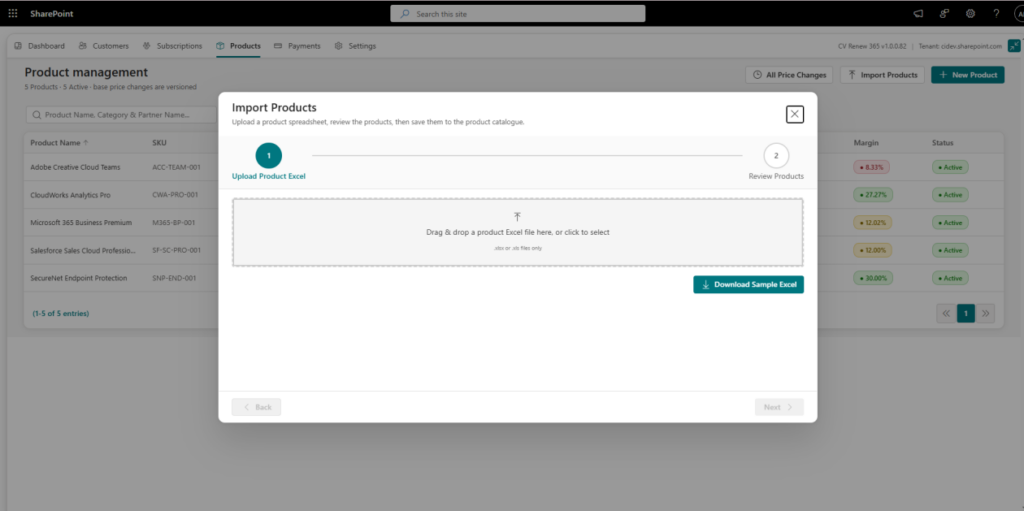
The Import Products option allows users to add multiple products to CV Renew 365 using an Excel file.
- Upload Excel File – Select and upload the product Excel file.
- Next – Continue to the product preview step.
- Review Products – View all product data from the uploaded Excel file before saving.
- Save – Save the imported products to the product list.
- After saving, the imported products are added to the Products list/grid and can be managed like other products.
6. Payments
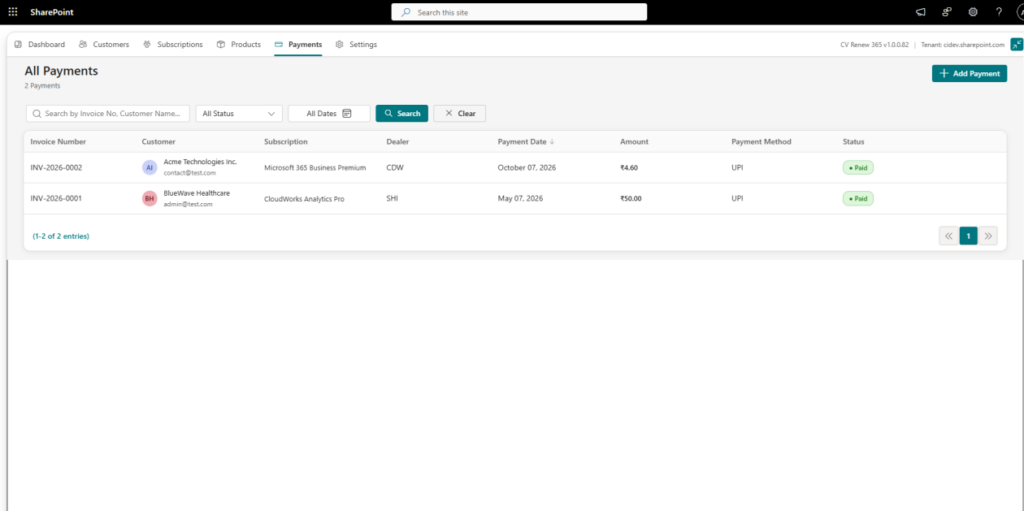
The Payments section in CV Renew 365 allows users to record and manage payments received against customer subscriptions.
- Add Payment – Click Add Payment to open the payment form and enter the required payment details.
- Edit Payment – Click an existing payment record to open the payment information and edit the details when required.
The payment form allows users to enter details such as Customer, Subscription, Payment Date, Amount, Payment Method, Payment Status, Reference, and Notes.
After saving, the payment is added to the payment list and is also available in the related Customer and Subscription payment history.
7. Settings
The Settings section in CV Renew 365 allows administrators to configure the application according to business requirements. Changes made in the settings are applied to the related forms, grids, exports, and system behavior.
7.1 General
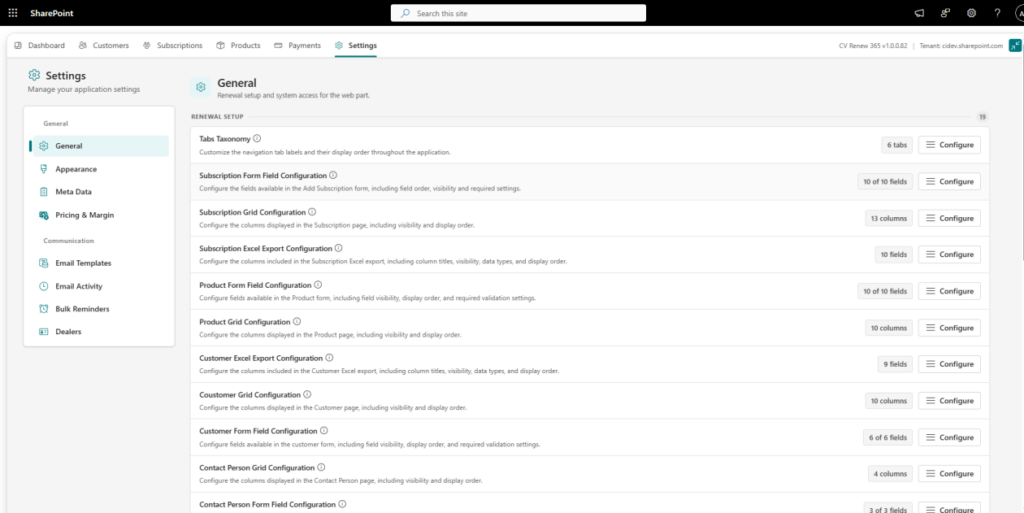
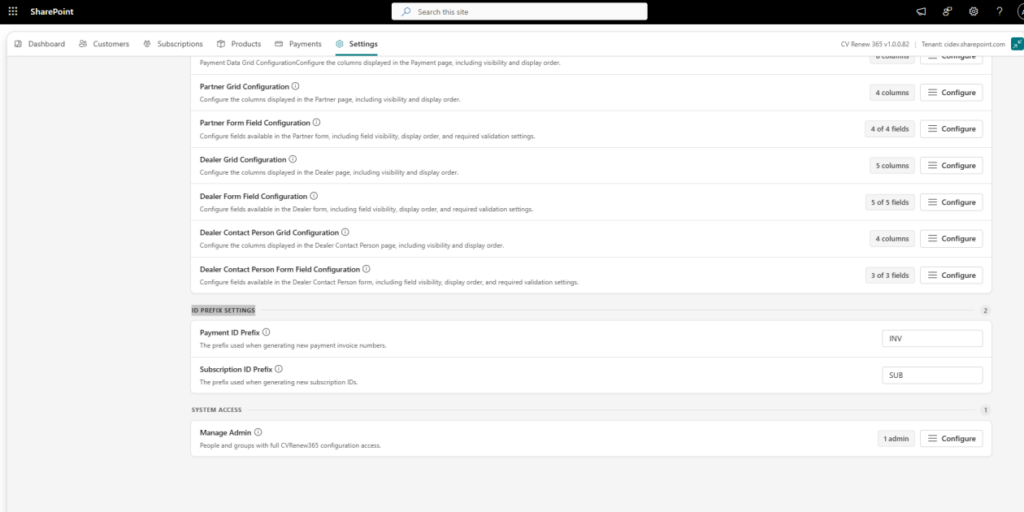
The General Settings allow users to configure the application fields and data display according to their requirements.
- Form Configuration – Select which fields should be available in the application forms.
- Grid Configuration – Configure the fields displayed in the data grids.
- Export to Excel – Configure the fields that should be included when exporting data to Excel.
SystemAccess: –
The System Access section allows administrators to manage application access.
Administrators can:
- Add Admin – Add a user as an application administrator.
- Remove Admin – Remove administrator access from a user.
ID Prefix Settings: –
The ID Prefix Settings allow administrators to configure the prefixes used for application records.
Users can set prefixes for:
- Subscription ID – Defines the prefix used when generating subscription IDs.
- Payment ID – Defines the prefix used when generating payment IDs.
The configured prefixes are automatically used when new subscription or payment records are created, helping users easily identify and manage different record types.
7.2 Appearance
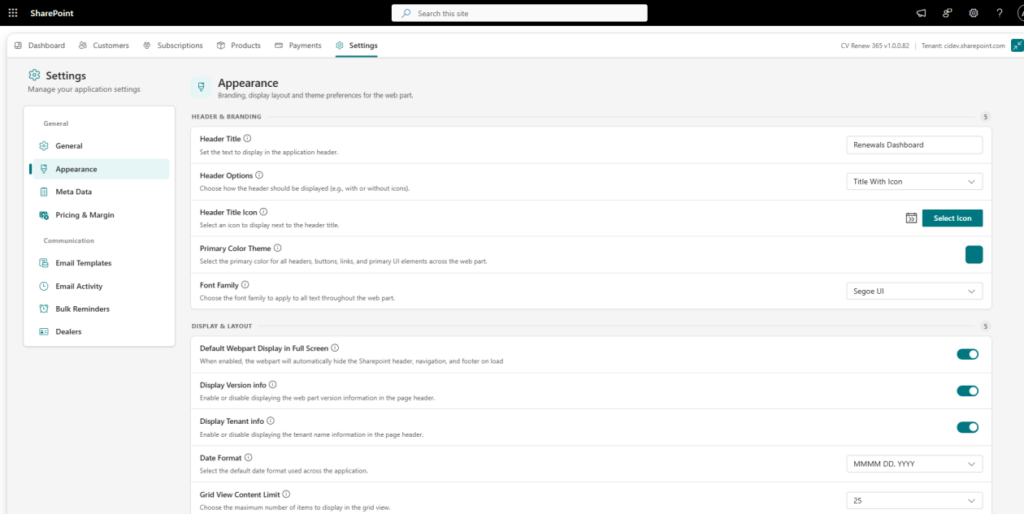
The Appearance section in CV Renew 365 allows administrators to customize the application’s look, display options, and user interface behavior according to their requirements.
- Header Title – Set the title displayed in the application header.
- Icon – Set the application header icon.
- Primary Colour – Select the main colour used across the application.
- Font Family – Set the font used throughout the application.
- Default Web Part Full Screen – Configure whether the web part opens in full-screen mode by default.
- Display Tenant & Version Information – Show or hide tenant and application version information.
- Date Format – Select the date format used throughout the application.
- Grid Content Limits – Set the amount of data displayed in grids.
- Toast Position – Select where notification messages appear on the screen.
- Success Toast – Enable or disable success messages displayed after completing an action.
These settings allow administrators to customize the appearance and notification behaviorof CV Renew 365 based on their organization’s requirements.
7.3 Meta Data
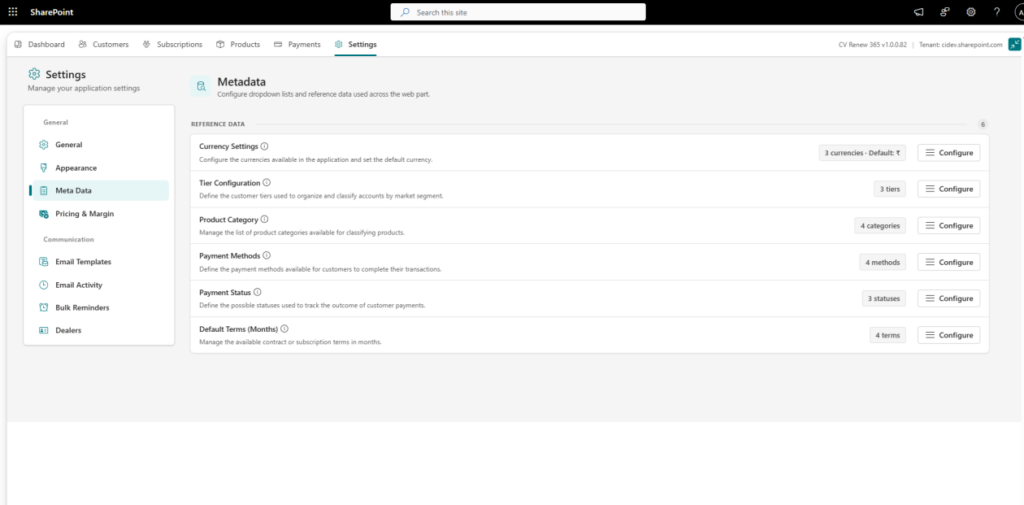
The Meta Data section in CV Renew 365 allows administrators to configure the common values used throughout the application. These settings help users maintain consistent data and provide options according to their business requirements.
- Currency Settings – Set the currency used for product prices, subscription amounts, payments, and other financial values.
- Tier Configuration – Add or manage customer tiers used to categorize customers.
- Product Category – Add or manage product categories used when creating and managing products.
- Payment Methods – Configure the payment methods available when recording payments.
- Payment Status – Configure the payment statuses used in payment records.
- Default Terms (Months) – Configure the default subscription terms, such as 1, 12, 24 months, that can be selected when creating products or subscriptions.
7.4 Pricing & Margin
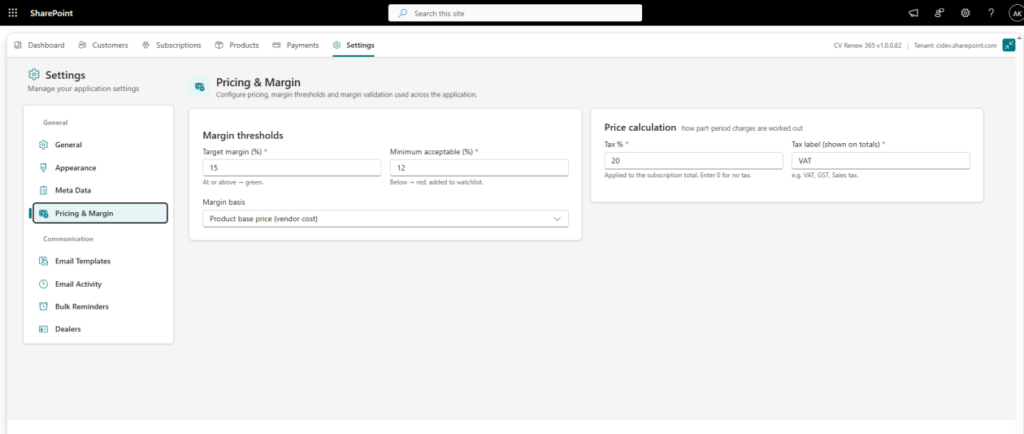
The Pricing & Margin section in CV Renew 365 allows administrators to configure pricing rules, margin thresholds, and tax settings used throughout the application.
- Target Margin (%) – Set the desired margin percentage for products.
- Minimum Acceptable (%) – Set the minimum margin allowed for pricing validation.
- Margin Basis – Select the basis used to calculate the product margin, such as product base price.
- Tax (%) – Set the applicable tax percentage used in subscription price calculations.
- Tax Label – Set the name displayed for the tax, such as VAT, GST, or Sales Tax.
These settings are used when calculating product pricing, validating margins, and calculating subscription totals.
7.5 Email Templates
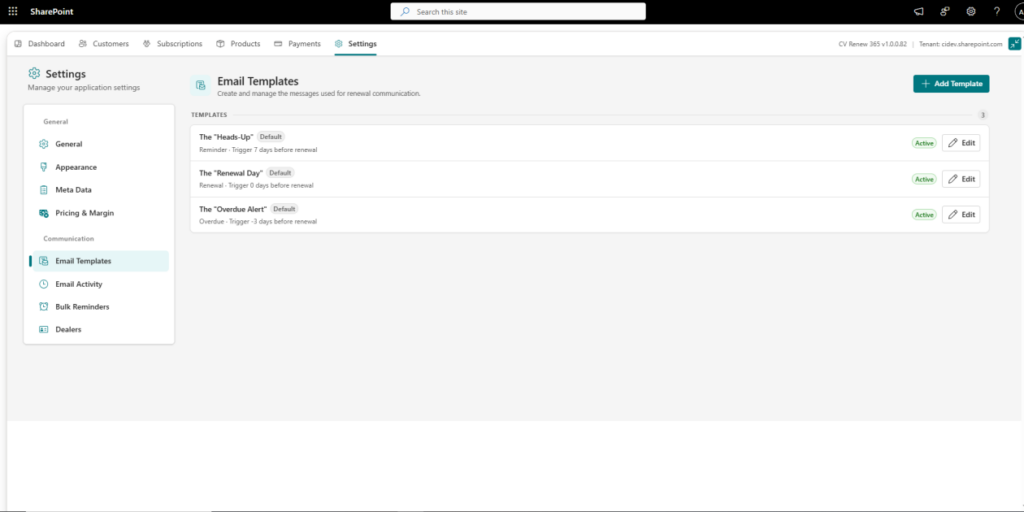
The Email Templates section in CV Renew 365 allows administrators to create and manage email templates used for renewal communication.
- AddTemplate – Create a new email template for renewal-related communication.
- Edit – Update an existing email template when required.
- Set Default – Identify the default template used for a particular communication type.
- Activate/Deactivate – Control whether a template is available for use.
Templates can be configured for different renewal activities, such as Reminder, Renewal, and Overdue notifications.
7.6 Email Activity
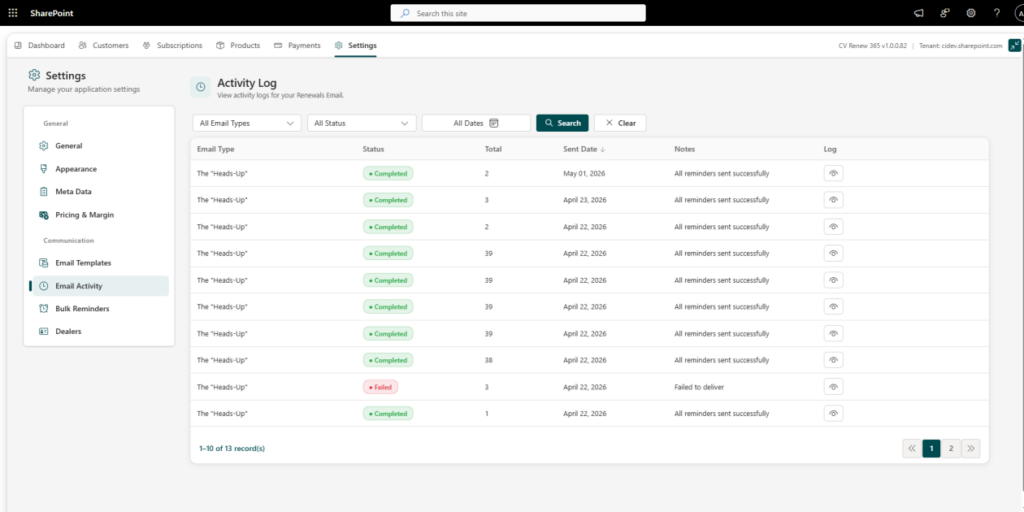
The Email Activity section in CV Renew 365 allows users to view and track renewal reminder emails sent from the application.
Users can view email activities generated through:
- Bulk Reminders – Emails sent when users send renewal reminders to multiple customers.
- Automated Reminders – Reminder emails sent automatically based on the Subscription renewal dates.
The email activity provides details such as:
- Email Subject – Subject of the email sent to the customer.
- Email Body – Content of the email.
- Email Log – Record of the email activity, including the related customer and sending details.
- Email Preview – Preview the email to verify what was sent to the customer.
This allows users to review and track renewal communication and verify the emails sent to customers for subscription renewal activities.
7.7 Bulk Reminders
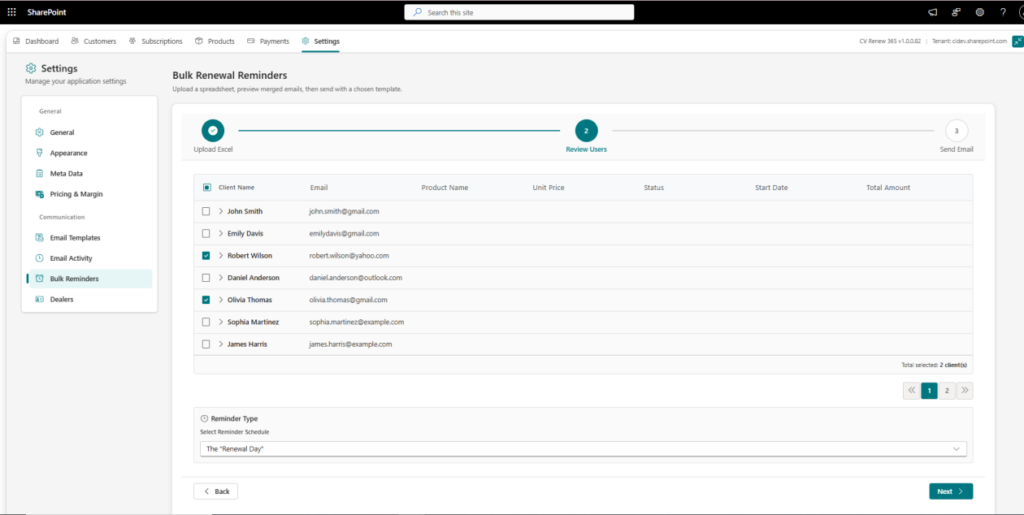
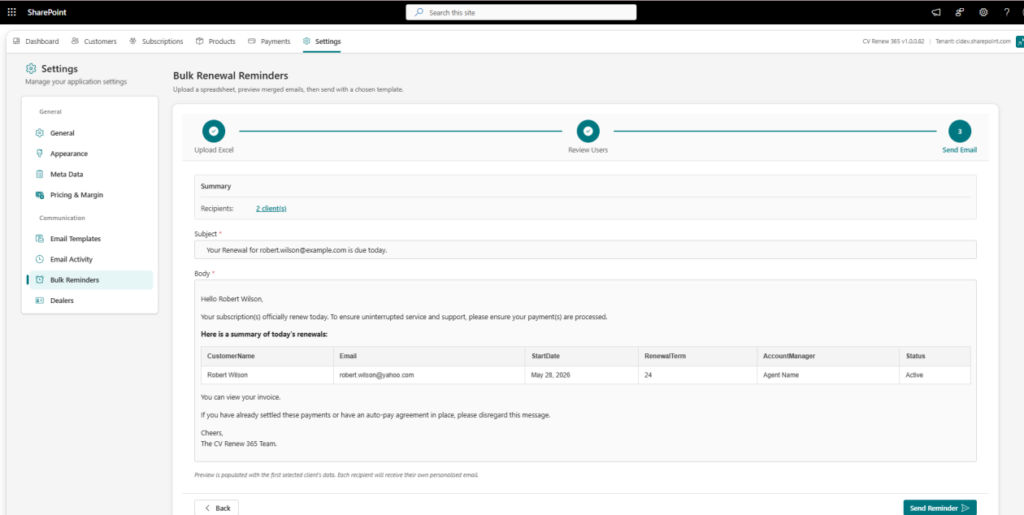
The Bulk Reminders section in CV Renew 365 allows users to send renewal reminder emails to multiple customers at once.
Users can upload an Excel file containing the required customer or subscription information. After uploading the file, the process continues to the review step.
The Bulk Reminder process includes:
- Upload Excel File – Upload the Excel file containing the customers/subscriptions for the reminder.
- Next – Move to the review step after the file is uploaded.
- Select Recipients – Review and select the users/customers who should receive the reminder email.
- Select Reminder Type – Choose the required reminder type, such as Heads-Up, Renewal Day, or Overdue Alert.
- Select Email Template – Select the email template to be used for the reminder.
- Review Selection – Review the selected customers, reminder type, and email template before sending.
- Send Reminder – Click Send Reminder to send the reminder email to the selected customers.
This process allows users to review all reminder details before sending and ensures that the email is sent only to the selected customers with the selected reminder type and template.
7.8 Dealers
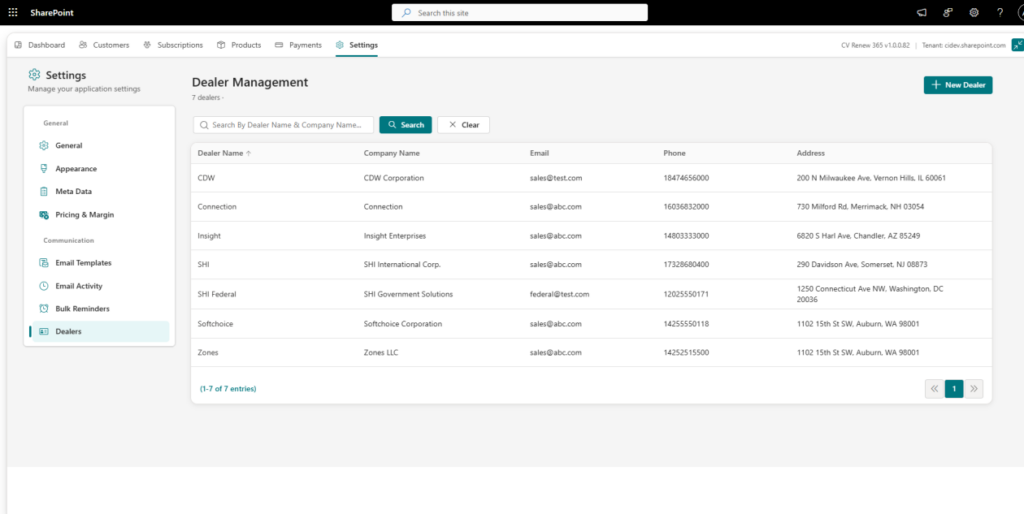
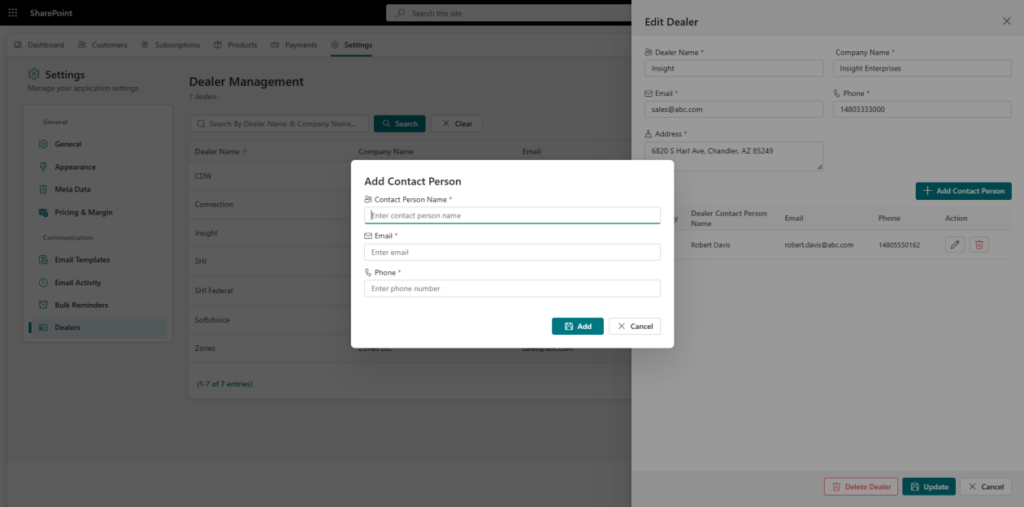
The Dealers section in CV Renew 365 allows administrators to manage dealer information and their contact persons.
- Add Dealer – Click Add Dealer to open the dealer form and enter the dealer details.
- Add Contact Person – Add the dealer’s contact person details, including name, email, and phone number.
- View/Edit Dealer – Click on a dealer row or dealer details to open the dealer edit form.
- Edit Dealer – Update the dealer and contact person information when required.
This allows administrators to maintain complete dealer and contact person information in one place.
8. System Limitations – Free Version
- Assign a default email template for each notification type — renewal, overdue, and reminder — to ensure consistent client communication.

- The Free Version of CV Renew 365 includes limited functionality.
The following restrictions apply:- Maximum 10 subscribers’ entries
- Maximum 5 Bulk reminders
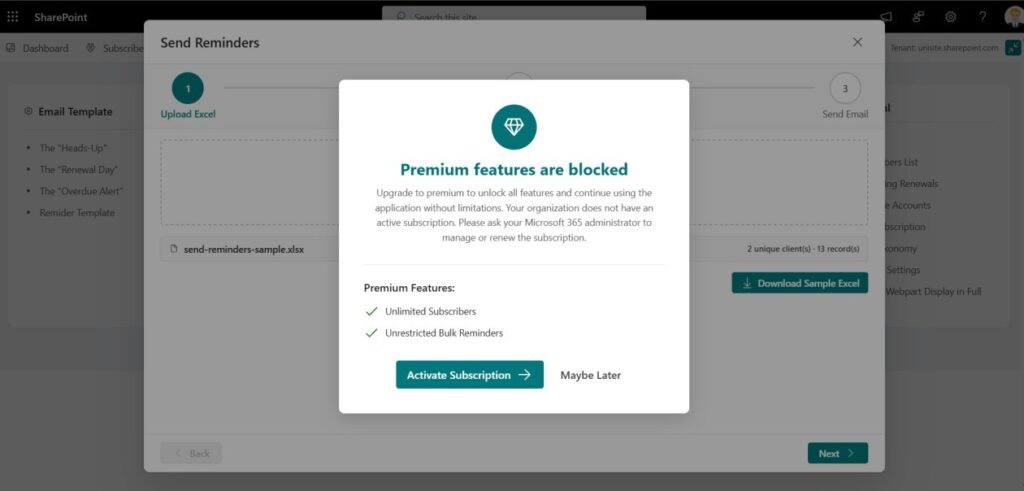
- If a user attempts to exceed these limits, the system will display a Premium Upgrade
popup. - The free version provides limited functionality. To use the full feature of this solution, you need to activate or purchase a subscription. Please purchase a subscription click here to learn more about plan options or to purchase a license.