


1. Overview
- CV TMS is a SharePoint-based timesheet management solution that helps organizations simplify employee timesheet tracking, submission, review, and management within Microsoft 365.
- This guide walks through the installation and configuration steps required for a complete CV TMS deployment:
- SharePoint App Deployment — Add the CV TMS SharePoint app to your Microsoft 365 tenant and target SharePoint site.
- Web Part Configuration — Add and configure the CV TMS web part on a SharePoint page.
- Subscription Setup — Purchase and activate a CV TMS subscription through Microsoft Marketplace.
- CV TMS Automate Configuration — Install and configure the Power Automate solution for timesheet reminders and daily team reports.
- App Upgrade — Upgrade the CV TMS SharePoint app when a new version is available.
2. Prerequisites
- Before starting the deployment, confirm that the following requirements are in place:
- SharePoint Environment: Microsoft 365 tenant with SharePoint Online and App Catalog support.
- App Catalog Site: A tenant-level or site-collection App Catalog must be created and accessible.
- Admin Access: Global Administrator or SharePoint Administrator permissions are required for tenant-level deployment and API permission approval.
- Target Site: A modern SharePoint site where the CV TMS web part will be installed and used.
3. Access CV TMS on Microsoft Marketplace
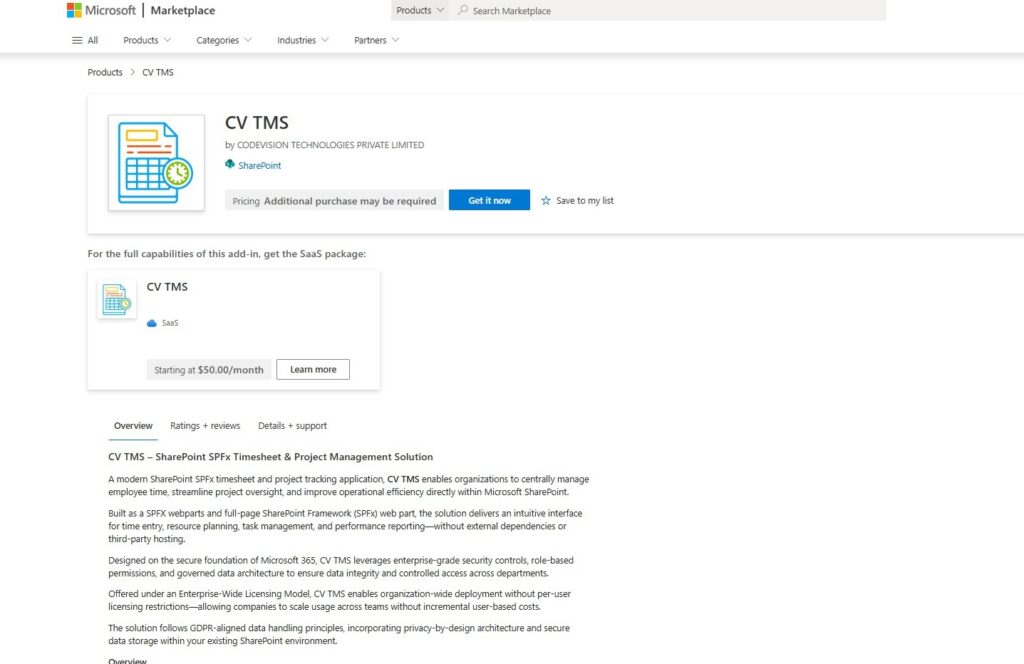
- Before starting the deployment, you can directly access CV TMS from Microsoft Marketplace.

- Marketplace: https://marketplace.microsoft.com/en-us/product/WA200010504?tab=Overview
- From the Marketplace listing, click “Get it now” to initiate the app acquisition process.
4. Part 1 — Deploy the CV TMS SharePoint App
Follow these steps in order. Each step assumes the previous step completed successfully.
Step 1: Deploy the Solution (Admin)
- Go to Microsoft Marketplace
- Search CV Helpdesk under SharePoint Products or open the link below for direct access.
- https://marketplace.microsoft.com/en-us/product/WA200010504
- Click on Get it now
- Confirm your details to continue to click get it now
- Wait for process & it will take to SharePoint store
- Click on “Add to Apps site” button under SharePoint store
- One prompt will open for “Confirm data access“
- Click Only enable this app under App availability & click Add button
Step 2: Grant API Access
- Once done another prompt box will open for “Approve access so this app works as designed“
- Go to API access page it will redirect to SharePoint admin center for grant API access
- Select API request under pending requests & click approve button from top menu button
- Verify details & click approve button
- Once approve go to previous tab where we have added app.
- You can check message “This app has already been added to the Apps site.” under Add button as well as “The app has been added.” success message at top header.
- Click on manage apps page from message section. It will redirect to Tenant level app catalog where you can see added app under Apps for SharePoint section.
Step 3: Add the App to a SharePoint Site
- Note: Skip this step if you selected “Enable this app and add it to all sites” during first step.
- Navigate to the target SharePoint site.
- Open Site Contents.
- From the top menu, select New → App.
- Under Apps You Can Add, locate CV TMS.
- Select the app and click Add.
- Wait for the installation to complete.
- The CV TMS SharePoint app is now available on your target site.
5. Part 2 — Configure the CV TMS Web Part
- Once the CV TMS app has been installed, add the web part to a SharePoint page and complete the required configuration.
Step 1: Create the Timesheet Page
- Go to Site Contents → New → Page.
- Select a suitable page template.
- Enter a relevant page title, such as “Timesheet Management” or “Employee Timesheet”.
- Add a full-width section or another suitable section based on your page layout.
Step 2: Add the CV TMS Web Part
- Click the + icon inside the SharePoint section.
- Search for “CV TMS”.
- Select the CV TMS web part.
- Wait for the web part to initialize and complete the setup.
Step 3: Configure CV TMS
- Open the Settings tab available within the CV TMS web part.
- Configure the required settings based on your organization’s timesheet management requirements.
- Verify the configuration and ensure the required options are correctly selected.
Step 4: Test and Publish
- Review the configured CV TMS features.
- Test the timesheet functionality to ensure everything is working correctly.
- Verify that the required timesheet information is displayed as expected.
- Click Publish to make the page available to users.
- Your CV TMS SharePoint web part is now configured and ready to use.
6. Part 3 — CV TMS Purchase Subscription
- To use the CV TMS SharePoint web part without interruptions, purchase and activate a CV TMS subscription through Microsoft Marketplace.
Step 1: Access CV TMS on Marketplace
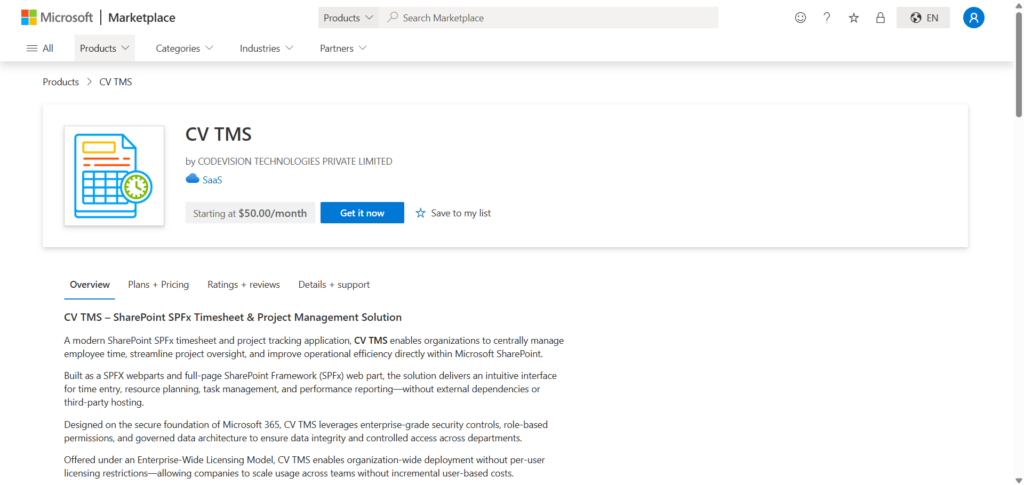
- Go to Microsoft Marketplace.
- Search for CV TMS under SaaS products, or open the direct CV TMS Marketplace listing.
- Click “Get it now”.
Step 2: Select Billing Country
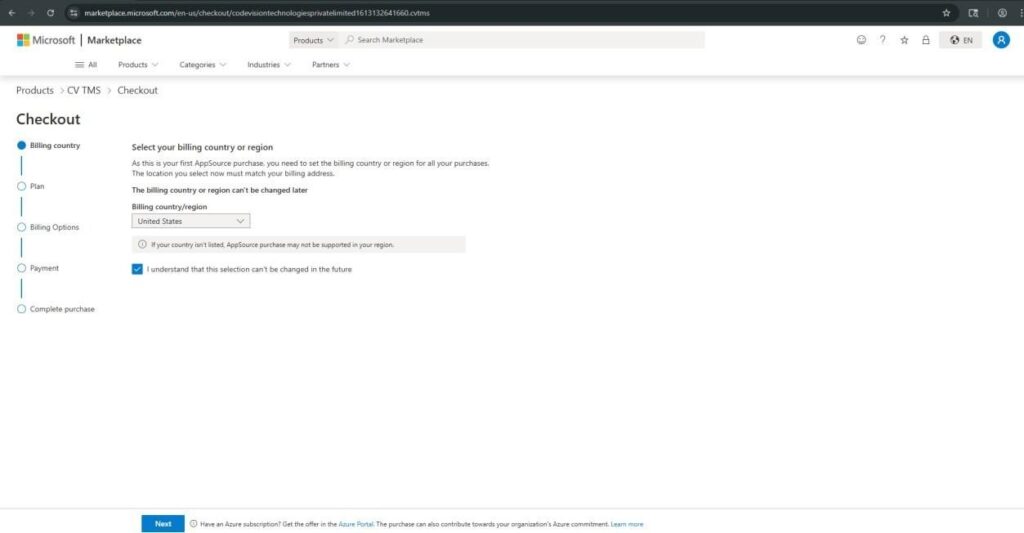
- You will be redirected to the purchase page.
- Select your Billing Country/Region from the dropdown.
- Review the selected country carefully, as it cannot be changed later.
- Accept the applicable terms.
- Click Next.
Step 3: Choose a Subscription Plan
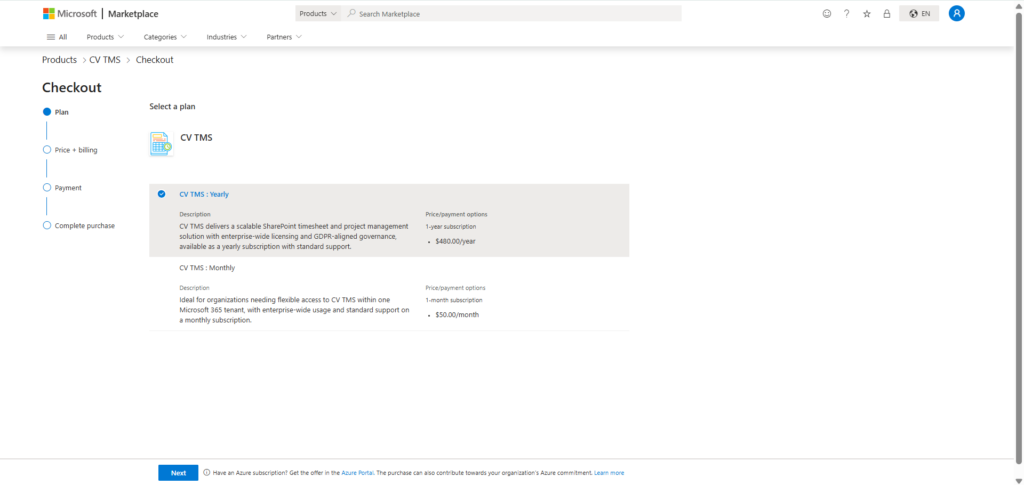
- Select your preferred subscription plan:
- Monthly
- Yearly
- Click Next to continue.
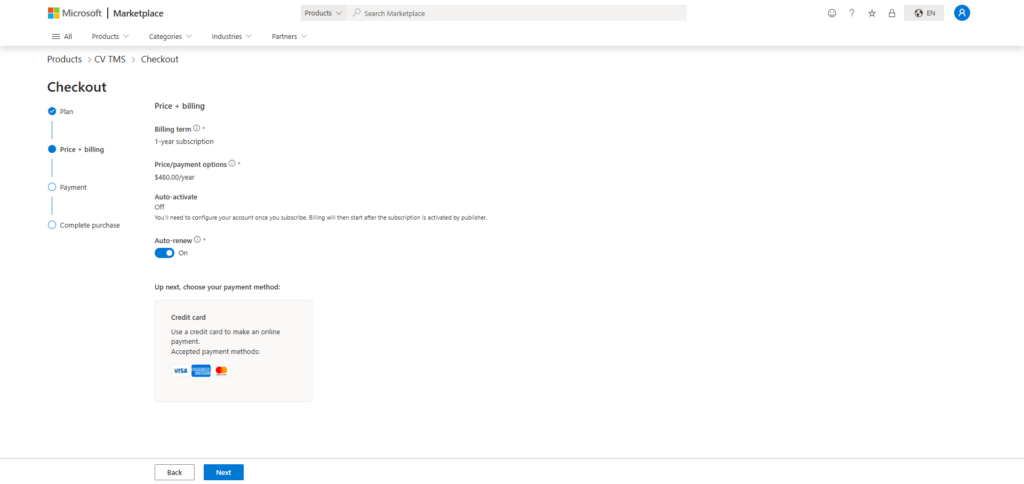
Step 4: Review Pricing & Billing
- Review the displayed pricing details.
- Verify the billing summary.
- Click Next.
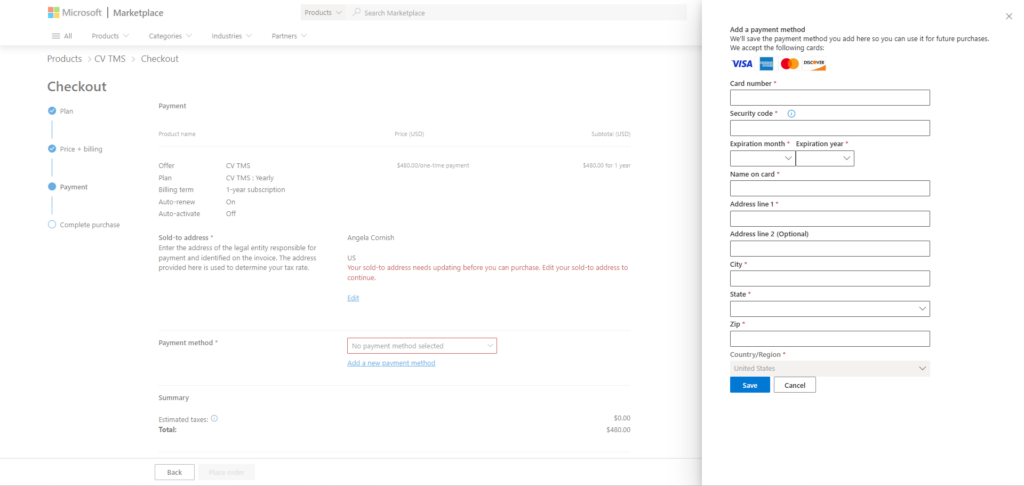
Step 5: Add Payment Details
- Enter the required payment information.
- Review the details.
- Click Save.
Step 6: Complete the Purchase
- Click Place Order.
- After successful payment, you will be redirected to the Codevision landing page to activate your subscription.
- Complete the subscription activation process.
- Once the subscription has been activated successfully, a confirmation message will be displayed.
- You can now access the full CV TMS features without interruptions.
7. Part 4 — CV TMS Automate – Installation & Configuration Steps
- CV TMS Automate enables notification features such as missing timesheet reminders for employees and daily team reports for managers using Microsoft Power Automate.
Step 1: Install the Power Automate Solution
- Go to Microsoft Power Automate.
- Sign in with your Microsoft account.
- Select the same environment associated with your SharePoint deployment.
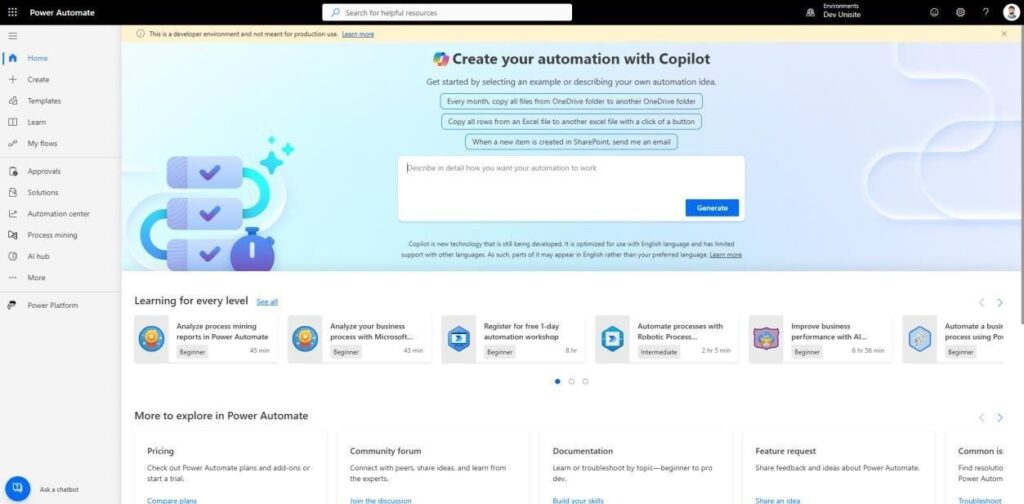
- From the left navigation menu, select Solutions.
- Click Open Marketplace.
- Search for CV TMS Automate.
- Open the CV TMS Automate Marketplace listing.
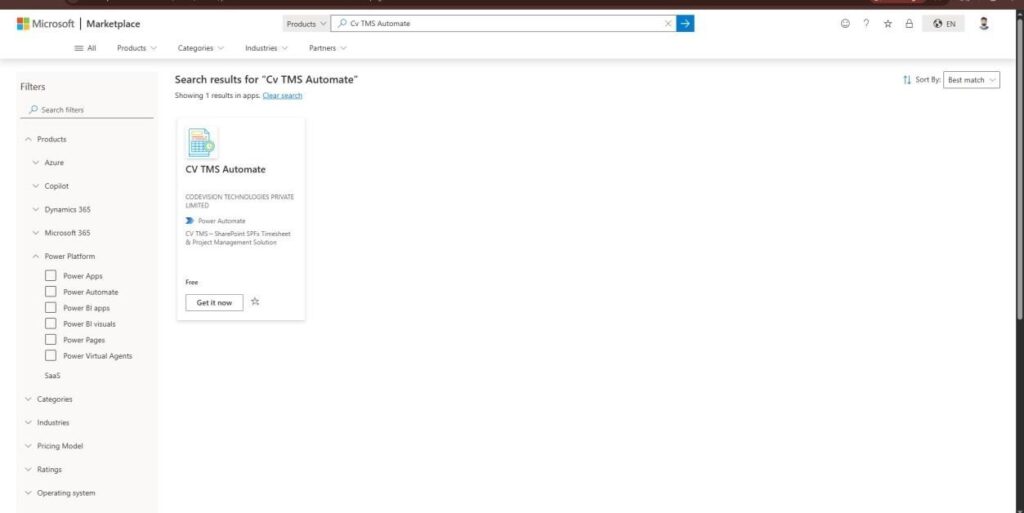
- Click Get it now.
- Select the appropriate environment.
- Accept the required terms/conditions and click Install.
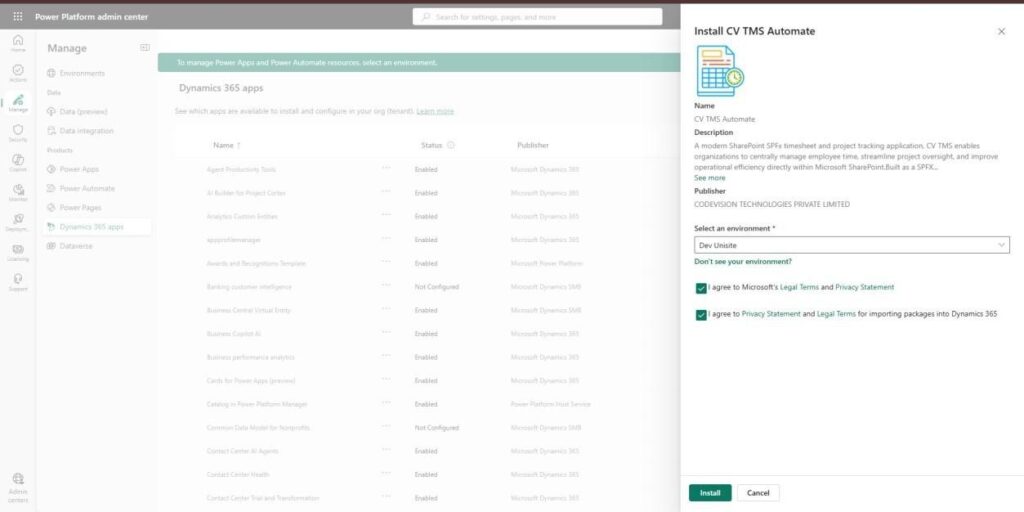
- Wait for the installation to complete.
Step 2: Set Up the Solution and Environment Variables
- Open Power Automate.
https://make.powerautomate.com
- Select the same environment where CV TMS Automate was installed.
- From the left navigation menu, select Solutions.
- Locate and open the CV TMS solution.
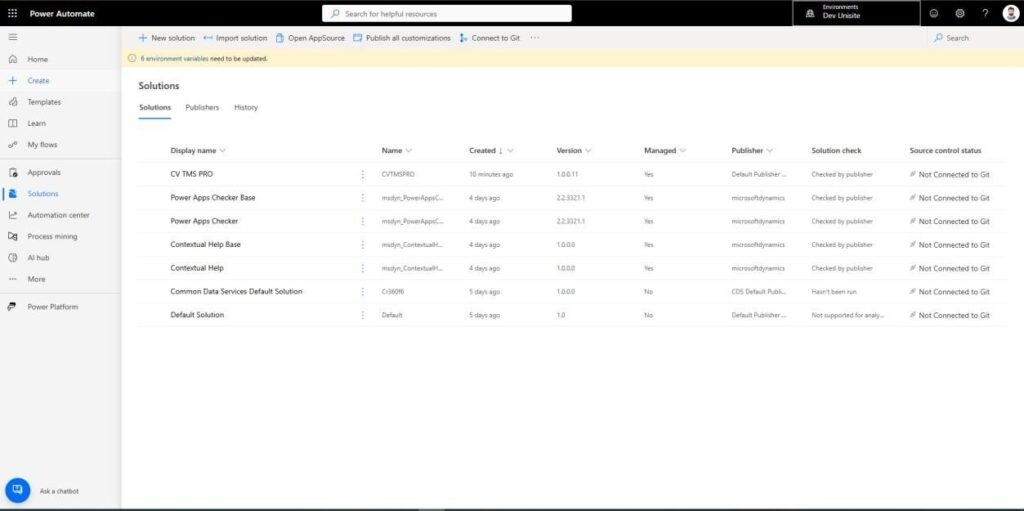
- Select Update Environment Variable.
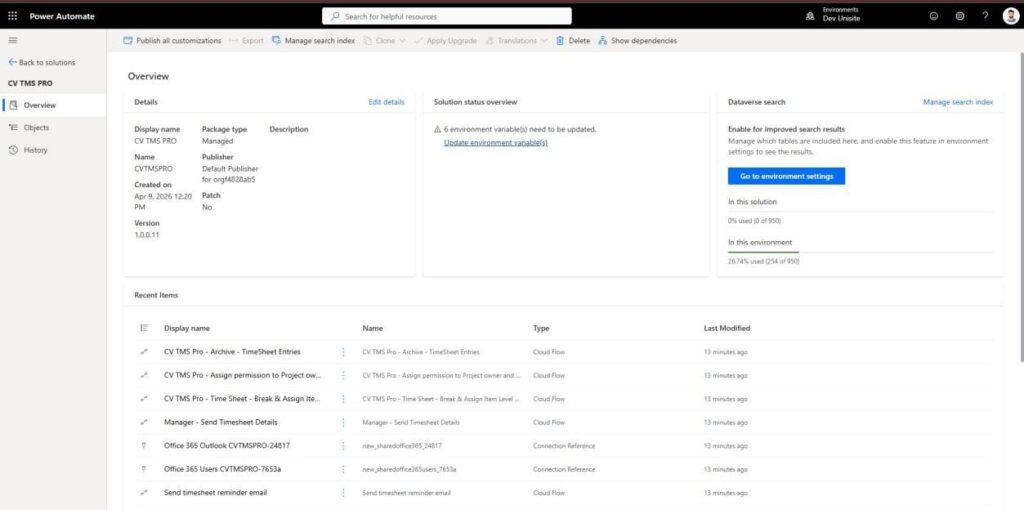
- Configure the required connections:
- SharePoint
- Outlook (Office 365)
- Sign in and authorize the required connections.
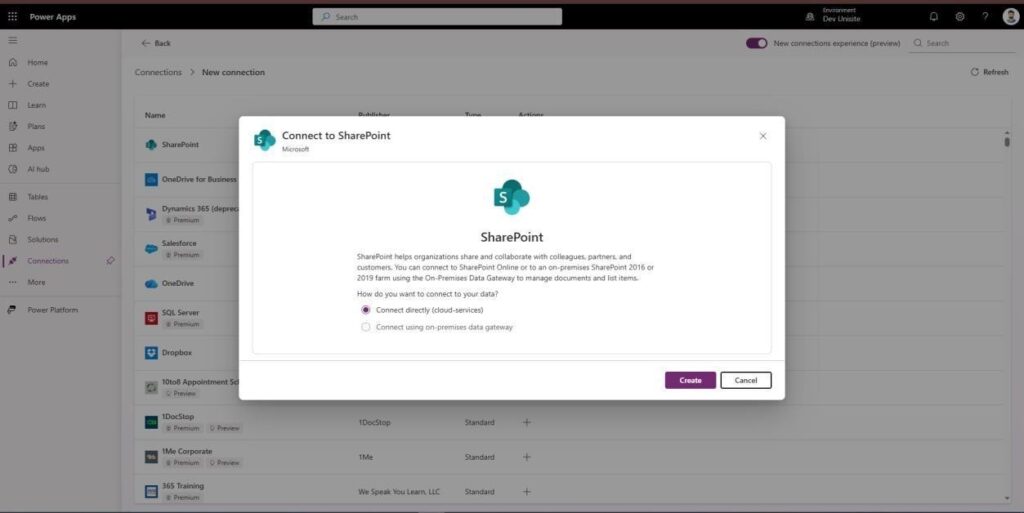
- Configure the environment variables by selecting the appropriate values from the available dropdowns.
- Click Save and Close.
Step 3: Enable the Flows
- Open the CV TMS solution in Power Automate.
- Navigate to Cloud Flows.
- Open each required flow.
- Click Turn On.
- Confirm that all required flows are enabled successfully.
- Verify the configured schedule.
- Test the notification functionality.
- The configured flows will run according to their scheduled time and enable CV TMS
8. Part 5 — Upgrade the CV TMS SharePoint App
- When a new version of CV TMS is available, follow the steps below to upgrade the SharePoint app.
Step 1: Open the App Catalog
- Open the tenant or site-collection App Catalog using one of the following URLs:
- Tenant App Catalog:
- https://[yourtenant].sharepoint.com/sites/appcatalog/_layouts/15/tenantAppCatalog.aspx/manageApps
- Site Collection App Catalog:
- https://[yourtenant].sharepoint.com/sites/[yoursitecollection]/AppCatalog/Forms/AllItems.aspx
Step 2: Locate CV TMS
- Switch to Classic Experience if it is not already enabled.
- Search for “CV TMS”.
- Select CV TMS from the app grid.
- Click Files from the top menu.

Step 3: Upgrade the App
- Select Upgrade Store App from the App menu.
- If an updated version is available, the upgrade option will be enabled.
- Click Upgrade Store App.
- Wait for the upgrade process to complete.
Step 4: Review Permissions and Deploy
- Once the upgrade is complete, the Deploy option will become available.
- Review any pending API permission requests.
- If additional permissions require approval, follow Part 1 → Step 2: Grant API Access.
- Click Deploy.
- Wait for the deployment process to complete.
Step 5: Verify the Upgrade
- Navigate to the SharePoint page where the CV TMS web part is installed.
- Open the page.
- Verify that the upgraded CV TMS features are working correctly.
9. Support
- For technical assistance, licensing requests, subscription questions, or other CV TMS-related queries, contact Codevision Technologies through the available support channels:
- Email: support@thecodevision.com
- Website: Codevision Technologies
- Microsoft Marketplace: Search for CV TMS on Microsoft Marketplace and use the Contact Publisher option.