


CV Classified Installation Guide
Overview
CV Classified Pro is a SharePoint-based classifieds and internal marketplace solution that helps organizations enable employees to post, browse, and manage classified listings — items for sale, services, requests, recommendations, and community announcements — through a centralized, moderated experience built natively on Microsoft 365.
This guide walks through the installation tracks required for a complete deployment:
- SharePoint App Deployment — adding the CV Classified Pro web part to your tenant and target site.
- Web Part Configuration — placing and configuring the CV Classified Pro experience on a SharePoint page.
- License Activation — applying the license issued by Codevision Technologies to unlock all Pro features.
Prerequisites
Before starting the deployment, confirm the following are in place:
- SharePoint environment: Microsoft 365 tenant with SharePoint Online and App Catalog enabled.
- App Catalog site: A tenant-level or site-collection App Catalog must be created and accessible.
- Admin access: Global Administrator or SharePoint Administrator rights are required for tenant-level deployment and for approving API permissions.
- Target site: A modern SharePoint site (communication or team site) designated to host the classifieds and marketplace experience.
- License key: A valid CV Classified Pro license key issued by Codevision Technologies for production use.
Access CV Classified Pro on Microsoft AppSource
Before starting the deployment, you can directly access the solution from Microsoft
Marketplace: https://marketplace.microsoft.com/en-us/product/WA200005834
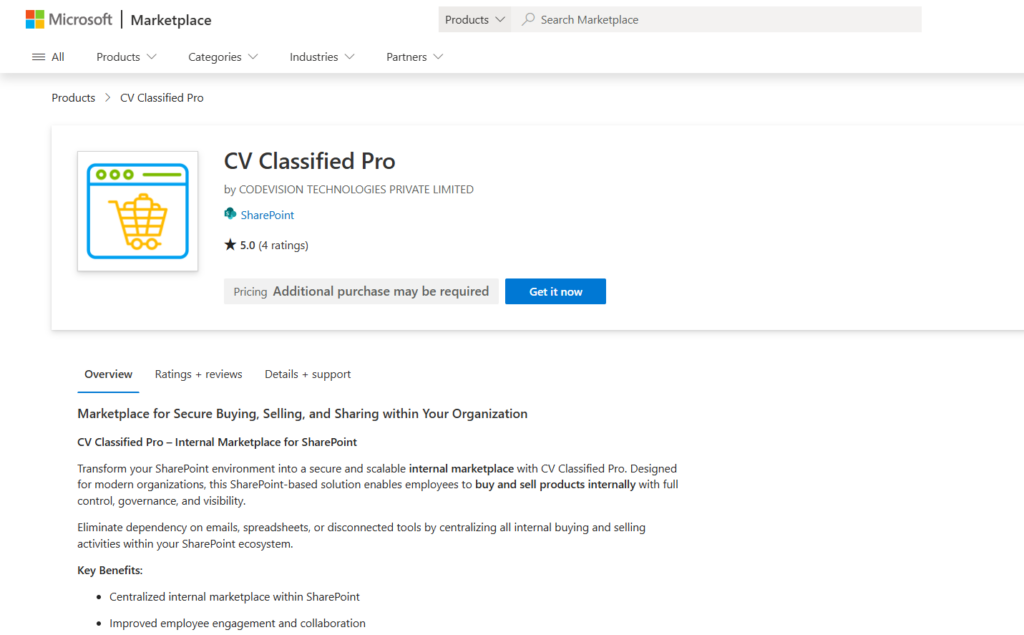
From here, click “Get it now” to initiate the app acquisition process.
Part 1 — Deploy the CV Classified Pro SharePoint App
Follow these steps in order. Each step assumes the previous step completed successfully.
Step 1: Deploy the Solution (Admin)
- Open the tenant or site-collection App Catalog using one of the following URLs:
or
- Click the settings (gear) icon in the top-right corner and choose Add an app.
- In the search bar, type “CV Classified Pro” and locate the app under the SharePoint Store section.
- Select CV Classified Pro and click Add to Apps site.
- In the deployment dialog, choose either “Only enable this app” (to add it to specific sites later) or “Enable this app and add it to all sites”, then click Add.
- A banner will appear requesting additional API permission approval. Proceed to Step 2 to grant these permissions.
Step 2: Grant API Access
CV Classified Pro requires delegated Microsoft Graph permissions to read user profiles, manage classified listings stored in SharePoint lists, and dispatch notification emails for new posts, approvals, and replies.
- Open the SharePoint Admin Center: https://yourtenant-admin.sharepoint.com
- From the left menu, navigate to Advanced → API access.
- Under Pending requests, locate the following permission requests submitted by CV Classified Pro:
- Send
- Read
- Select permission and click Approve. Approval can take a few minutes to propagate across the tenant.
Step 3: Add the App to a SharePoint Site
Note: Skip this step if you selected “Enable this app and add it to all sites” in the previous step.
- Navigate to the target SharePoint site collection (for example, your intranet, employee hub, or community site).
- Open Site Contents from the site settings menu.
- Click + New → App in the top ribbon.
- Under Apps You Can Add, select CV Classified Pro and click Add.
Part 2 — Configure the CV Classified Pro Web Part
Once the app is installed, add the web part to a SharePoint page so employees and administrators can post, browse, and moderate classified listings from a single experience.
Step 1: Create the Classifieds Page
- From the target site, go to Site Contents → New → Page.
- Select a blank page template and give it a clear title such as “Classifieds”, “Employee Marketplace”, or “Community Board”.
- Add a full-width section (recommended) so the listing grid, category filters, and post form render with adequate horizontal space.
- Optionally pin this page to the site’s top navigation so users can access classifieds directly from the site header.
Step 2: Add the Web Part
- Click the + icon inside the section to open the web-part picker.
- Search for “CV Classified Pro” and select the result. Wait a few seconds for the web part to initialize.
Step 3: Add Configuration Setup from settings
- Click settings tab from navigation menu.
- Configure the following on first use:
- General settings – Expire listings, terms of use, upload image mandatory or not, form fields, header customization, tab taxonomy, quick actions.
- Approval settings – Manage admin users, inventory feature enable, post approval notifications with email template customize
- Meta data settings – Manage currency, category, country, city, state
Step 4: Test and Publish
- Click Publish in the top-right of the page to make it available to all users.
- Optionally add the page to the site’s top navigation and any hub navigation for easy discovery across your SharePoint environment.
Part 3 — Activate the CV Classified Pro License
To unlock the full feature set of CV Classified Pro and remove trial limitations, activate the license issued by Codevision Technologies. Licenses are tenant-bound and required for production use.
Step 1: Request a License from Codevision
- Go to License section under settings tab
- Click on license section & one dialog box (Activate license) open.
- Copy the Tenant Id & Portal URL displayed on activate dialog box
- Share above copied text to Codevision Technologies via email at sales@codevisiontechnologies.com
Step 2: Receive Your License Key
- Once the email sent, Codevision will share a license key (or license file) tied to your tenant via email.
- The email will include the issued plan, valid-from date, expiry date.
- Store the key securely. It is required during activation.
Step 3: Open License Configuration
- Navigate to the SharePoint page where CV Classified Pro is deployed.
- Click the Settings tab in the web part.
- Open the License Activation The current license status is displayed (Trial / Active / Expired).
Step 4: Apply the License Key
- Paste the license key provided by Codevision under renew license.
- Click activate license button.
Step 5: Confirm Activation
- Once activated the license you will notify with one success message & now license will be upgraded.
- You can use now all features without any interruption & You can also check your license expire date from license section.
Step 6: Renew or Upgrade the License
- The License Activation section shows the days remaining until expiry.
- To renew or upgrade, contact Codevision Technologies, receive a new license key, and apply it through Step 4. No reinstallation is required.
Support
For technical assistance, license requests, or questions about pricing, contact Codevision Technologies Private Limited through one of the following channels:
- Email: support@codevisiontechnologies.com
- Web: https://thecodevision.com/
- AppSource listing: search for “CV Classified Pro” on Microsoft AppSource and use the Contact Publisher link.