


1. Introduction
- CV TMS is a SharePoint-based Timesheet Management System that helps organizations track employee work hours across different projects.
- The system allows employees to log their daily work activities while enabling managers and administrators to monitor project progress and time utilization.
- CV TMS provides a centralized platform where teams can manage projects, track logged hours, and generate reports efficiently.
2. User Roles
- The system supports five user roles.
- Admin (Full control) (Manage System controls)
- Project Coordinator (Can access all employee logs)
- Project Management User (Can manage project and task category details)
- Manager (Track/manage assigned employee logs)
- Normal User (Maintain own logs)
Timesheet Visibility by Role
Different roles can view different sets of timesheet records.
| Role | Visibility |
| Admin | Can view timesheets of all users |
| Project Coordinator | Can view timesheets of all employees |
| Project Management User | Can manage project and task category details |
| Manager | Can view timesheets of assigned employees |
| Normal User | Can view only their own timesheets |
2.1 Admin
- Admin users have full control over the system and can manage all modules and configurations.
- Admin users can:
- Manage projects
- Manage task categories
- Manage holidays
- View all employee timesheets
- Configure system settings
- Export system data
2.2 Project Coordinator
- Project Coordinators are responsible for monitoring employee work logs across projects.
- They Can
- View dashboard data
- View all employee timesheets
- Add and manage their own timesheets
- Export timesheet dataThey can:
2.3 Project Management User
- Project Management Users are responsible for managing project details and task categories to ensure accurate project tracking
They Can:
- Manage project details
- Create and update task categories
- Organize project and task information
- Maintain project records within the system
2.4 Manager
- Managers can monitor the work logs of employees assigned to their projects.
- Manager Can:
- View dashboard data
- View timesheets of assigned employees
- Add and manage their own timesheets
- Export timesheet data
2.5 Normal User (Employee)
- Normal users primarily use the system to record their daily work hours. They can:
- Access the dashboard
- Add timesheets
- Edit their own timesheets
- Delete their own timesheets
- Export their timesheet data
3. Navigation for Non-Admin
- The navigation menu for project coordinators, managers, and normal users contains the following modules:
- Dashboard
- Timesheet
4. Dashboard for Non-Admin
- The Dashboard provides a quick overview of timesheet records and allows users to search and filter their work logs.

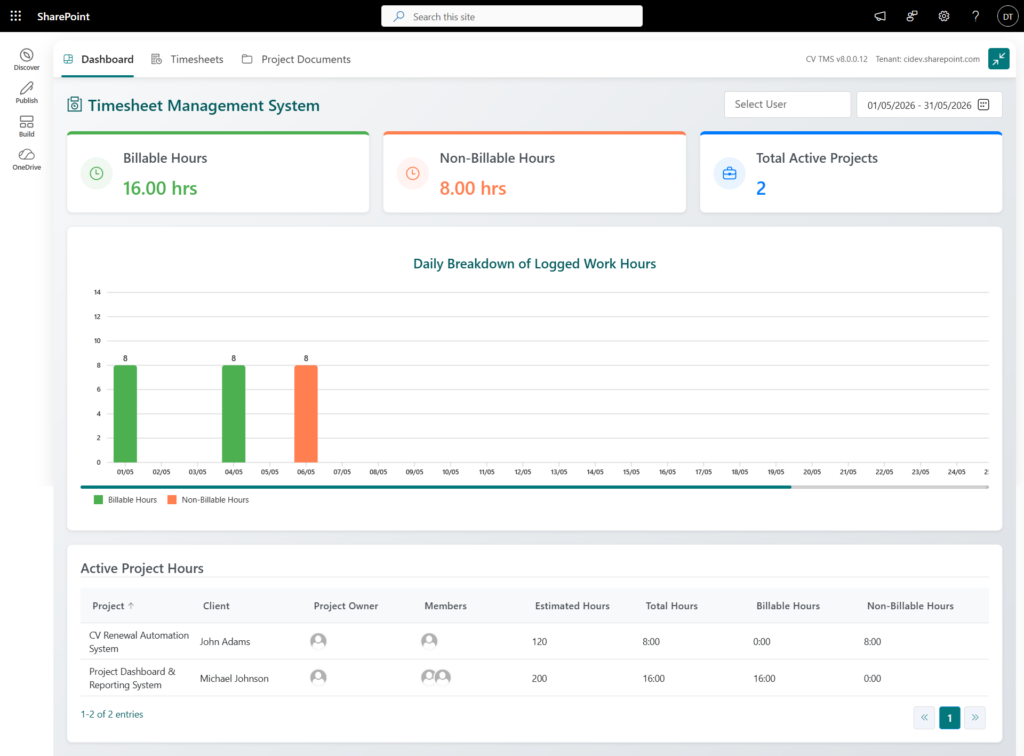
4.1 Dashboard Filter
- User can filter timesheet records directly from the dashboard using different date range selection.
4.2 Summary Cards
- The dashboard displays key information through summary cards:
- Billable Hours – Total hours logged for billable
- Non-Billable Hours – Total hours logged for internal or non-billable
- Total Active Projects – Number of active projects in the
4.3 Work Hours Chart
- A daily breakdown of logged work hours chart displays employee logged hours as categorized by billable and non-billable per day. This helps Admin to quickly understand work trends and project activity.
4.4 Active Projects
- The ActiveProjects table provides a quick summary of projects, including project name, client, members, total hours, billable hours, and non-billable hours.
5. Timesheet Management
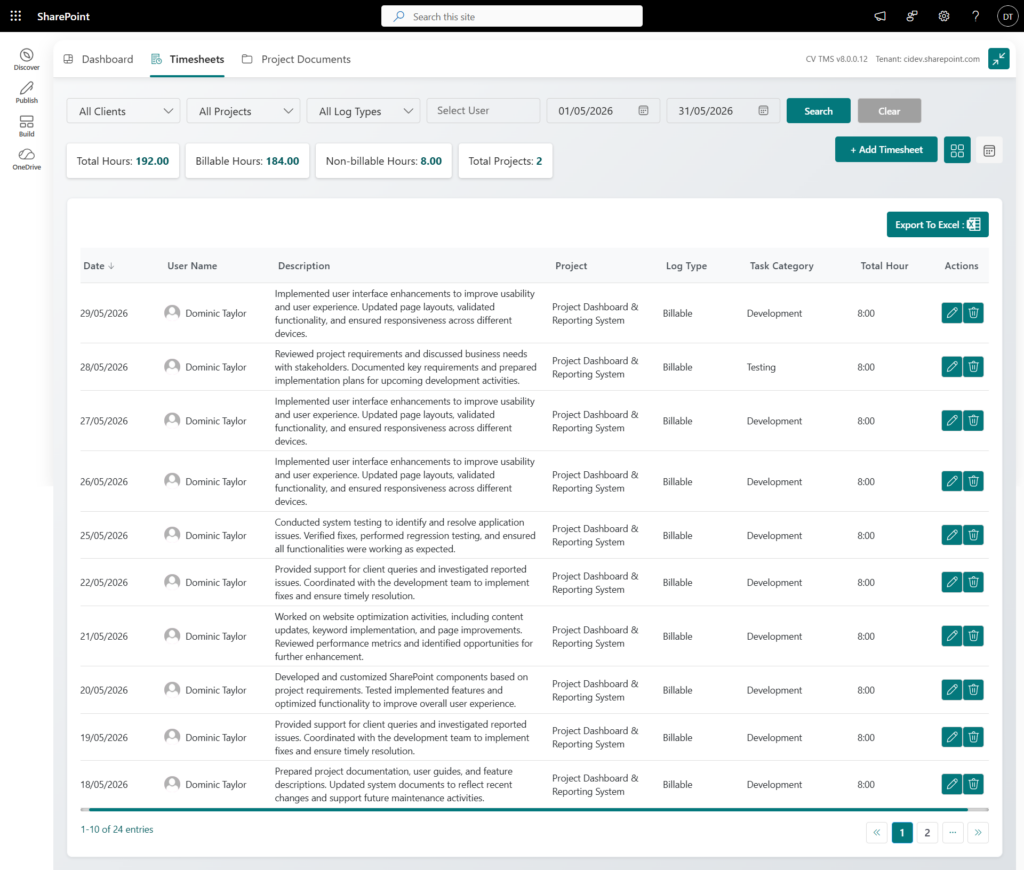
- The Timesheet module allows users to record their daily work activities. Each timesheet entry represents the time spent on a specific project task.

- Users can create, edit, or delete their own timesheet entries.
5.1 Timesheet Filters
- The Timesheet page provides filtering options that allow users to quickly locate specific records. Users can filter timesheets based on Client, Project, Log Type, User Name, and Date Range.
- The behaviour of the User Name filter depends on the role as below:
- Admin can search timesheets for any
- Project Coordinators can view logs of all
- Managers can view logs of employees assigned to them through
- Normal Users can view only their own timesheet
Export Feature:
- All users can export timesheet records using the Export to Excel
- The exported file contains the data currently displayed based on the selected
- This allows users to generate reports for a specific date range, project, or client.
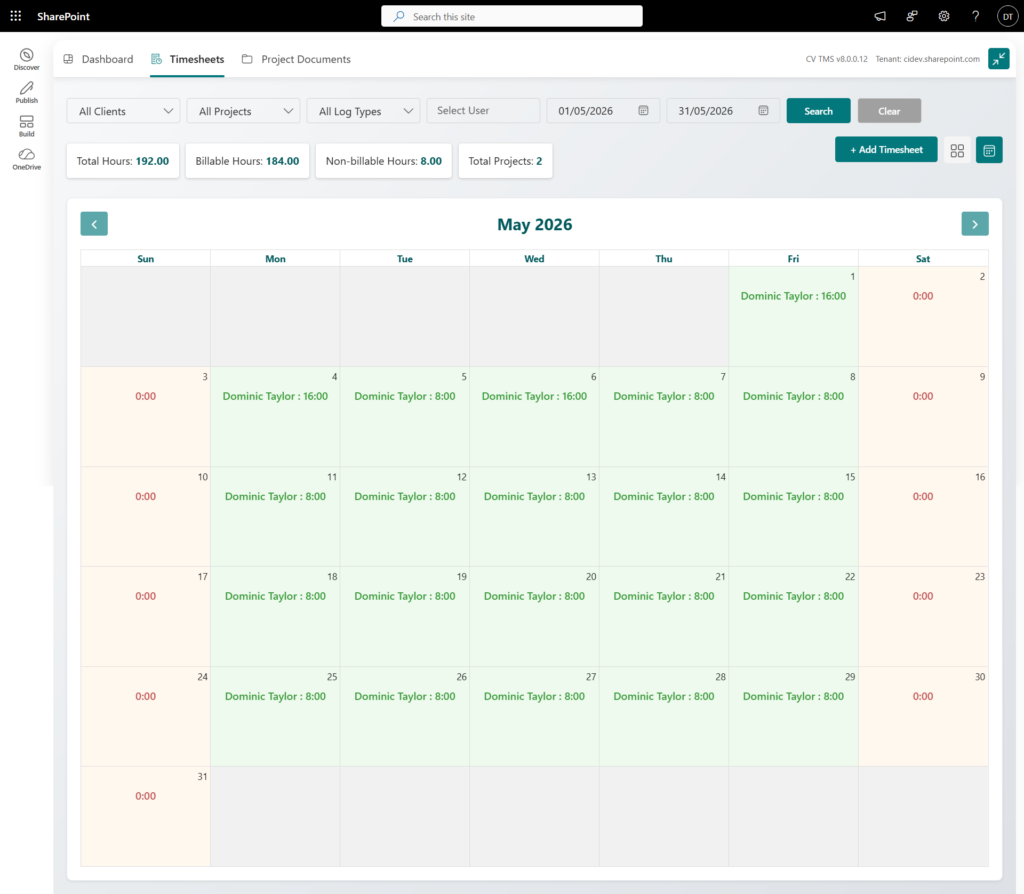
- There are 2 views of Timesheet that are Grid View and Calendar View

5.2 Adding a Timesheet
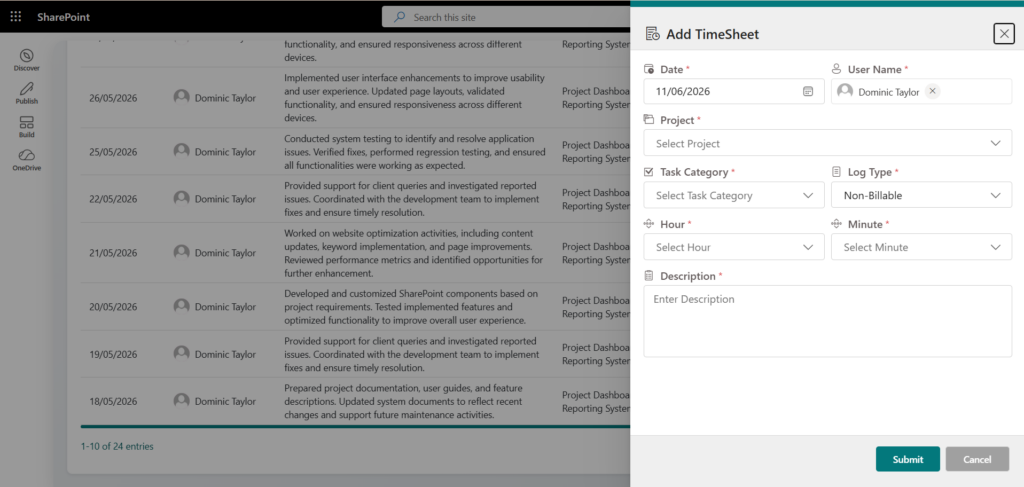
- Log your work hours against a project by filling in the required details and submitting a new timesheet entry.

- Users can create a new timesheet by clicking the “+ Add Timesheet” button, which opens a form panel to enter the required work details. The system ensures that users can only log time for projects where they are assigned as a project member.
- Once submitted, the timesheet appears in the Timesheet table, where users can view all their entries. Each record can be Updated by Edit action or removed by Delete action
- Note: A user must be assigned to a manager in Microsoft 365 Admin Center. If a manager is not assigned to the user, the system will not allow the user to add a timesheet entry.
- Refer below steps to check manager is assigned or not to user in Microsoft 365 Admin Center.
- Go to: https://admin.microsoft.com
- Go to Users → Active users
- Select the user
- Check Manager is provided or not under Account section
6. Admin Navigation
- Admin users have full access to the system and can manage all available modules. The Admin navigation menu includes the following modules:
- Dashboard
- Timesheet
- Projects
- Task Categories
- Holidays
- Settings
7. Dashboard ( Admin)
- Admin Dashboard provides administrators with a comprehensive overview of timesheet and project activities across the organization. Key features include:
- Quick Overview of Work Hours and Active project– View total Billable and Non-Billable hours logged by View Total Active Projects Count
- Filters for Data Analysis – Admins can filter dashboard data by user & different date range selection.
- Daily Work Hours Chart – Visualize work trends with a chart showing billable and non-billable hours per day, helping track productivity and project
- Active Projects Table – Provides a concise summary of all active projects, including project name, client, assigned members, total hours, billable hours, and non-billable hours, making it easy to track performance briefly.
- This layout allows admins to quickly monitor organizational productivity, project activity, and employee time utilization from a single view.
8. Timesheet (Admin)
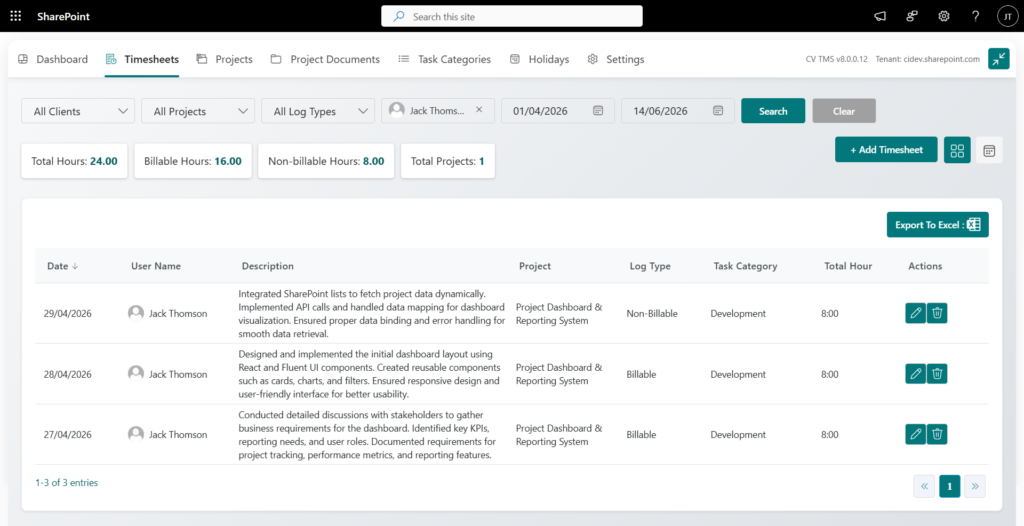
- Admins have full visibility into all timesheet entries across users, projects, and billing types from a single management view.

- Timesheet module allows Admin to view and manage all timesheet entries in the system.
- Admins can:
- View timesheets for all users
- Add new timesheet entries
- Edit or delete existing entries
- Export timesheet data
9. Project Management ( Admin & Project Management Users )
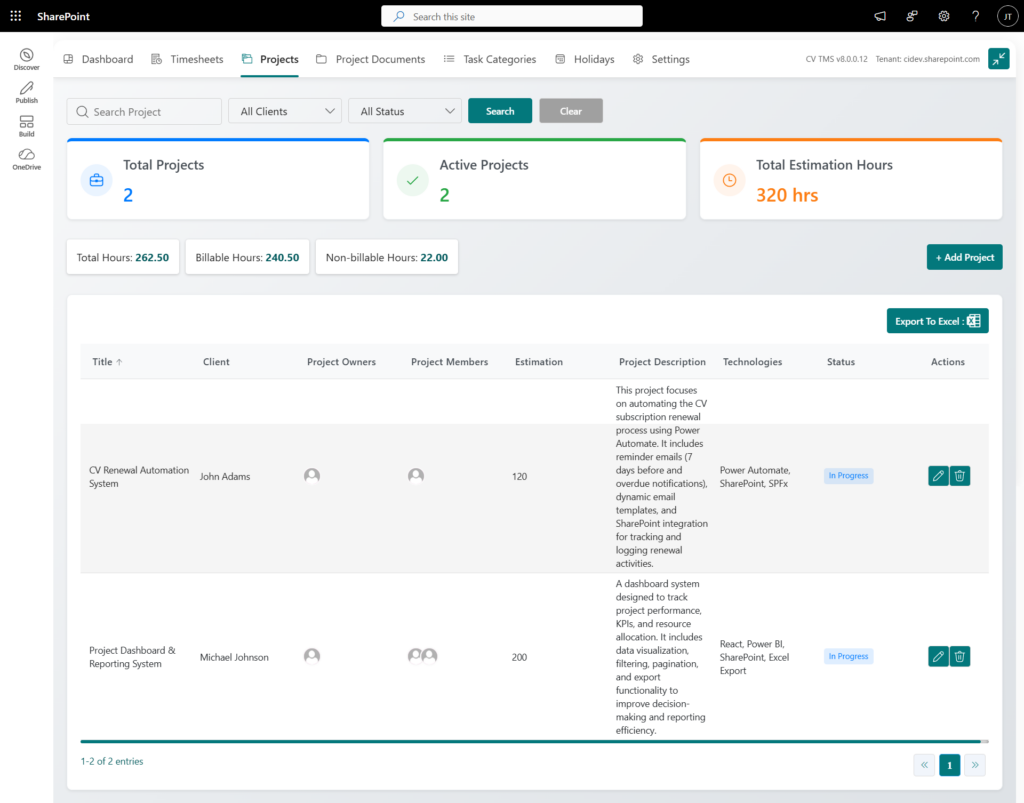
- Admins can create and manage projects, assign team members, and track estimation hours all from one centralized module.

- Project Management module allows administrators to create and manage projects within the system.
- Projects help organize timesheet entries and assign work to employees.
- Only Admin users can access this module.
9.1 Creating a Project
- Set up a new project by defining its details, assigning owners and members, and linking it to a client so employees can start logging time.
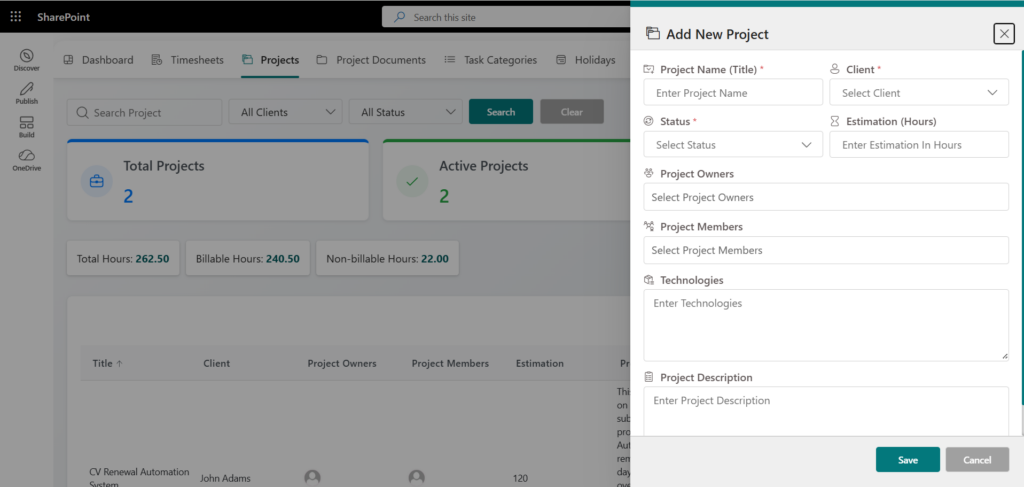
- To create a project, admins first click on the “Add Project” button to open the project form. They must provide key details including the project name, client, status, estimated hours, project owners, project members, technologies used, and a project description.
- Projects define which employees can log time, and only those assigned as project members will be able to select the project in their timesheets.
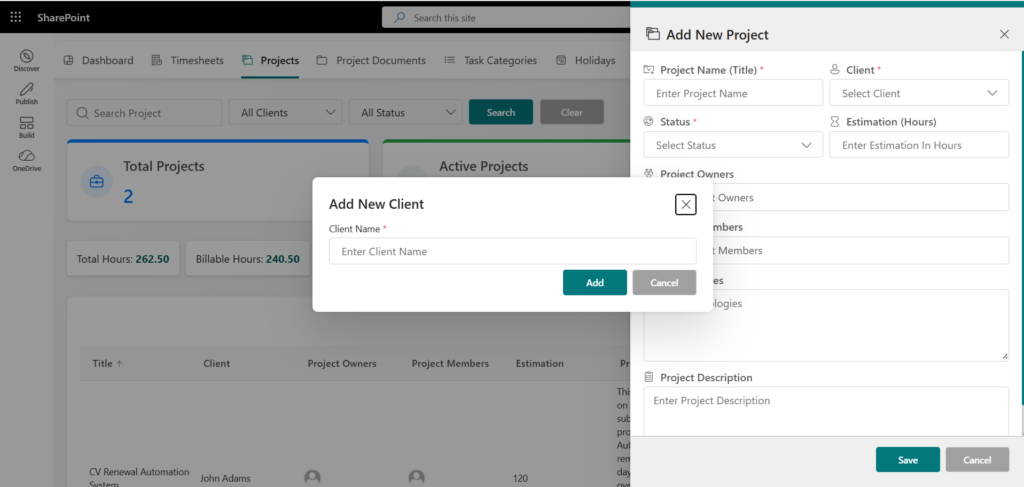
- Admins can also add a new client directly from the project form, allowing them to manage clients seamlessly while setting up or updating projects.
9.2 Project Status Options
- Each project can be assigned a status.
- Available project statuses include:
- In Progress
- Completed
- On Hold
- Cancelled
- These statuses help track the current progress of the project.
9.3 Project Members
- Projects allow assigning multiple users.
- The following fields support multiple user selection:
- Project Owners
- Project Members
- Users listed as Project Members will be able to select the project when adding timesheets.
- Managers assigned through projects will be able to monitor the logs of those employees.
10. Task Categories ( Admin & Project Management Users )
- Task Categories are used to classify the type of work performed in timesheets. When logging time, users must select the appropriate task category to ensure their work is accurately recorded and categorized.
- Task categories are created and managed by Admin users, allowing the organization to define standard work types such as Development, Testing, Documentation, Meetings, or Code Review. Using the correct category helps maintain consistency across timesheets and makes reporting and project analysis easier.
11. Holidays (Admin Only)
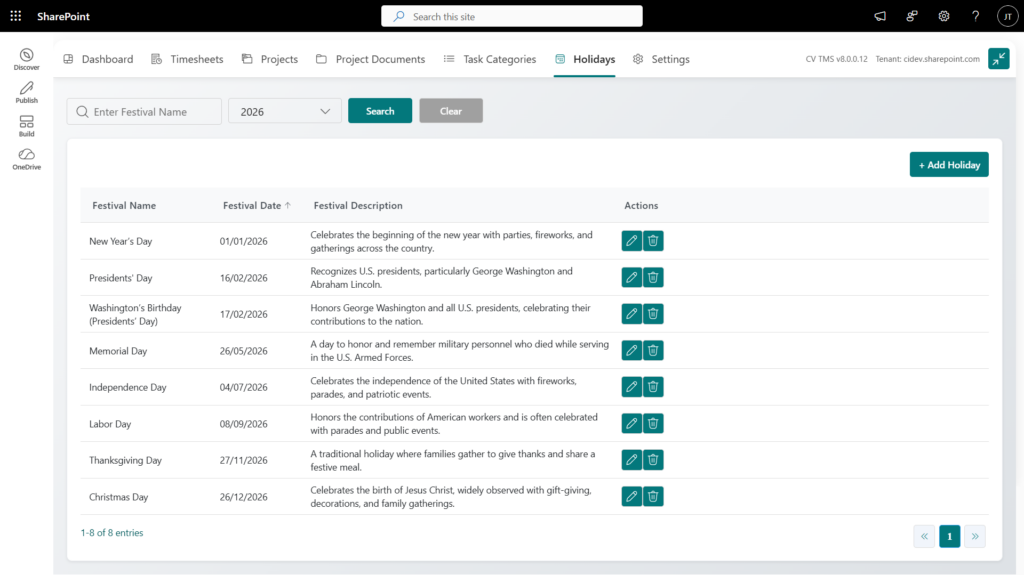
- Admins can maintain a company-wide holiday calendar by adding festival names, dates, and descriptions for organization-wide visibility.

- Holidays module allows to maintain a list of company holidays.
- This helps keep a record of important dates within the organization.
- Each holiday record includes key details such as the Festival Name, the Date of the holiday, and a Description providing brief information about the occasion
- Admin users can:
- Add Holiday
- Edit Holiday
- Delete Holiday
12. Settings (Admin Only)
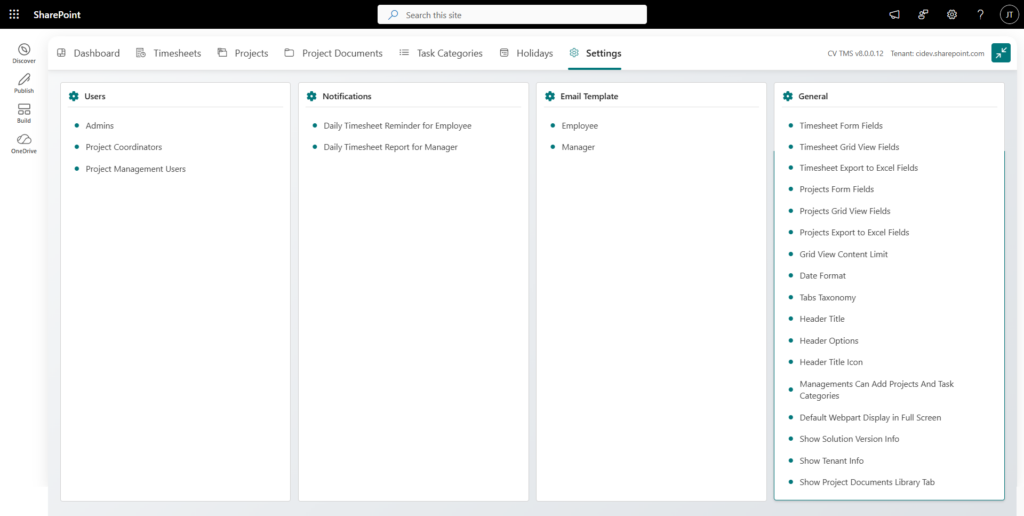
- Admins can configure system-wide behaviour including user roles, notifications, email templates, and general settings from one central panel.

- Settings module allows Admin users to configure system behaviour.
- The module contains the following sections:
- Users
- Notifications
- Email Templates
- General Settings
12.1 Users
- Admins can manage user access groups:
- Admins
- Project Coordinators
- Project Management User
- Users can be added to these groups to assign permissions.
12.2 Notifications
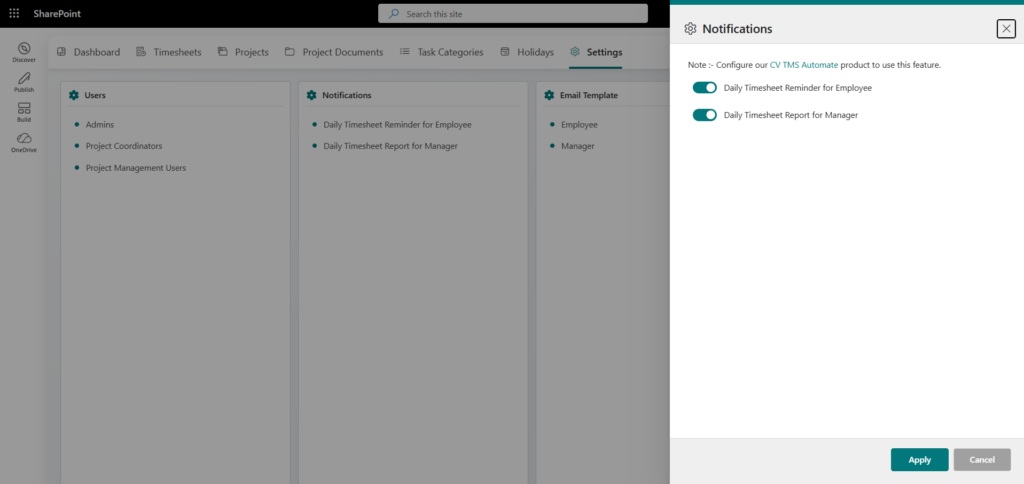
- Admins can enable automated daily reminder emails to keep employees and managers on top of their timesheet submissions.

- Notification settings allow Admins to configure reminder emails. Available notifications include:
- Daily timesheet reminder for employees
- Daily timesheet reminder for managers
- Note: The Notifications feature is enabled through a Microsoft Power Automate solution separately from Marketplace. Contact us for more info.
12.3 Email Templates
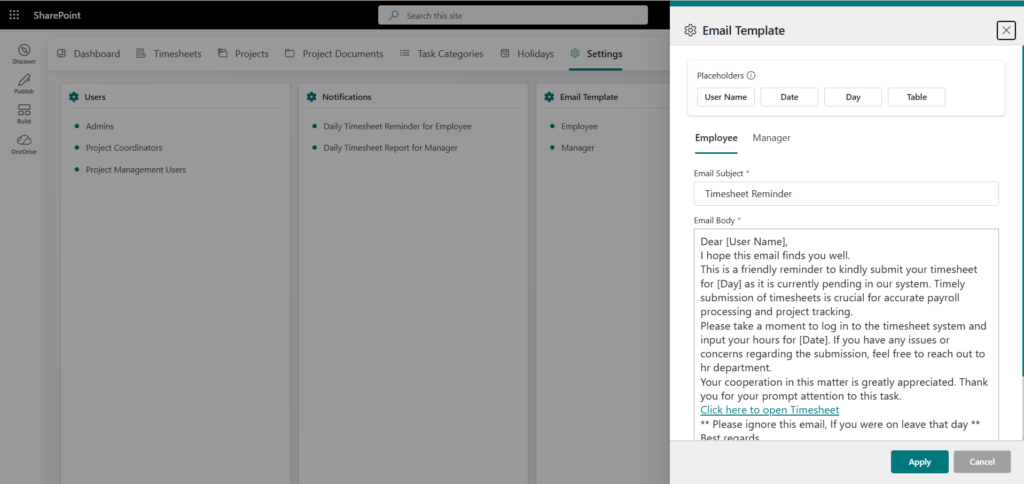
- Admins can customize the email body and subject for timesheet reminder notifications sent to both employees and managers.
- Admins can configure email templates used for timesheet reminders. Templates are available for:
- Employee notifications
- Manager notifications
12.4 General Settings
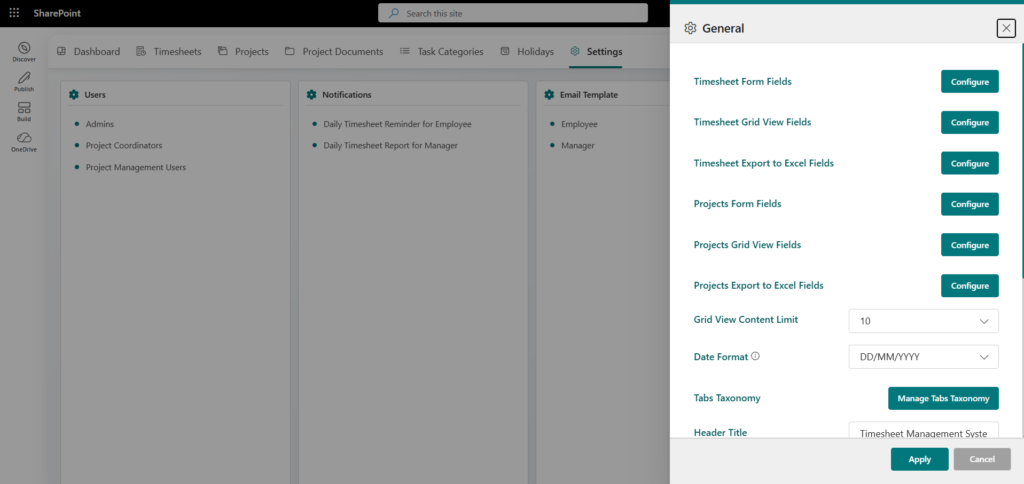
- The General Settings section allows administrators to configure timesheet fields, project fields, application branding, display preferences, and system-level options.
- General settings allow administrators to configure system fields and layout.
- Timesheet Form Fields
- Configure the fields visibility & mandatory when users create or edit timesheet entries.
- Timesheet Grid View Fields
- Control which columns are displayed in the Timesheet Grid View.
- Timesheet Export to Excel Fields
- Select the fields that will be included when exporting timesheet records to Excel.
- Projects Form Fields
- Configure the fields visibility & mandatory when creating or updating project records.
- Projects Grid View Fields
- Control which columns are displayed in the Projects Grid View.
- Projects Export to Excel Fields
- Select the fields that will be included when exporting project records to Excel.
- Grid View Content Limit
- Define the number of records displayed per page in grid views throughout the application.
- Date Format
- Select the preferred date format used across forms, grids, and reports.
- Tabs Taxonomy
- Customize navigation tab names to match your organization’s terminology and processes.
- Header Title
- Define the title displayed in the application header.
- Header Options
- Select how the application title is displayed within the header section.
- Header Title Icon
- Upload or configure the icon displayed alongside the application title.
- Managements Can Add Projects And Task Categories
- Enable this option to allow Management users to create and manage projects and task categories.
- Default Webpart Display in Full Screen
- Enable this option to display the application in full-screen mode by default.
- Show Solution Version Info
- Enable this option to display the current solution version within the application.
- Show Tenant Info
- Enable this option to display SharePoint tenant information for administrative reference.
- Show Project Documents Library Tab
- Enable this option to display the Project Documents Library tab within the application navigation.
13. System Limitations – Free Version
- The free version of CV TMS has usage caps on timesheets, projects, and task categories — upgrade to unlock full platform access.

- The Free Version of CV TMS includes limited functionality. The following restrictions apply:
- Maximum 200 timesheet entries
- Maximum 1 project
- Maximum 5 task categories
- If a user attempts to exceed these limits, the system will display a Premium Upgrade popup
- The free version provides limited functionality. To use the full feature of this solution, you need to activate or purchase subscription. Please Purchase Subscription click here to learn more about plans and options or to purchase a license.
